
Told about every booking, reminders that send themselves
Turn on reminders for your clients, and get an email about every new, moved or cancelled booking.
- 5 steps
- About 1 min
- Checked against NextiaBooking on October 28, 2026
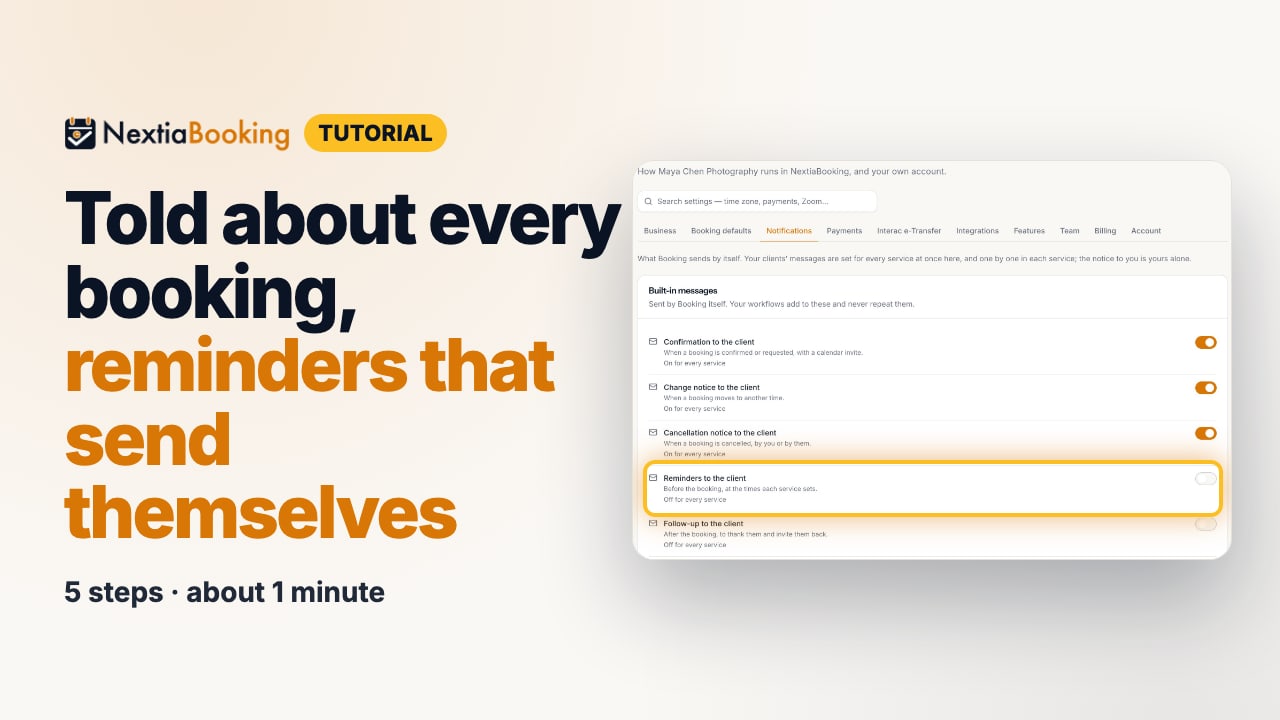
The video is on its way. The step-by-step and written versions are ready now.
- 1
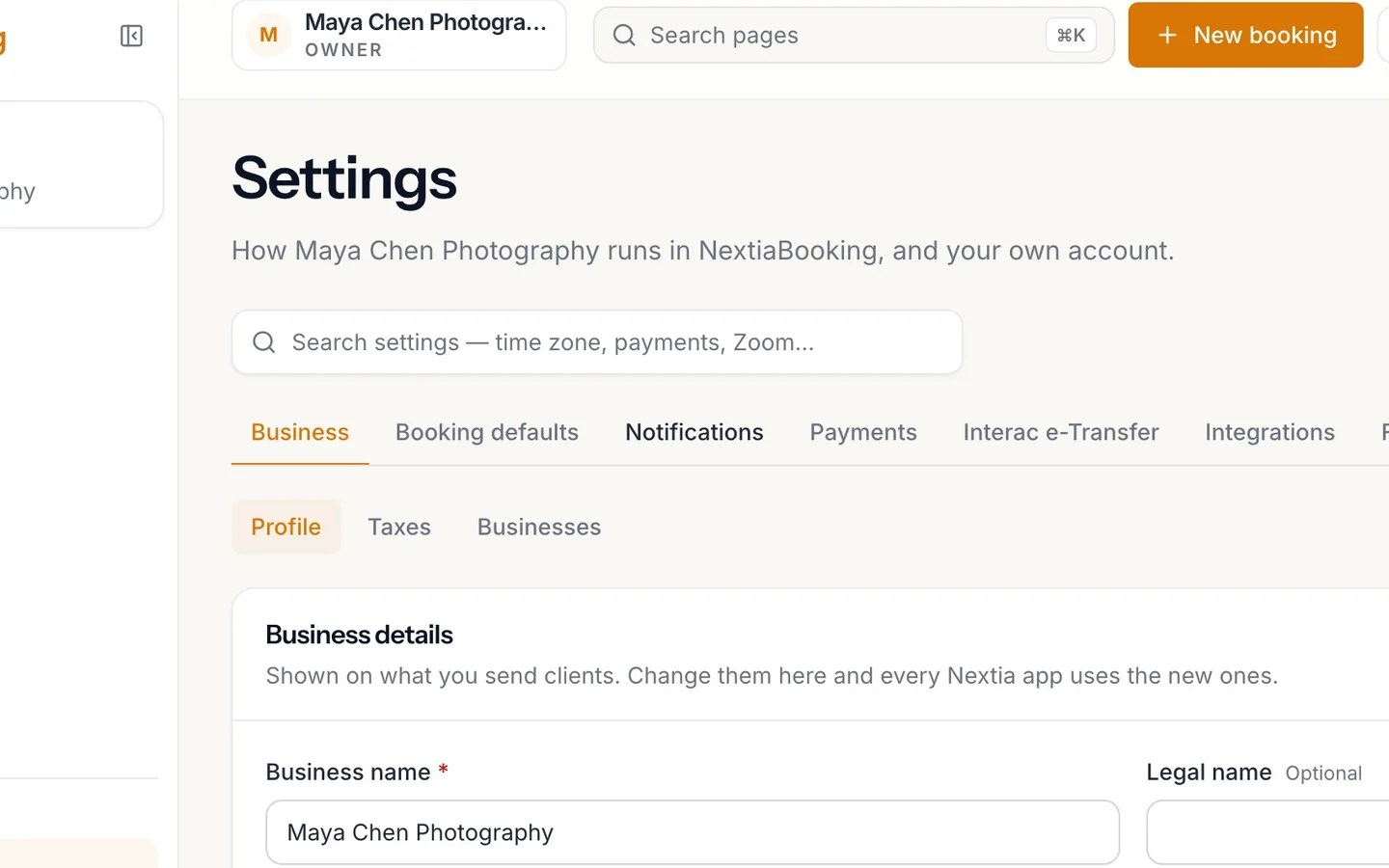
Open Settings, then Notifications.
- 2
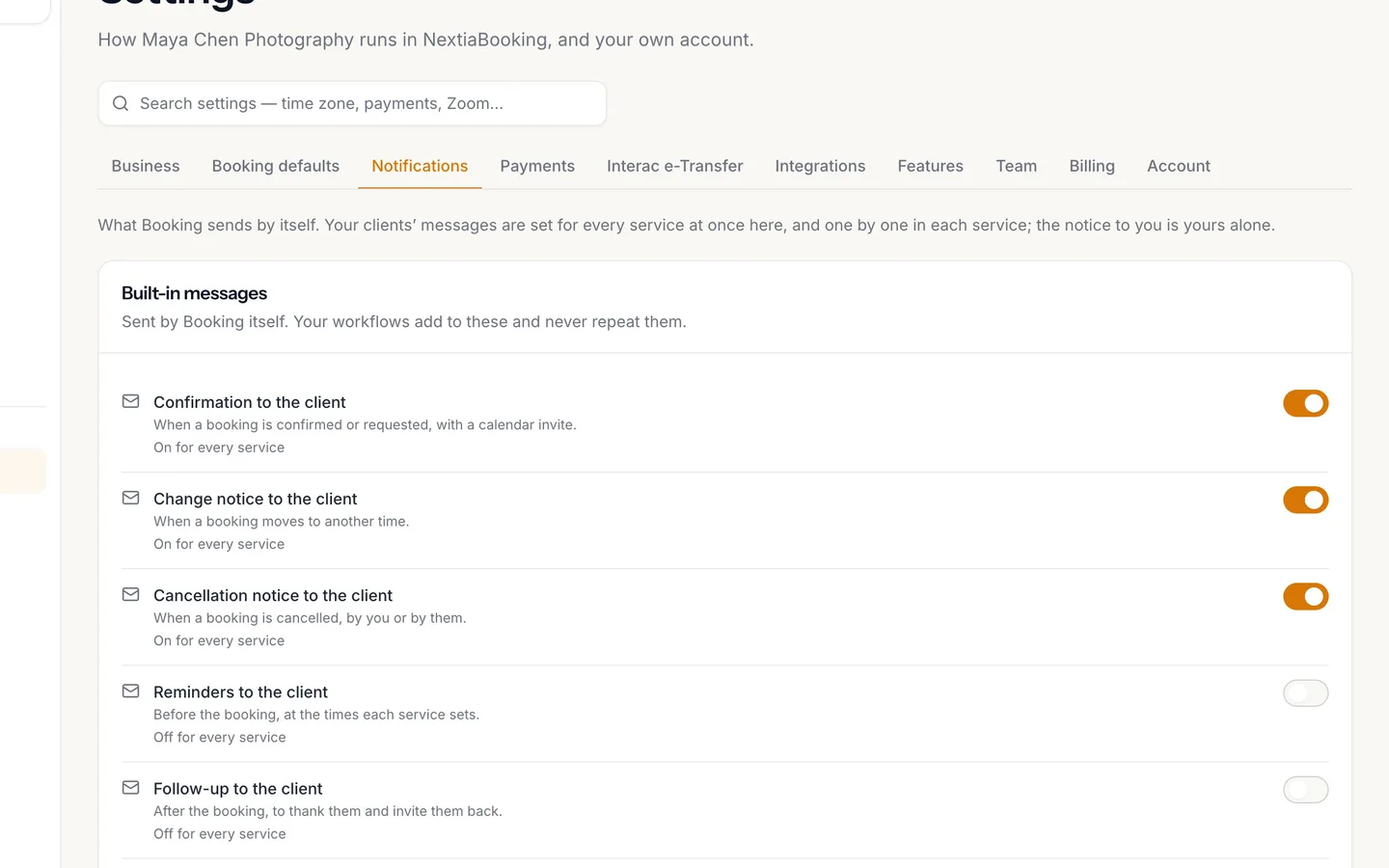
These messages are sent to your clients for you.
A confirmation, a change notice and a cancellation notice, for every service.
- 3
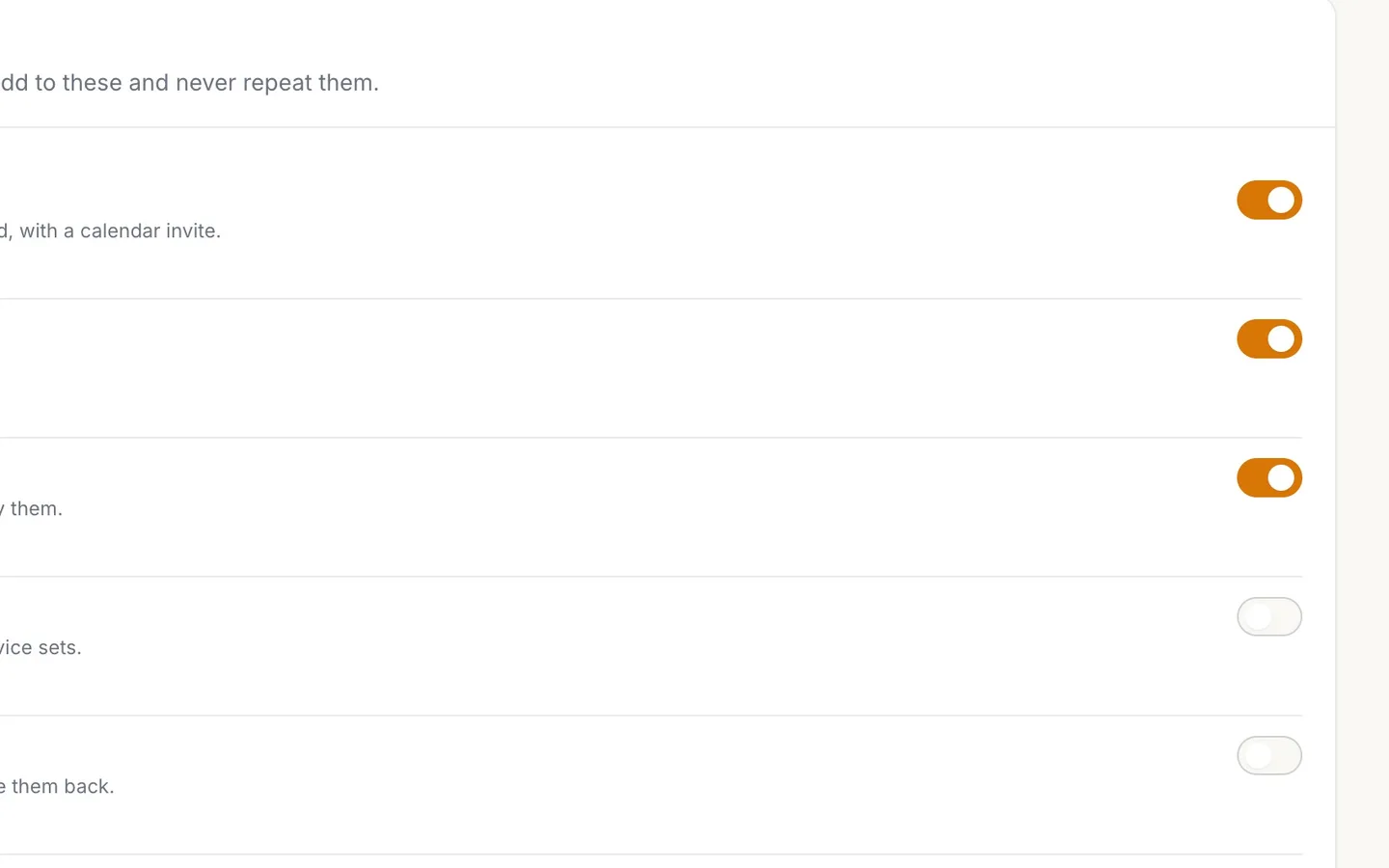
Turn on Reminders to the client.
Sent at the times each service sets: a day and two hours before, to start with.
- 4
Leave Email me about my bookings on.
New, moved and cancelled bookings with you.
- 5
Each new booking arrives in your inbox.
With the service, the time and the client.
Told about every booking, and reminders that send themselves
Turn on NextiaBooking's client reminders and follow-ups, and get an email about every new, moved or cancelled booking, from Settings, Notifications.
Before you start
This guide is for anyone who takes bookings in NextiaBooking and wants two things done for them: clients reminded before they come, and an email in their own inbox whenever a booking is made, moved or cancelled.
You need:
- At least one service. A client message is set on each service, so with no service there's nothing to send.
- Access to Settings in NextiaBooking.
The emails described here are sent by NextiaBooking itself. You don't need to build a workflow for any of them.
Step by step
-
Open Settings, then Notifications
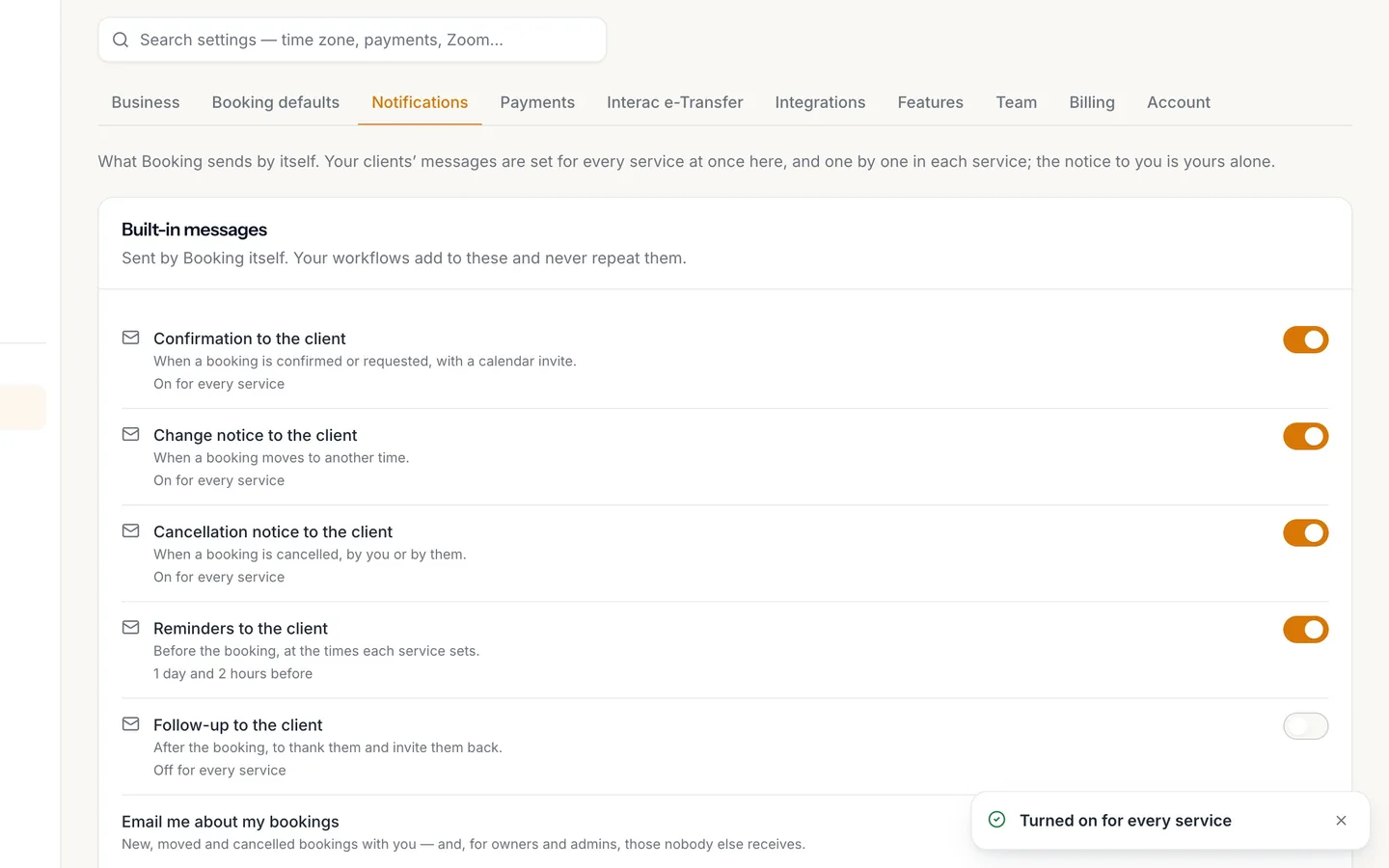
Select Settings in the sidebar, then the Notifications tab. The top of the tab explains what it holds: what Booking sends by itself. Your clients' messages are set here for every service at once, and one by one in each service. The notice to you is yours alone.
The first card is Built-in messages: sent by Booking itself. Your workflows add to these and never repeat them.
-
See what your clients already get
Each built-in message has a switch, and a line saying how many of your services send it: On for every service, Off for every service, or for example On for 2 of 3 services.
Three messages are on for every service from the start:
- Confirmation to the client: when a booking is confirmed or requested, with a calendar invite the client can add to their own calendar.
- Change notice to the client: when a booking moves to another time.
- Cancellation notice to the client: when a booking is cancelled, by you or by them.
Leave these on. They're how a client knows their booking went through, and that a change you made is real.
-
Turn on reminders to the client
Reminders to the client are sent before the booking, at the times each service sets. Turn its switch on, and NextiaBooking turns it on for every service at once: a message confirms Turned on for every service.
A service that had no reminder times starts with two: one 1 day before and one 2 hours before. A service that already had its own times keeps them. Under the switch, the times are listed, such as 1 day and 2 hours before.
A few rules worth knowing:
- Each service can have up to four reminders, from 1 minute to 60 days before the booking.
- A reminder whose time has already passed when the client books isn't sent. If someone books at 3 p.m. for 4 p.m. the same day, the 1-day and 2-hour reminders are skipped; the confirmation does the job.
- A reminder is cancelled with its booking, so a client who cancelled isn't reminded.
To change a service's times or wording, open it in Services: Times and wording are set per service in the service editor's messages section.
Follow-up to the client goes after the booking, to thank them and invite them back. Turn it on the same way. A service that had no follow-up starts with one sent 1 day after the booking ends. Change the delay per service in Services.
-
Leave Email me about my bookings on
The last line of the card is about you, not your clients: Email me about my bookings. It sends you an email for each new, moved and cancelled booking with you. Owners and admins also get the ones nobody else receives, such as a booking assigned to a staff member with no email address.
It's on unless you turn it off, and the setup step Email me when someone books is the same switch. Turning it off shows You won't get booking emails; turning it back on shows You'll get an email about each booking.
This switch is personal. Each person in your team has their own, and turning yours off doesn't change what anyone else gets.
-
Read the booking email
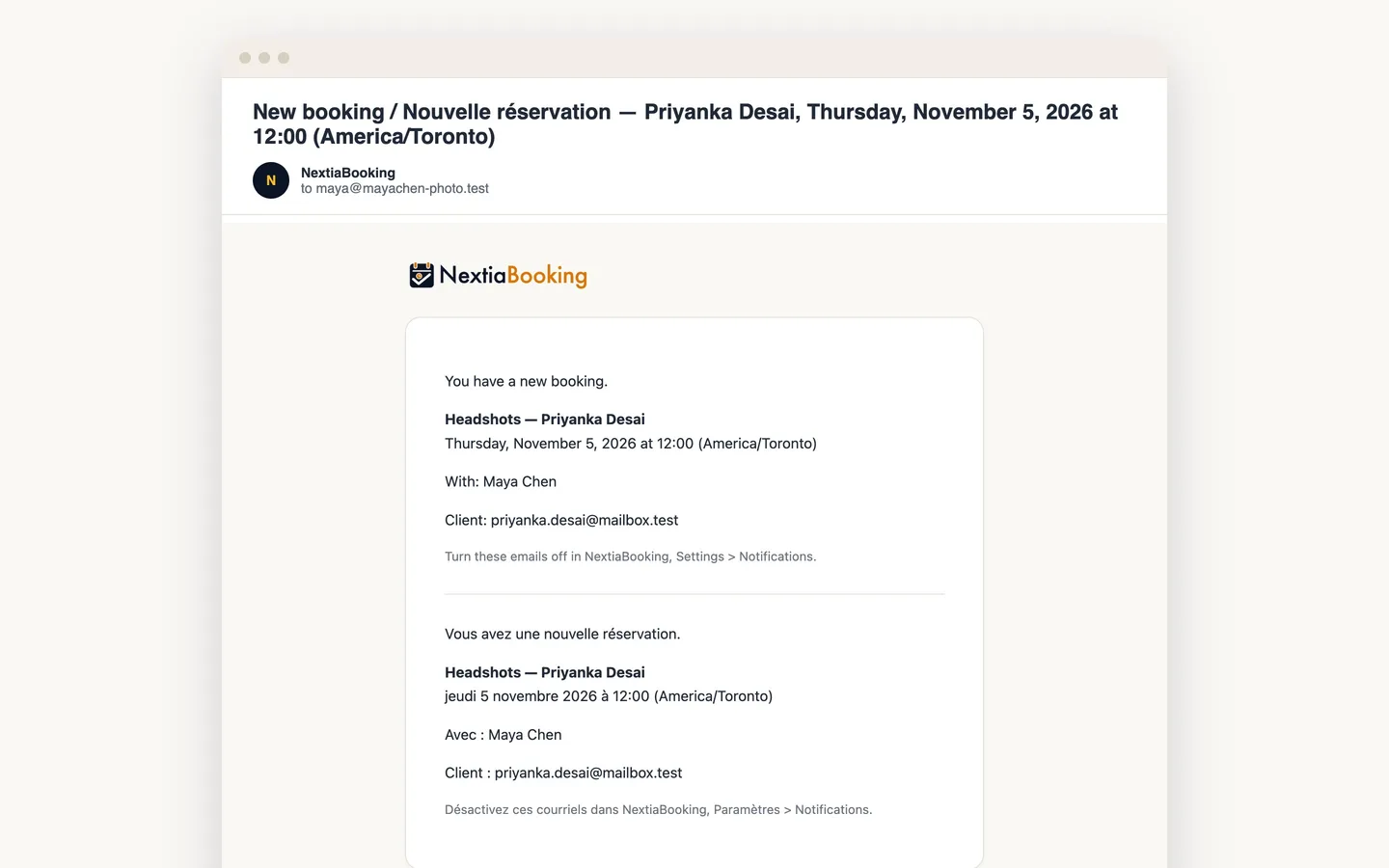
When a client books, an email reaches you a moment later. Its subject starts with New booking and names the client and the time. Inside, it says what happened and lists:
- the service and the client's name;
- the date and time, in your business's time zone;
- who the booking is with;
- the client's email and phone, when they gave them.
A moved booking arrives as Booking moved, with the time it was before. A cancelled one arrives as Booking cancelled, and says whether the client cancelled it and why, when they gave a reason. A booking that waits for you to confirm it arrives as New booking request.
Each email is written in English and in French, and ends with how to turn these emails off: in NextiaBooking, Settings › Notifications.
What happens next
From now on, NextiaBooking sends your clients their confirmation, change and cancellation notices and, with reminders on, their reminders, without you doing anything. You get an email for every booking made, moved or cancelled with you.
If you want more than the built-ins, such as a deposit deadline or a nudge to rebook, add a workflow in Workflows. Workflows run on top of the built-in messages and never send a second copy of one: turning on a workflow's new-booking notice doesn't email you twice.
If something goes wrong
I don't get any email when someone books
Check that Email me about my bookings is on in Settings › Notifications. The switch is yours alone, so check it while signed in as yourself. Then look in your spam or junk folder for an email from NextiaBooking, and mark it as not spam.
A client says they got no reminder
Check that Reminders to the client reads On for every service, or at least that the client's service is one of those that send it. Open the service in Services and check its reminder times. Also check when the client booked: a reminder whose time had already passed isn't sent.
The switch says On for 2 of 3 services
One of your services sends that message and the others don't, usually because it was changed in that service's own settings. Turn the switch on to send it from every service, or open the service in Services to set it there.
My client got two confirmations
You also have a workflow that sends a confirmation. Open Workflows and turn off the extra one: the built-in confirmation already sends one.
The messages say Add a service to send it
Your business has no service yet. Add one in Services, then come back to Settings › Notifications.
Questions
Does NextiaBooking send appointment reminders automatically?
Yes, once Reminders to the client is on in Settings › Notifications. Each service then sends its reminders before every booking: 1 day and 2 hours before, unless you set other times on the service.
How do I change when reminders are sent?
Open the service in Services and change its reminder times. Each service can have up to four, between 1 minute and 60 days before the booking. Different services can remind at different times.
How do I get an email when a client books?
Turn on Email me about my bookings in Settings › Notifications. You then get an email for each new, moved and cancelled booking with you. It's on by default.
Can my staff turn booking emails off for themselves?
Yes. Email me about my bookings is personal: each person turns it on or off for themselves, and it doesn't change what anyone else receives.
Do clients get a calendar invite with their confirmation?
Yes. Confirmation to the client goes out with a calendar invite when a booking is confirmed or requested, so the client can add it to their own calendar.
Will a workflow send a second reminder or confirmation?
The built-in messages and your workflows are meant to work together: workflows add to the built-ins and never repeat them. In Workflows, a template that overlaps a built-in says so in its name, such as Extra confirmation (built-in already sends one) or Extra reminder 24 hours before, so you only turn it on if you really want a second message.