
One link for Instagram, your site and a QR code
Copy your booking link for Instagram, put the booking widget on your website, and print your QR code.
- 7 steps
- About 1 min
- Checked against NextiaBooking on October 28, 2026
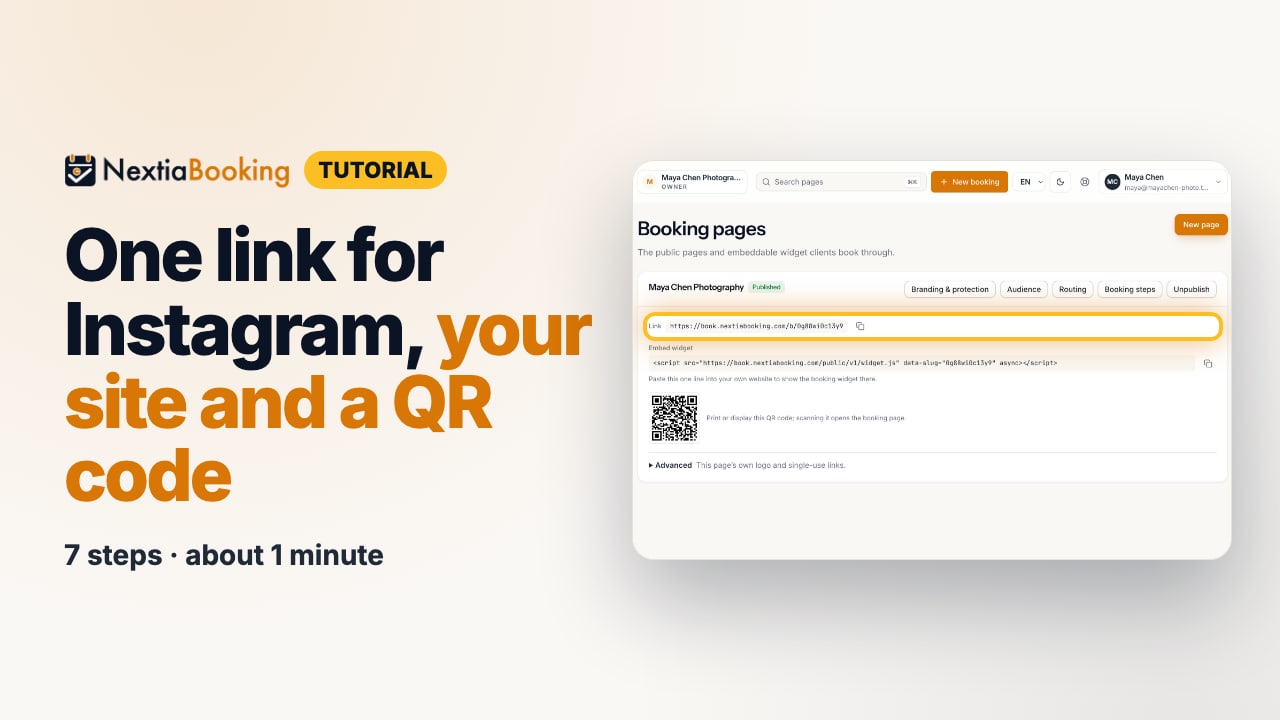
The video is on its way. The step-by-step and written versions are ready now.
- 1
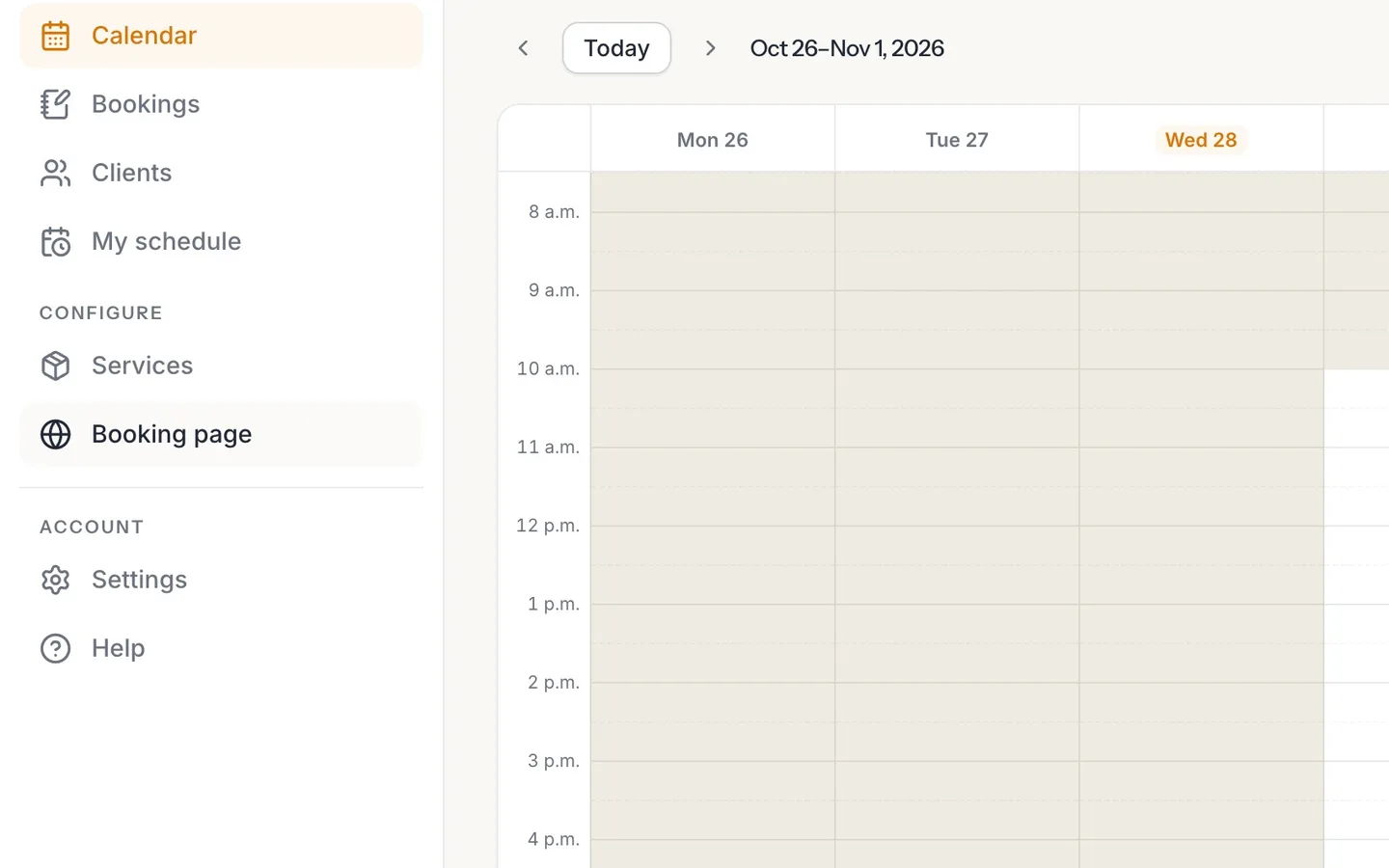
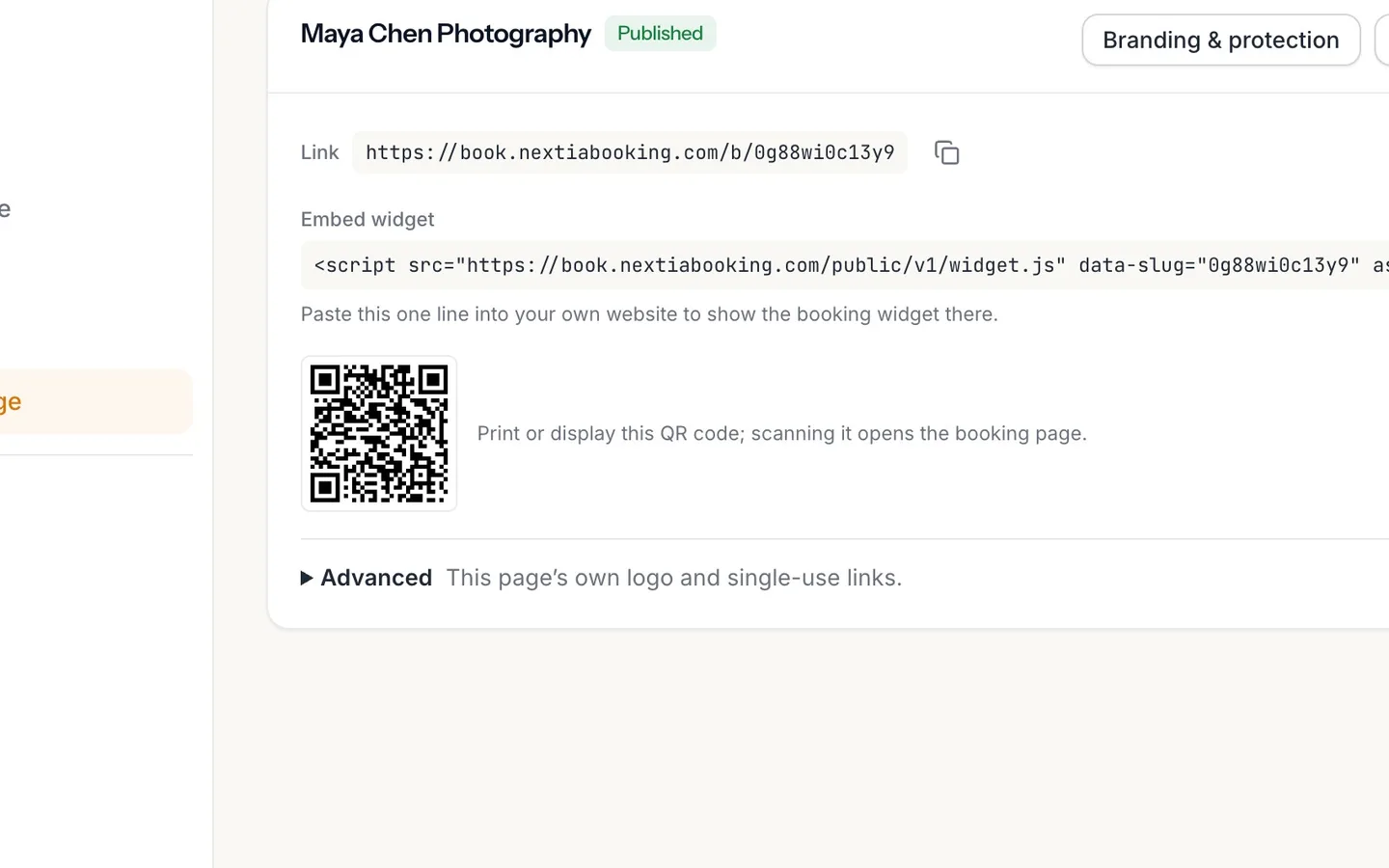
Select Booking page in the sidebar.
- 2
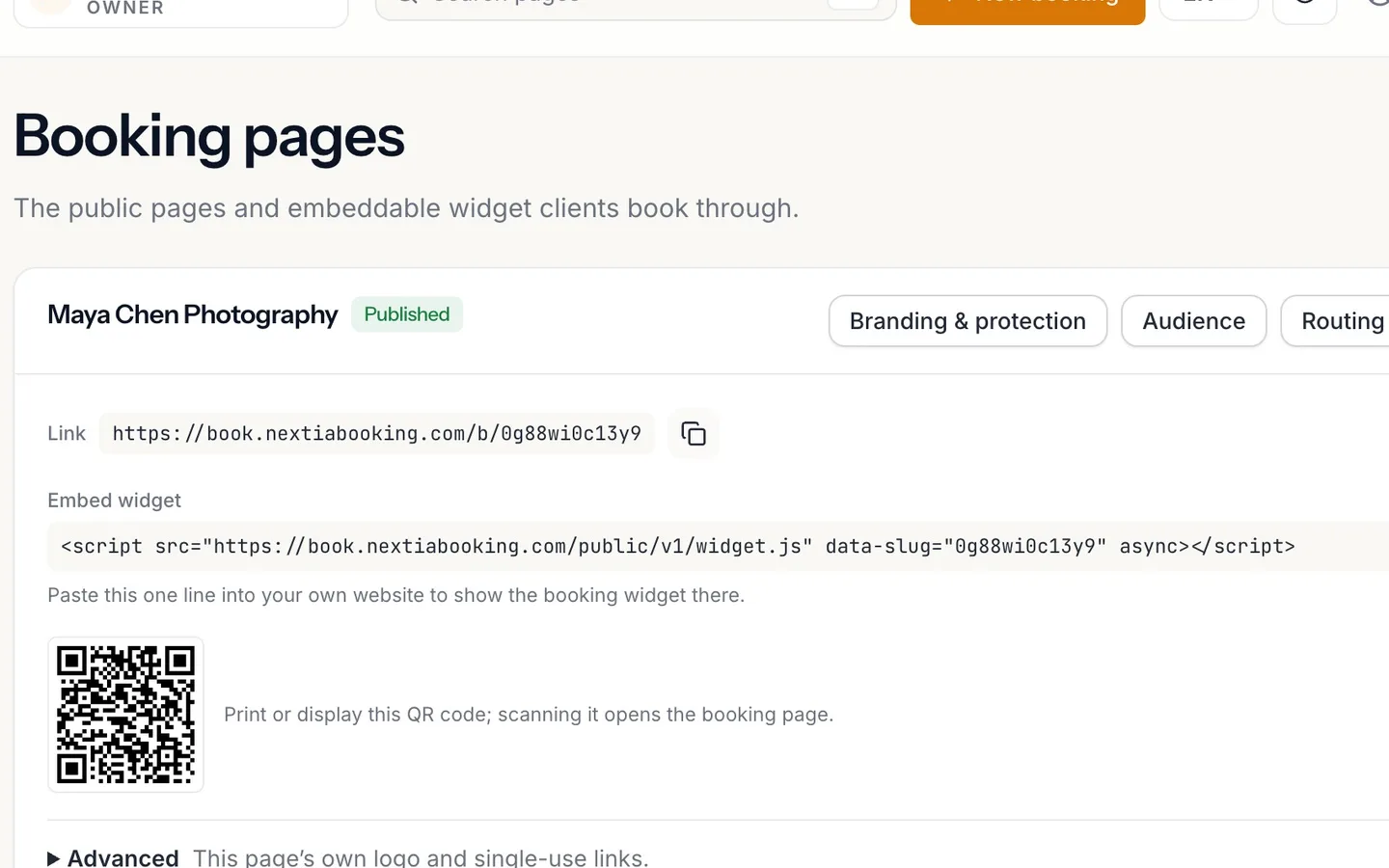
Select Copy link beside your Link.
Then paste it in your Instagram bio, or anywhere clients find you.
- 3
Select Copy embed code and paste the line into your website.
It shows the booking widget there.
- 4
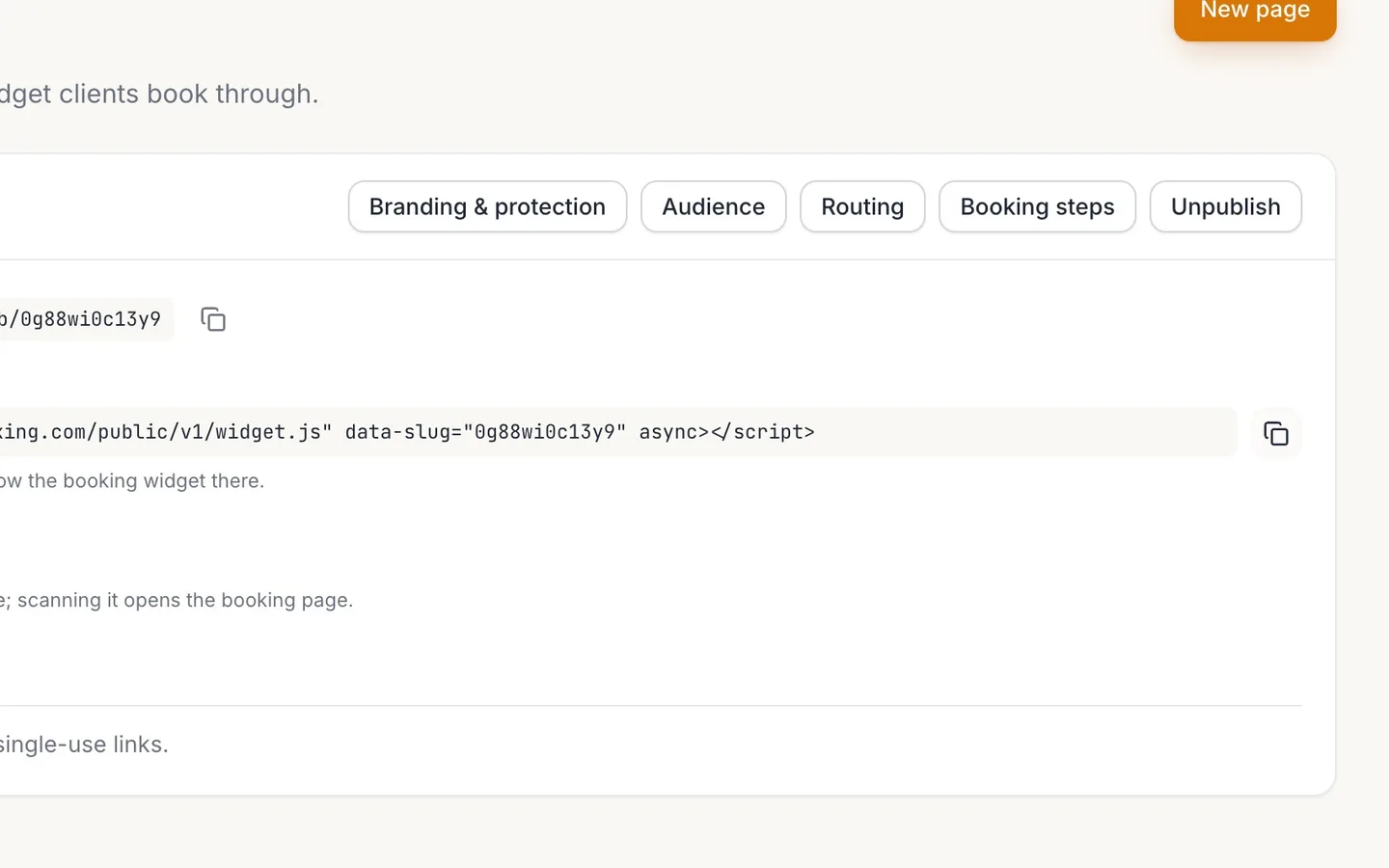
Print or display the QR code.
Scanning it opens your booking page.
- 5
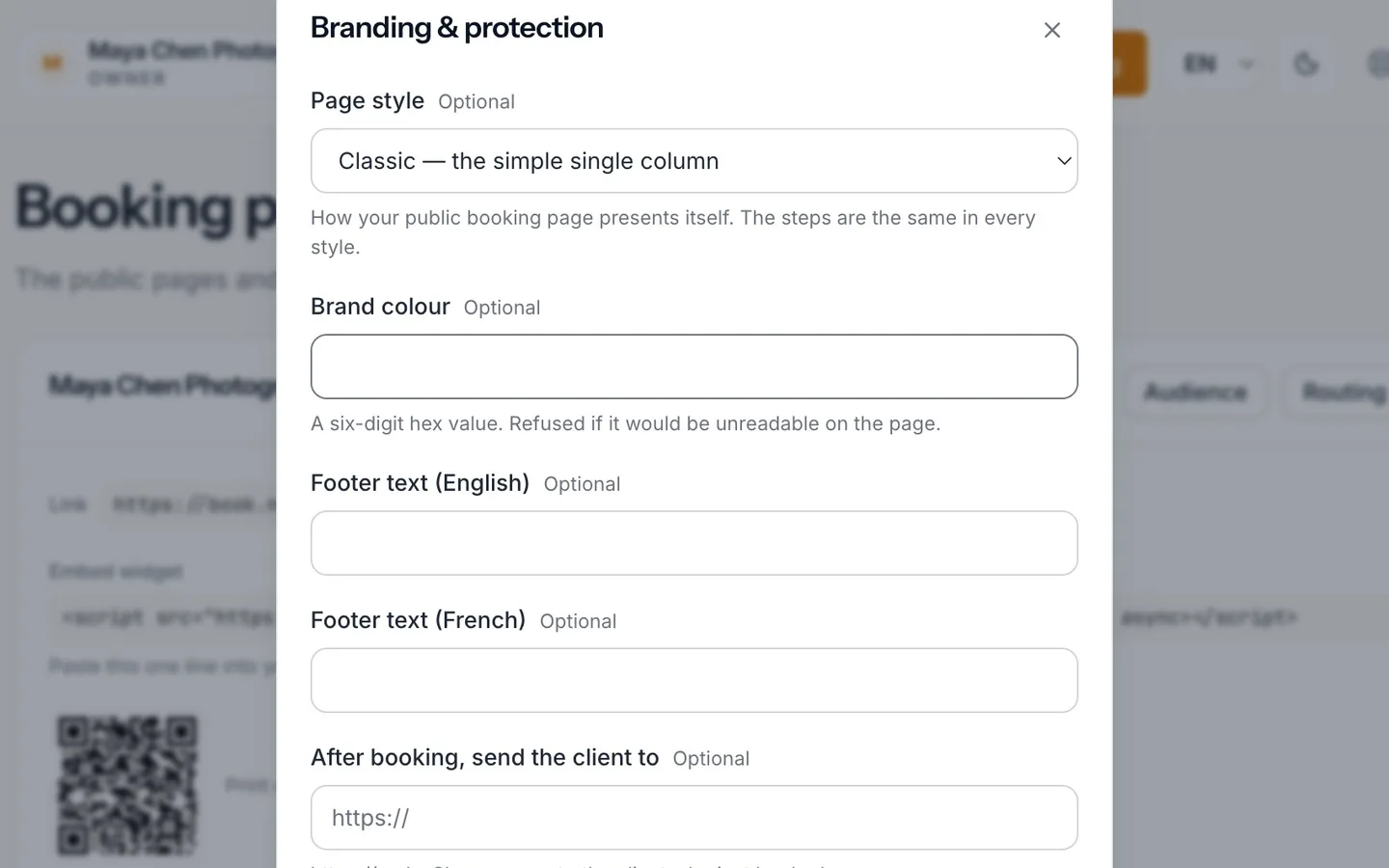
Open Branding & protection and type your Brand colour.
A six-digit hex value. A colour that would be hard to read is refused.
- 6
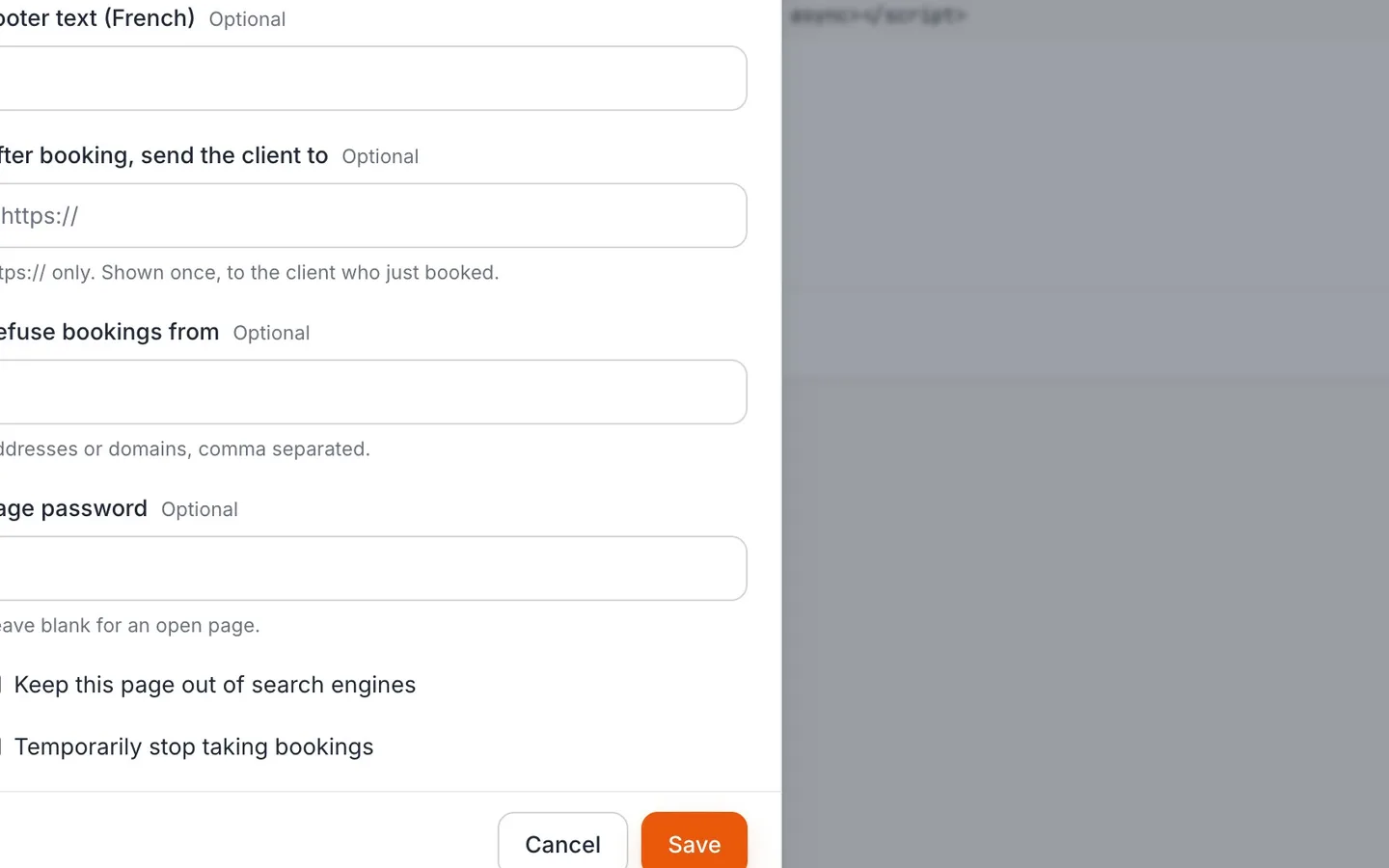
Select Save.
- 7
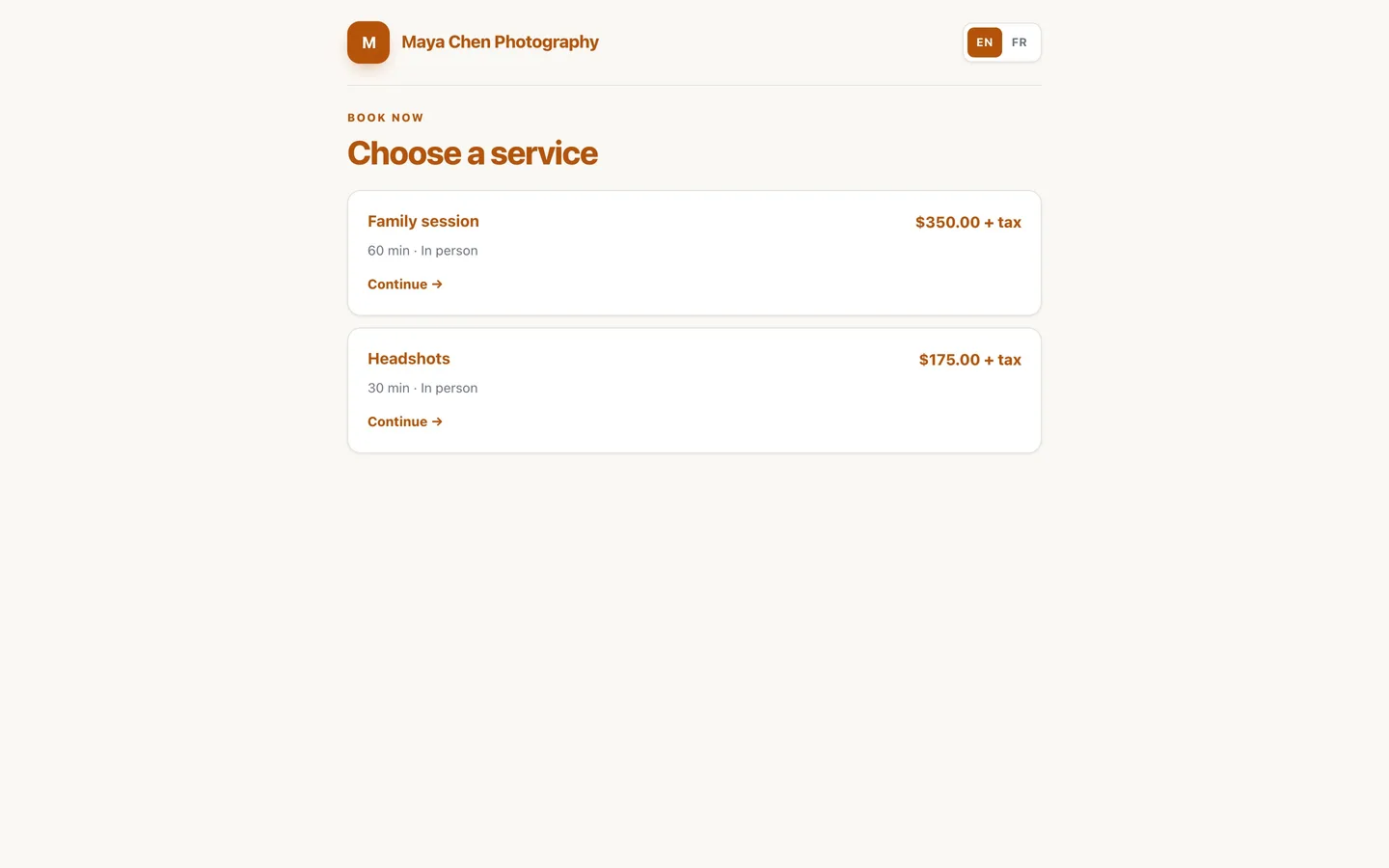
Open your link to check it.
Your services and prices, in your colour.
One link for Instagram, your site and a QR code
Copy your NextiaBooking link for your Instagram bio, add the booking widget to your website, download your QR code and show the page in your brand colour.
Before you start
This guide is for an owner whose booking page is set up and wants clients to find it: in an Instagram bio, on a website, and on a printed card or flyer. It takes a minute or two.
You need:
- A published booking page. If you finished setup, yours is already published. The QR code and the website widget appear only once a page is published.
- Your brand colour as a six-digit hex value, such as
#B45309, if you want the page in your colours.
Step by step
-
Open the Booking page
Select Booking page in the sidebar. The screen is titled Booking pages: the public pages and embeddable widget clients book through. Each page has its own card with its name and Published or Not published.
If your page reads Not published, select Publish on its card first. A message confirms Page published — clients can book.
-
Copy your link
Beside Link is your page's address, on
book.nextiabooking.com. Select Copy link, then paste it wherever clients find you: your Instagram bio, a link-in-bio page, an email signature, a Google Business listing or a text message. A message confirms Copied to clipboard.Want a friendlier address? Select Edit link beside it. In Edit the booking link, type the new link in Custom link: letters, numbers and dashes, at least 6, such as
maya-chen-photography. Select Save, and a message confirms Link saved. If another page already uses it, NextiaBooking says That link is taken. Choose another.Change your link before you share it widely: the old link stops working as soon as you save, so you'd have to update everywhere you shared it, and print a new QR code.
-
Put the booking widget on your website
Under Embed widget is one line of code. Select Copy embed code, then paste that line into your website where you want clients to book, for example on a "Book now" page. In most website builders, an "embed code" or "HTML" block is the place for it.
The widget books through the same page, so bookings made on your site land on your Calendar like any other.
-
Print or display the QR code
Below the widget is your page's QR code: print or display it, and scanning it opens the booking page. Select Download QR code to save the full-size image, a PNG, ready to print on a business card, a flyer, a price list or a sign on your door. The small picture on the screen is only a preview.
The QR code holds your page's link. If you change the link with Edit link, download the QR code again and replace any you've printed.
-
Set your brand colour
Select Branding & protection on the page's card. In Brand colour, type a six-digit hex value, such as
#B45309. The public page draws its accents in it.The colour has to be readable on the page. NextiaBooking checks its contrast and refuses a colour that's too light, telling you the contrast it has and the 4.5:1 it needs. A bright orange such as
#D97706is refused, for example; its darker shade#B45309is accepted. If yours is refused, pick a darker shade of it.In the same window you'll also find Page style (Classic, Compact or Detailed), footer text in English and French, and settings that protect the page, such as Page password, Keep this page out of search engines and Temporarily stop taking bookings.
-
Save
Select Save. A message confirms Page settings saved.
-
Check your page as clients see it
Open your link in a new tab, or scan the QR code with your phone. Clients see your business name, your services and prices, and the times you're free, with the accents in your brand colour. It's worth doing this once from your phone, since that's where most clients open a link from Instagram.
What happens next
Clients who tap your link, scan your code or use the widget on your site all reach the same page and book the same way. Each booking appears on your Calendar, the client gets a confirmation email, and you get an email about it while Email me about my bookings is on in Settings › Notifications.
A good next step is to turn on reminders for your clients, so fewer of them forget their booking.
If something goes wrong
My brand colour is refused
It would be hard to read on the page: its contrast is under 4.5:1. Pick a darker shade of the same colour and save again. The value has to be six hex digits with the #, like #1A73E8.
I can't see the QR code or the embed code
The page isn't published. The card says The QR code and embed widget appear once the page is published — until then the link refuses to serve. Select Publish on the page's card.
My old link or old QR code no longer works
You changed the link with Edit link. The old address stops working as soon as the new one is saved. Copy the new link into your bio and website, and use Download QR code to print a new code.
The link I want is taken
Another booking page already uses it. Try a variant with your city or your trade, like maya-chen-photo-toronto. Links need at least 6 characters: letters, numbers and dashes.
Clients say the page isn't taking bookings
Check the page's card: it may read Not published, or Temporarily stop taking bookings may be ticked in Branding & protection. Also check that your hours and services are set, since the page offers only times you work.
Questions
How do I add my NextiaBooking link to my Instagram bio?
On the Booking page, select Copy link beside Link. In Instagram, edit your profile and paste the link in the website or links field. Anyone who taps it opens your booking page.
Can I put NextiaBooking on my own website?
Yes. On the Booking page, select Copy embed code under Embed widget and paste that one line into your site, in an embed or HTML block. The booking widget appears there, and bookings land on your Calendar.
Where do I download my booking QR code?
On the Booking page, below the embed code, select Download QR code. You get a PNG image of the code to print. Scanning it opens your booking page.
Can I change my booking link to my business name?
Yes. Select Edit link on the Booking page and type a new Custom link of at least 6 letters, numbers or dashes. The old link stops working, so update anywhere you shared it.
Why does NextiaBooking refuse my brand colour?
The colour is too light to read on the page. The page needs a contrast of at least 4.5:1, and NextiaBooking shows the contrast your colour has. A darker shade of the same colour usually passes.
Can I stop taking bookings for a while without deleting my page?
Yes. In Branding & protection, tick Temporarily stop taking bookings and save. You can add an offline message in English and French for clients who visit in the meantime.