
Run your week on the calendar
Book a free time with a click, drag a booking to move it, and block time clients can't book, all from the Calendar.
- 10 steps
- About 1 min
- Checked against NextiaBooking on October 28, 2026
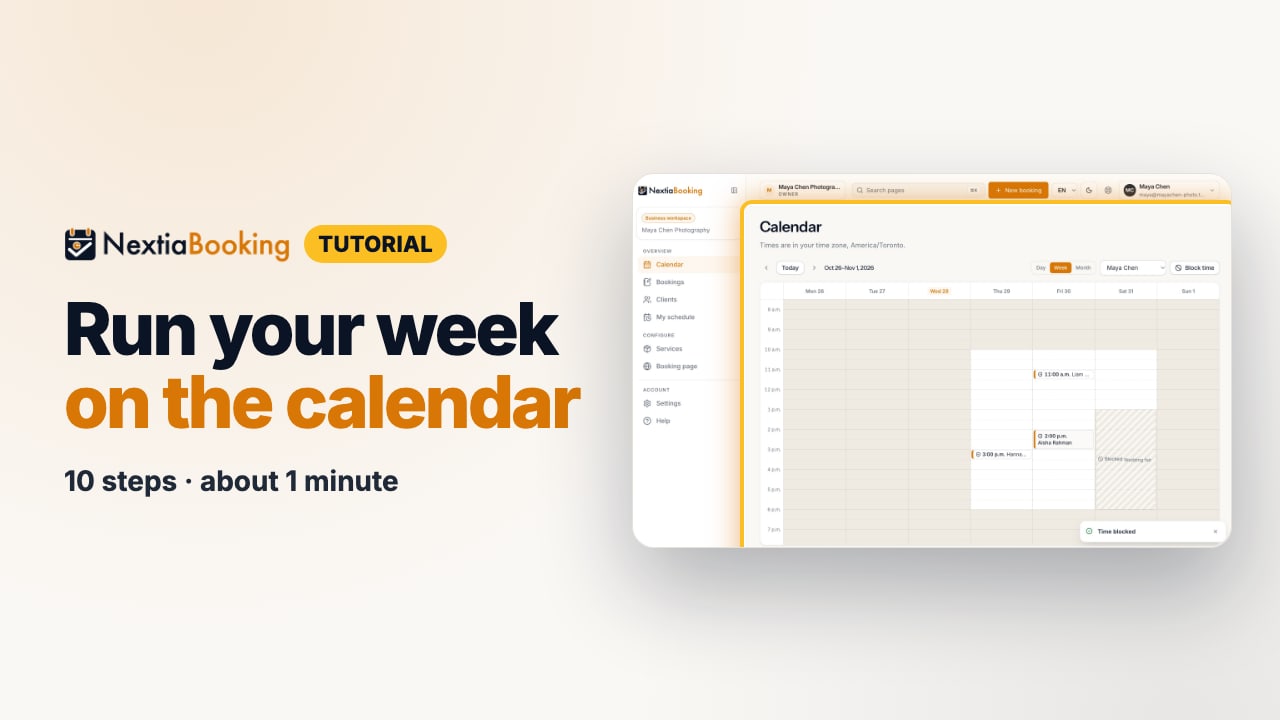
The video is on its way. The step-by-step and written versions are ready now.
- 1
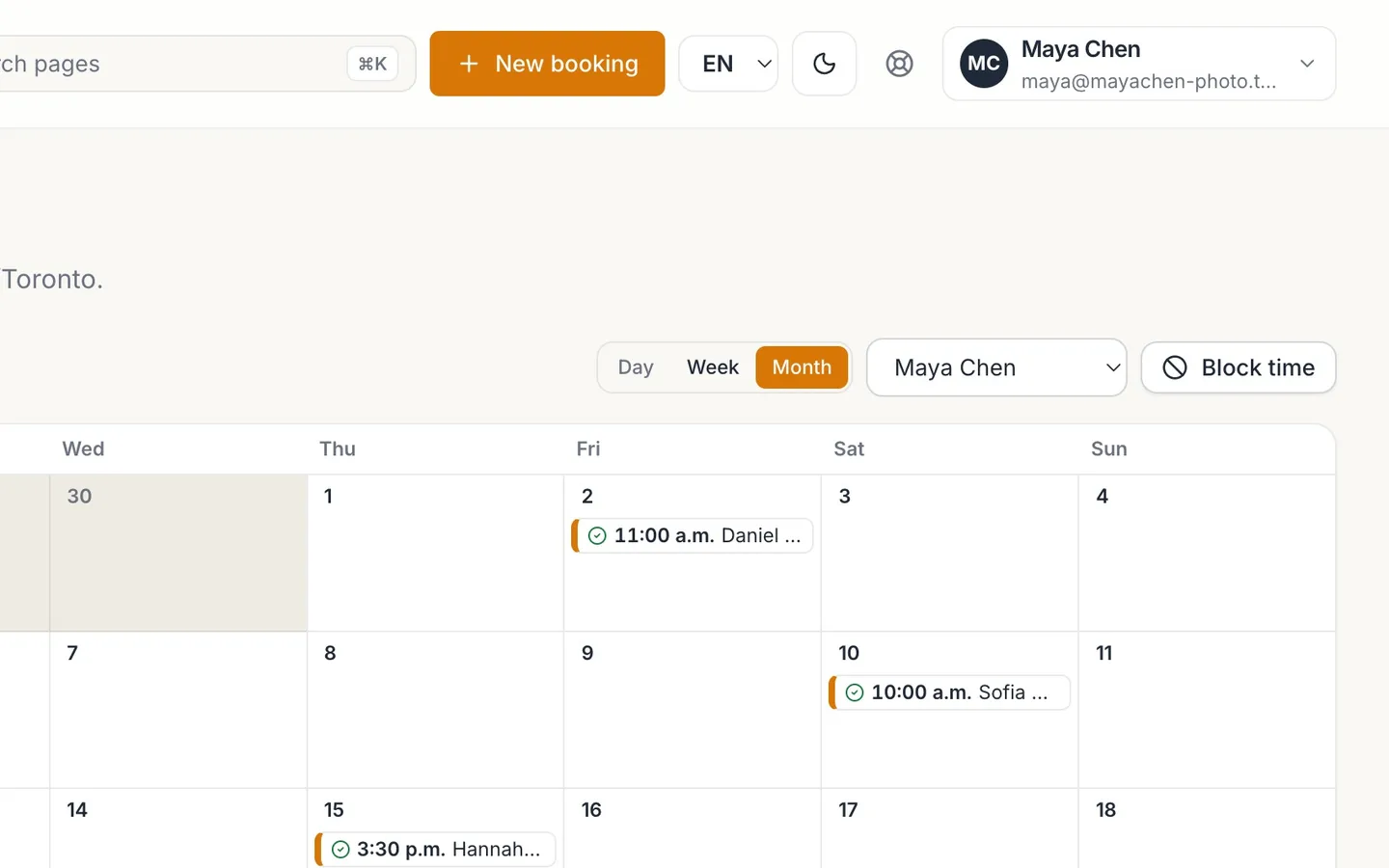
Switch between Day, Week and Month.
- 2
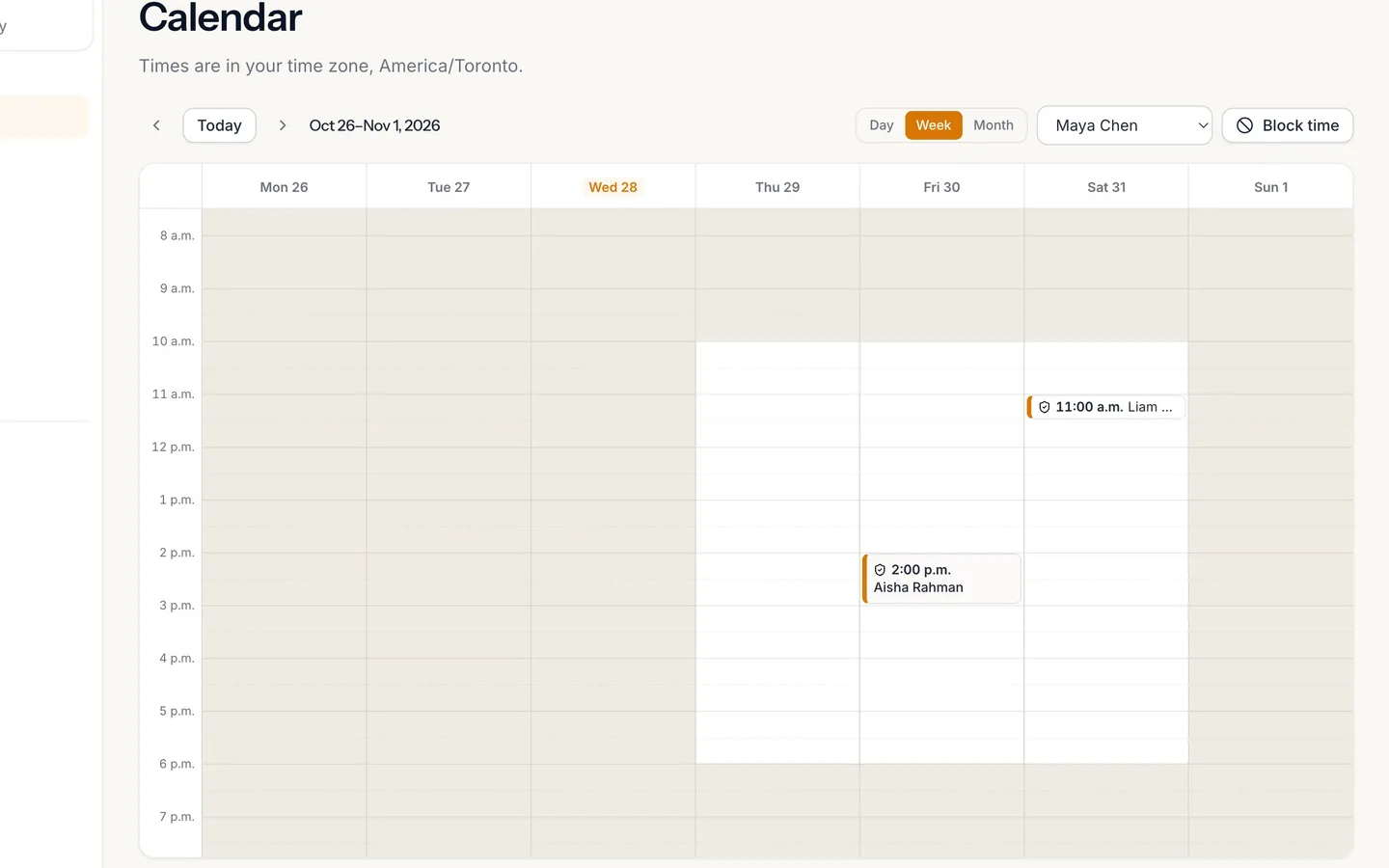
Your working hours are light; the rest is shaded.
Times are in your time zone.
- 3
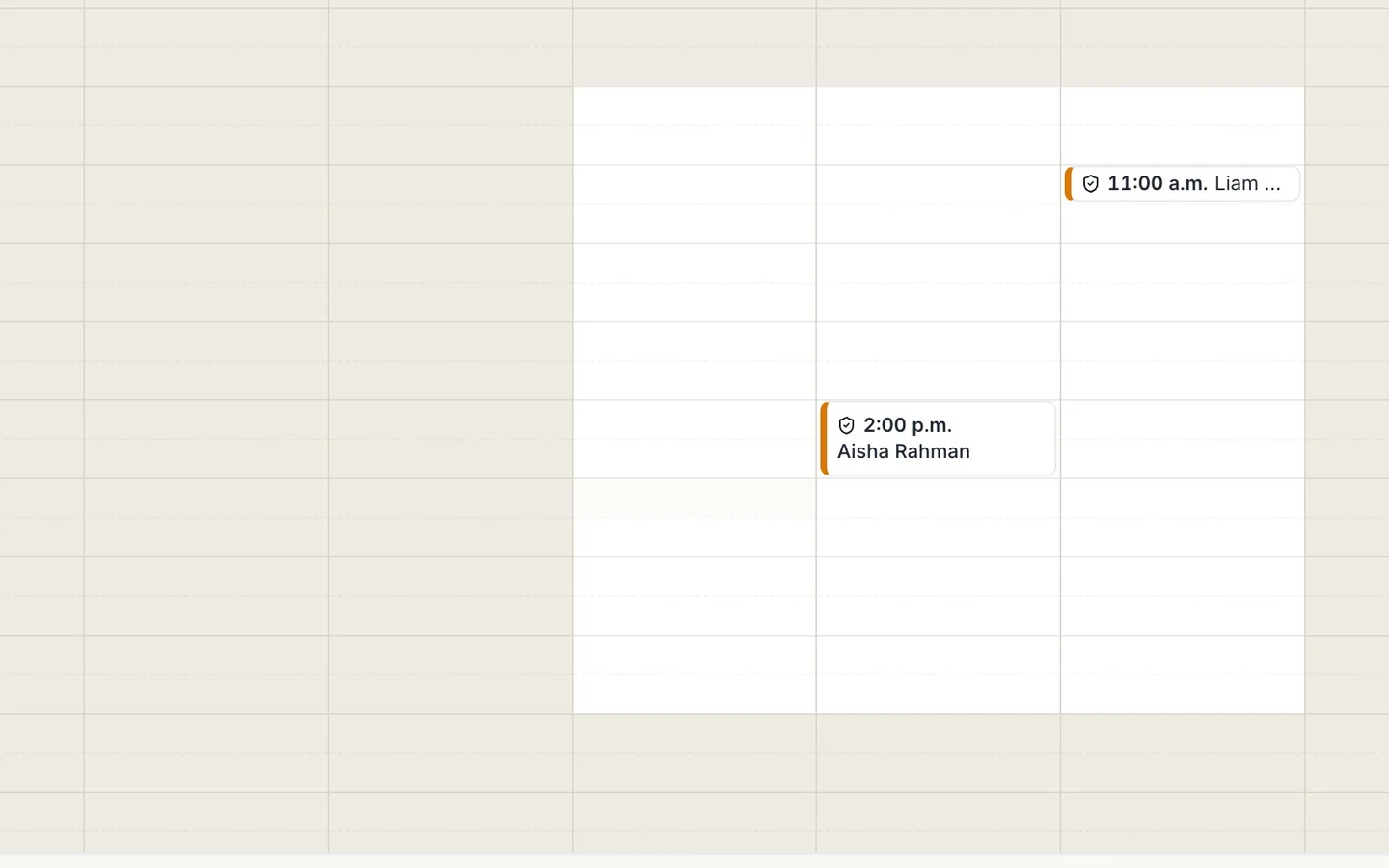
Click a free time to book it.
- 4
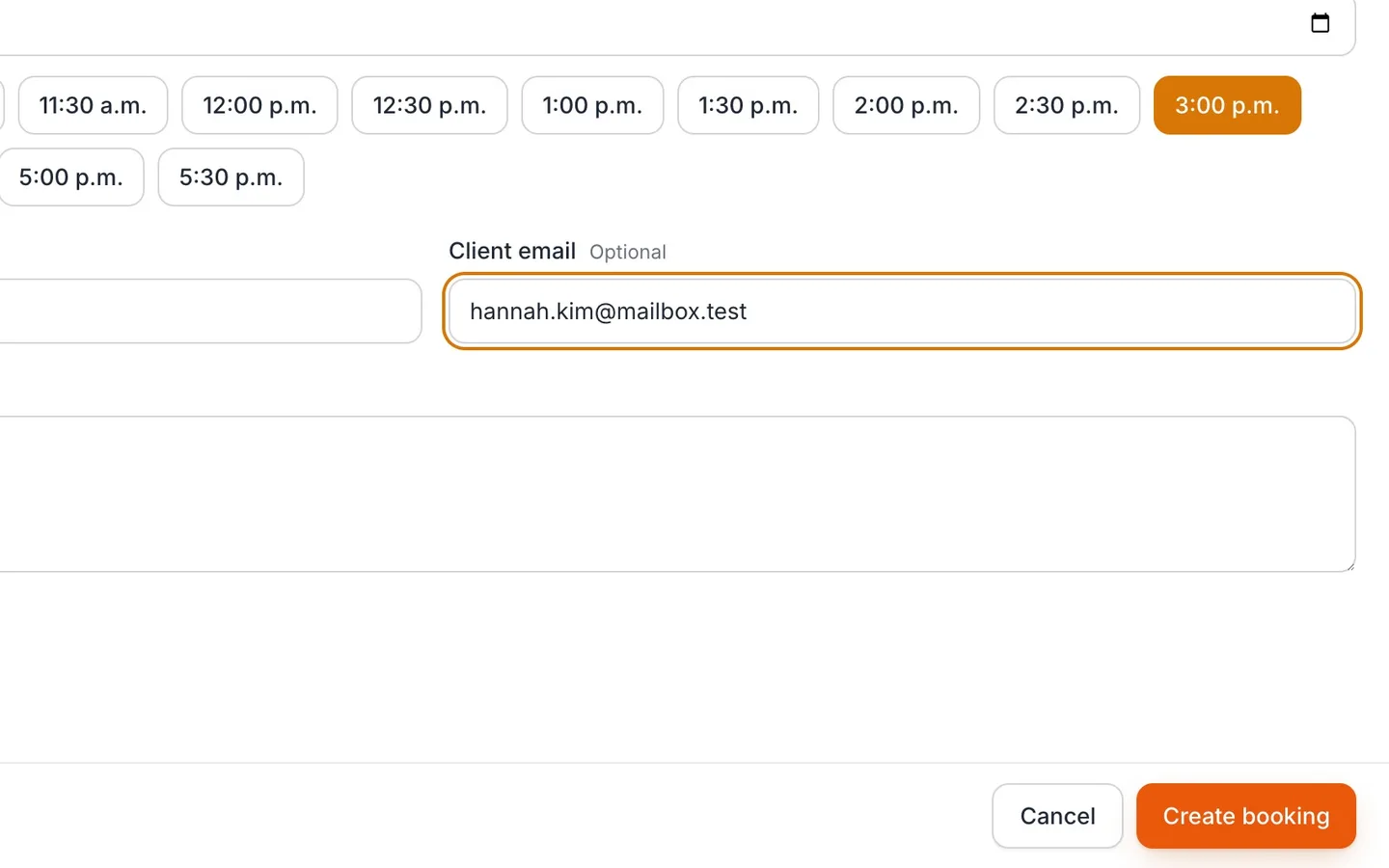
Choose the service, type the client, and select Create booking.
The time you clicked is already chosen.
- 5
Drag a booking to its new time.
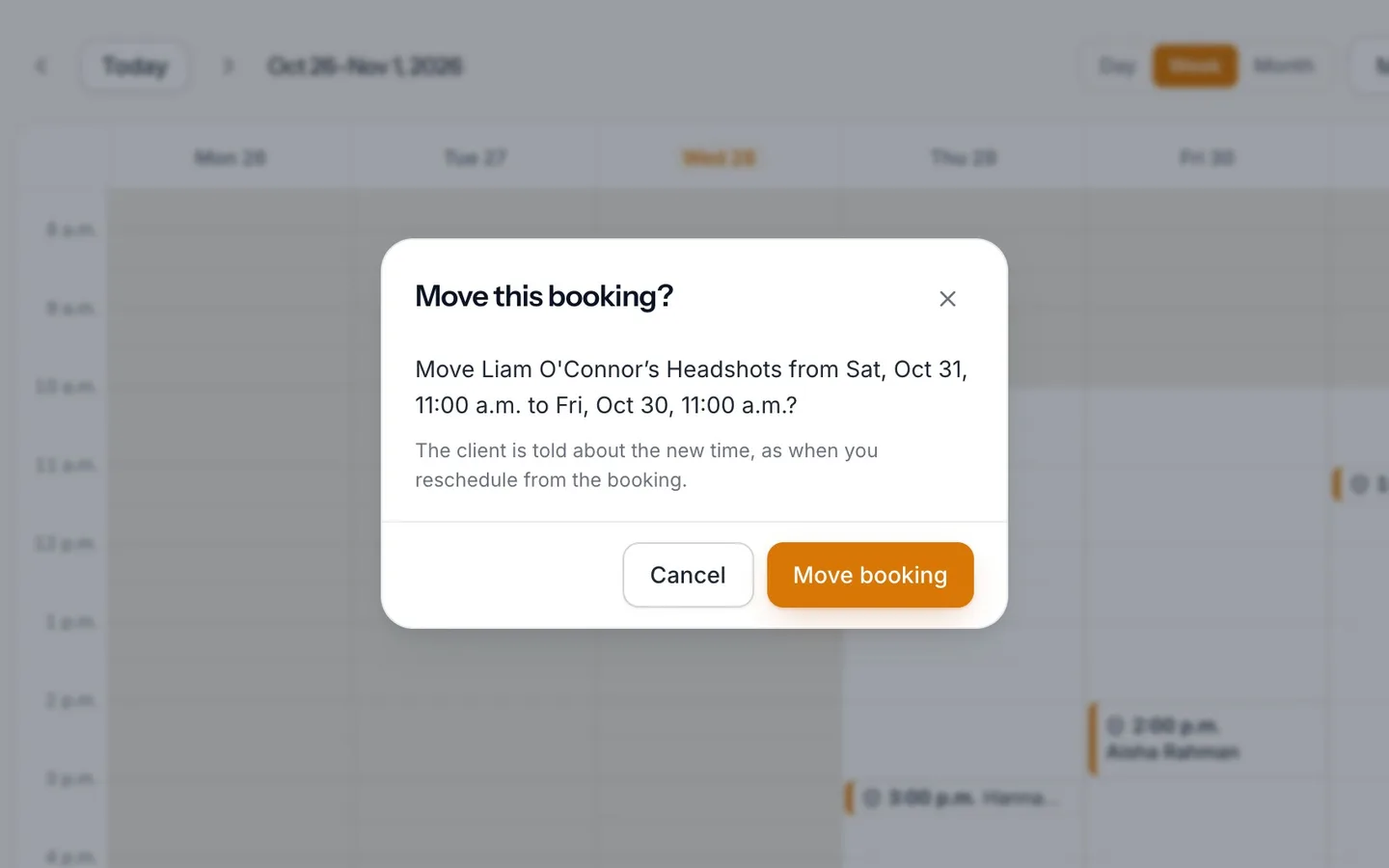
You're asked before anything moves.
- 6
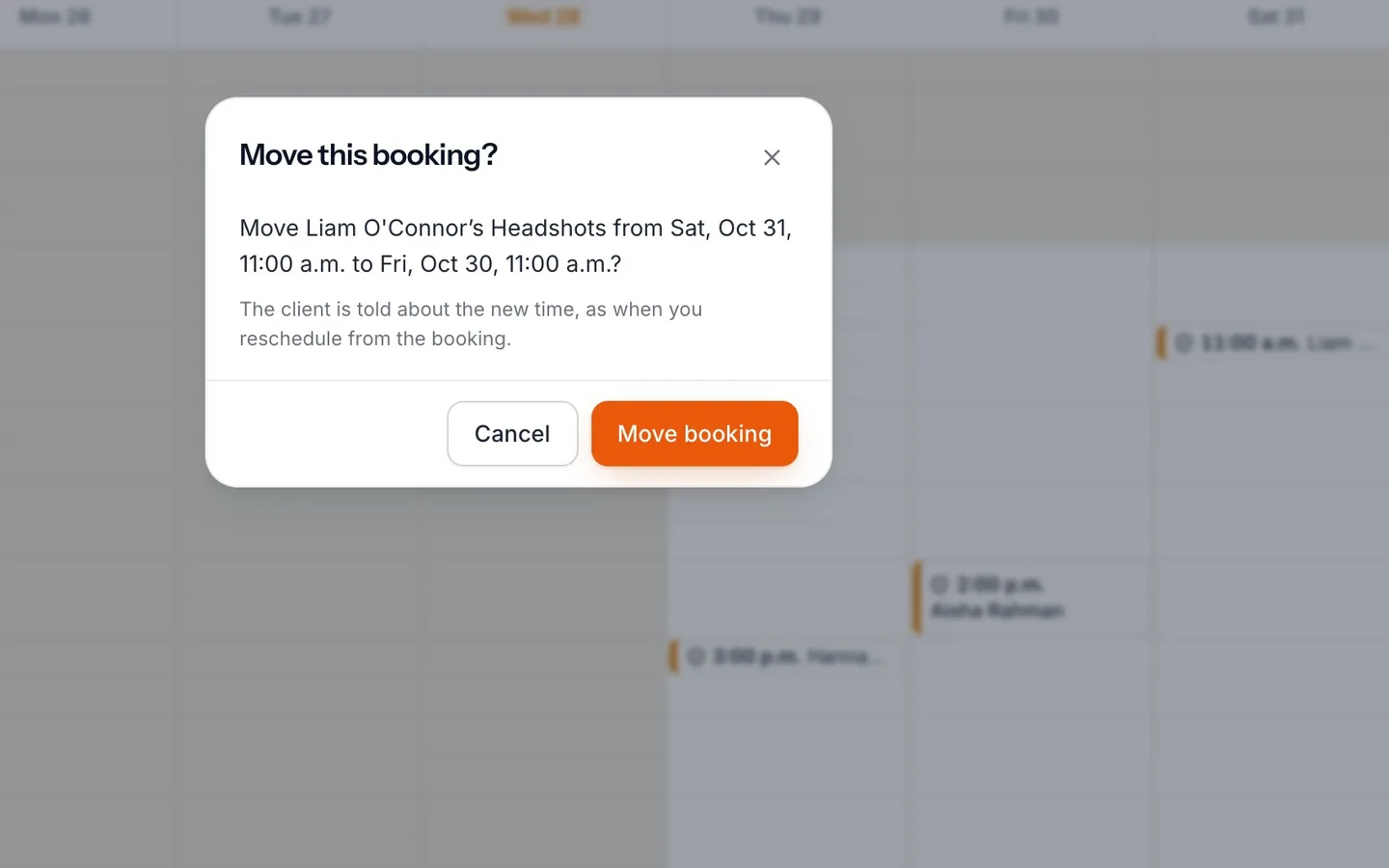
Select Move booking.
The client is told about the new time.
- 7
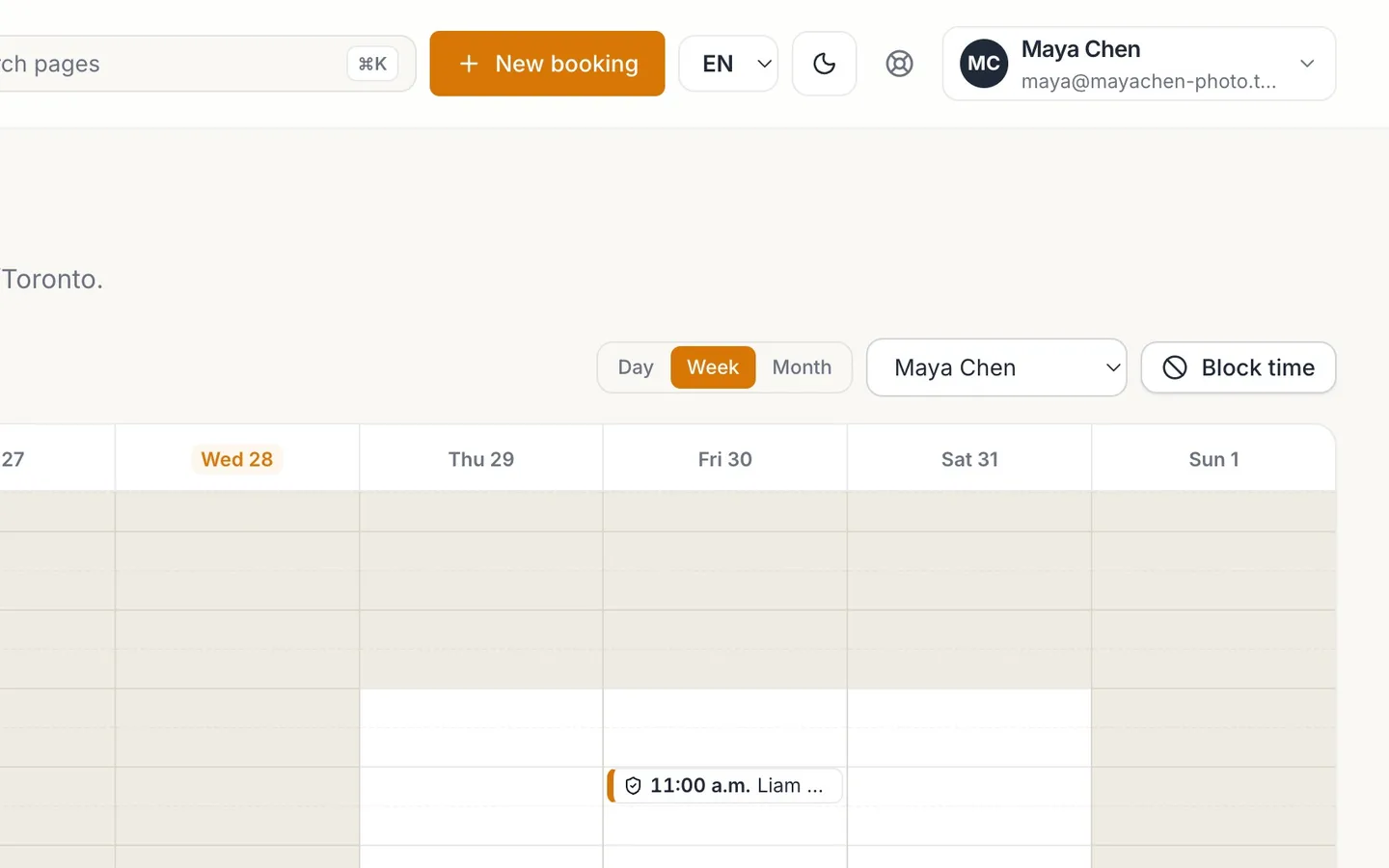
Select Block time.
- 8
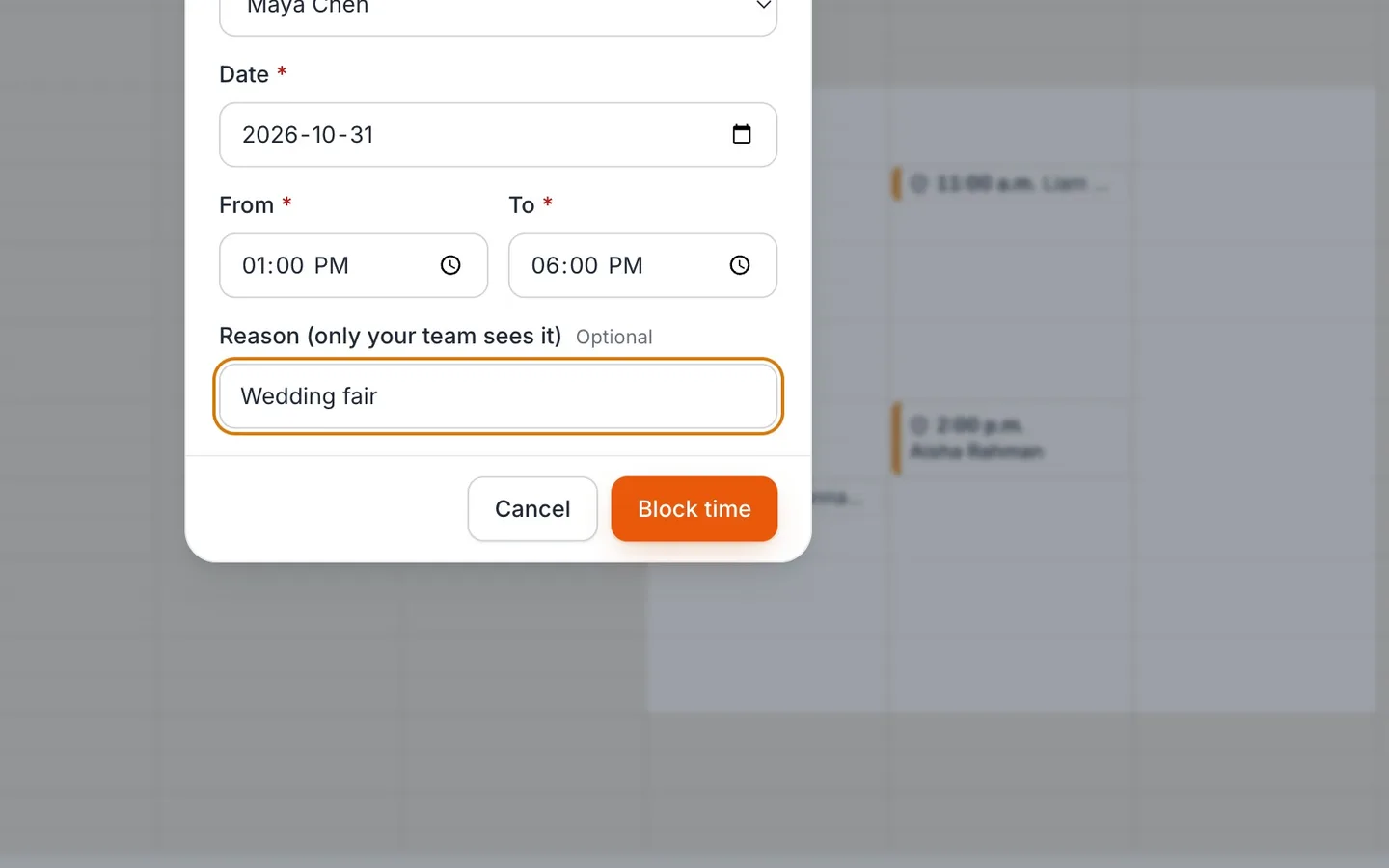
Pick the date, From and To, add a reason, and select Block time.
Only your team sees the reason.
- 9
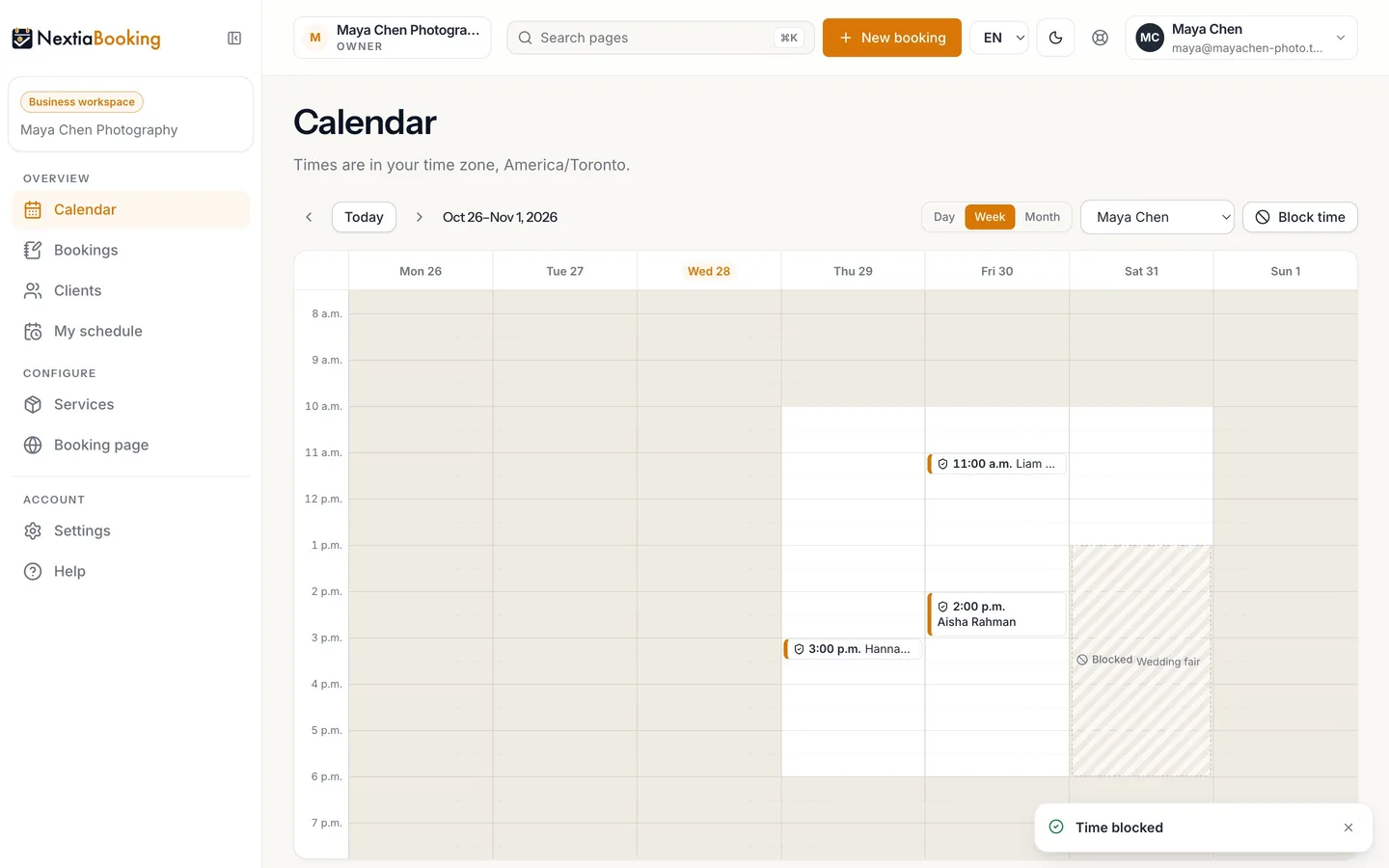
The block shows on your calendar.
Clients can't book you during it.
- 10
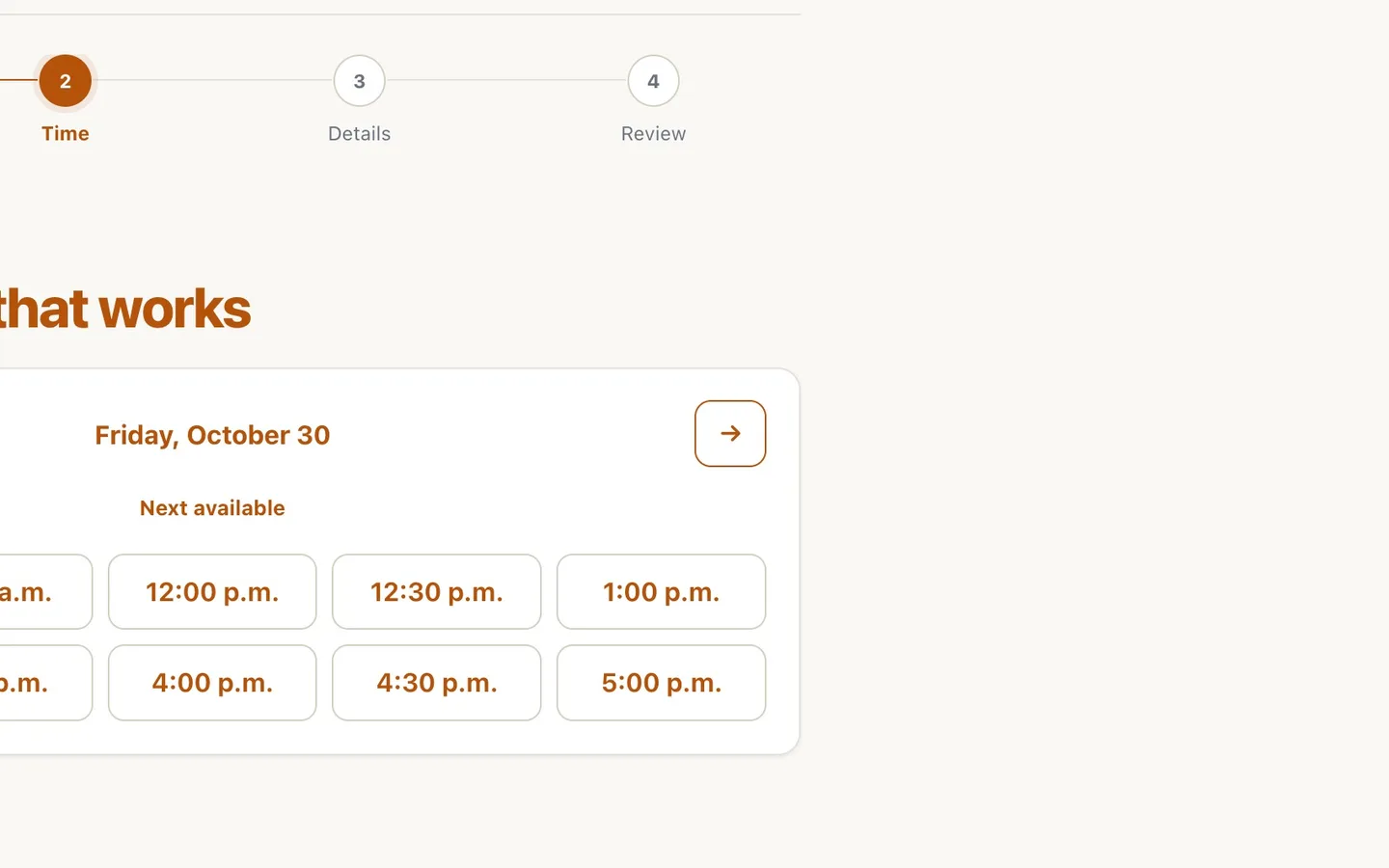
Your booking page no longer offers that time.
Run your week on the calendar: click to book, drag to move, block time
Use the NextiaBooking calendar to book a free time with a click, drag a booking to a new time, and block off time your clients can't book with you.
Before you start
The Calendar is NextiaBooking's home screen. This guide is for the person who runs the week: booking a client who calls, moving a booking when plans change, and keeping time for yourself. Maya Chen Photography is the example. Hannah wants headshots on Thursday, Liam asks to move to Friday, and a wedding fair takes Maya's Saturday afternoon.
What you need:
- Working hours set, in setup or in My schedule. The calendar shades everything outside them, and clients can only book inside them.
- At least one service, so there is something to book.
- To book and move bookings, a role that can manage bookings. To block time for other people, a role that can change the business's setup; anyone else can block only their own time.
Step by step
-
Switch between Day, Week and Month
At the top of the calendar, choose Day, Week or Month. The arrows beside it move to the previous or next day, week or month. Maya works in Week.
In Day, with Everyone chosen, each staff member gets their own column. In Month, each day shows up to three bookings and a "+2 more" style link for the rest; select a day to open it.
-
Read your week
Your working hours are light; the rest of the day is shaded and marked Outside working hours. Blocked time is hatched and labelled Blocked, or Time off. Bookings sit on the grid at their times, in the staff member's colour.
Under the page title, the calendar names the time zone it is drawn in, for example "Times are in your time zone, Toronto (GMT-4)." That is your own zone: the one in your profile, or your browser's. If the business runs on a different zone, it says that too: "The business runs on Vancouver (GMT-7)."
-
Click a free time to book it
Each row on the grid is half an hour. Click a free time and New booking opens with that day, that person and that time already chosen. Hannah wants Thursday at 3:00 p.m., so Maya clicks Thursday at 3:00.
You can also work from the keyboard: the arrow keys move between times, Enter books a free time or opens a booking, and B blocks the time you're on.
-
Choose the service and the client, then create
Choose the Service. The time you clicked stays selected if it's one clients could book for that service; NextiaBooking only offers real available times, the same ones your booking page shows. If it isn't offered (outside your hours, too close to another booking, or not one of the service's start times), pick one of the times shown.
Type the Client name. After two letters, matching clients appear under Existing clients: choose one and their email and phone fill in. For someone new, type their Client email and, if you like, Client phone. Then select Create booking. Maya books Hannah's headshots.
-
Drag a booking to its new time
Liam asked to move from Saturday to Friday. Maya drags his booking from Saturday to Friday at 11:00. The booking lands at the start of the half hour you drop it on, never part way through.
A few rules apply when you drag:
- Only bookings that are Requested or Confirmed can be moved.
- Dragging keeps the same person. In a Day view with a column per person, dropping on someone else's column is refused: to change who provides it, cancel the booking and book again.
- In Month, dropping on another day keeps the time of day and changes the date.
-
Confirm the move
Nothing moves until you confirm. Move this booking? names the client, the service and both times, and reminds you: "The client is told about the new time, as when you reschedule from the booking." Select Move booking. Booking moved confirms it.
If the time isn't one the booking can move to, the dialog says why instead, for example "That time isn't free for Maya. Pick another."
-
Select Block time
The wedding fair takes Saturday afternoon. Select Block time at the top of the calendar. You can also Shift-click a time on the grid, or press B on it, to start a block there.
-
Fill in the block
The Block time form asks:
- Who: the person whose time is blocked. If you can only manage your own time, it's you.
- Date, From and To: when the block starts and ends. Started from the grid, it begins at the time you chose and lasts an hour until you change it.
- Reason (only your team sees it): optional. Maya types "Wedding fair".
Select Block time to save. Time blocked confirms it. A block is saved in the person's own time zone, and it has to end on the same day it starts; for two days, make two blocks.
-
See the block on your calendar
The block shows hatched on the calendar, with its reason. The form's own note sums it up: "Clients can't book this person during a block." Select a block to see it, and Remove block to delete it if plans change.
Blocks also appear in that person's schedule, under Exceptions, as Blocked.
-
Check your booking page
Open your booking page as a client would. On Saturday, a one-hour family session can now only start in the morning: the last time offered is 12:00 p.m., so the session ends by 1:00 p.m. The afternoon is Maya's.
What happens next
When you create a booking for a client with an email, NextiaBooking sends them a confirmation, unless Confirmation to the client is turned off for that service. When you move one, the client gets the change notice (Change notice to the client), with the new time and a link to manage the booking. Both arrive in English and French in one message.
Your team is told too. A new, moved or cancelled booking emails the staff member it's with (or the owners and admins, when that person has no email), unless they've turned those emails off for themselves. Whoever made the change isn't emailed about it: they already know.
The usual next task is to check the day ahead each morning in Day, and open each booking from the grid when the client arrives.
If something goes wrong
"The booking was not moved"
The time you dropped it on isn't one the booking can take: it's outside the person's hours, already taken, or not one of the service's offered start times. Drop it on a free time, or open the booking and select Reschedule to choose from the times offered.
"Only requested and confirmed bookings can be moved."
The booking is completed, cancelled or marked as a no-show. Those stay where they happened. Book a new time instead.
A block doesn't save
A block has to end after it starts, and on the same day in that person's time zone. If it runs past midnight or over two days, make two blocks. For several days off in a row, add Time off with From and To dates in the person's schedule instead.
The time I clicked isn't selected in New booking
The time you clicked isn't one clients could book for the service you chose. Pick one of the times offered, or, if your role can manage bookings, turn on Outside offered times (walk-in) for a walk-in or a favour.
"This range has more bookings than the calendar shows."
The view holds too many bookings to draw. Narrow it to one person, or switch to a shorter view such as Day.
Questions
What time zone does the NextiaBooking calendar use?
Yours: the time zone in your profile, or your browser's if your profile has none. The calendar names it under the title, for example "Toronto (GMT-4)", and also names the business's zone when it is different.
Does the client get an email when I drag their booking?
Yes, as long as the service sends its change notice to the client and the client has an email. It's the same message they get when you reschedule from the booking itself.
Can clients see why I blocked my time?
No. The reason is for your team only. Clients only see that those times aren't offered on your booking page.
How do I block a whole day in NextiaBooking?
Set the block from the start of your day to its end, or add Time off, All day, in your schedule under Exceptions. Time off can also cover a range of dates.
Can I book someone outside my working hours?
From New booking, if your role can manage bookings, turn on Outside offered times (walk-in). Working hours and notice aren't checked, but nobody can be booked twice at the same time.
Can I move a booking to another staff member by dragging it?
No. Dragging changes the time, not the person. To change who provides it, cancel the booking and book it again with the other person.