
From sign-up to bookable in five minutes
Create your business, tell NextiaBooking what you do, when you work and what you offer, and your booking page is live.
- 20 steps
- About 2 min
- Checked against NextiaBooking on October 28, 2026
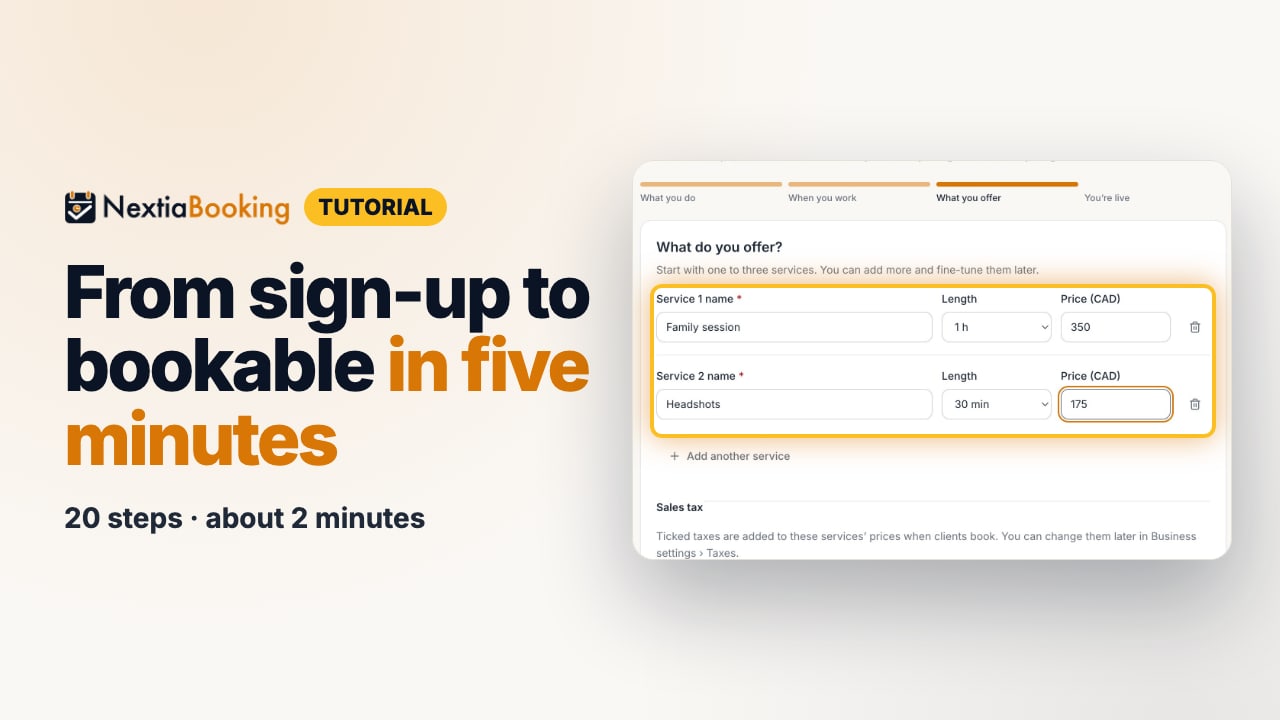
The video is on its way. The step-by-step and written versions are ready now.
- 1
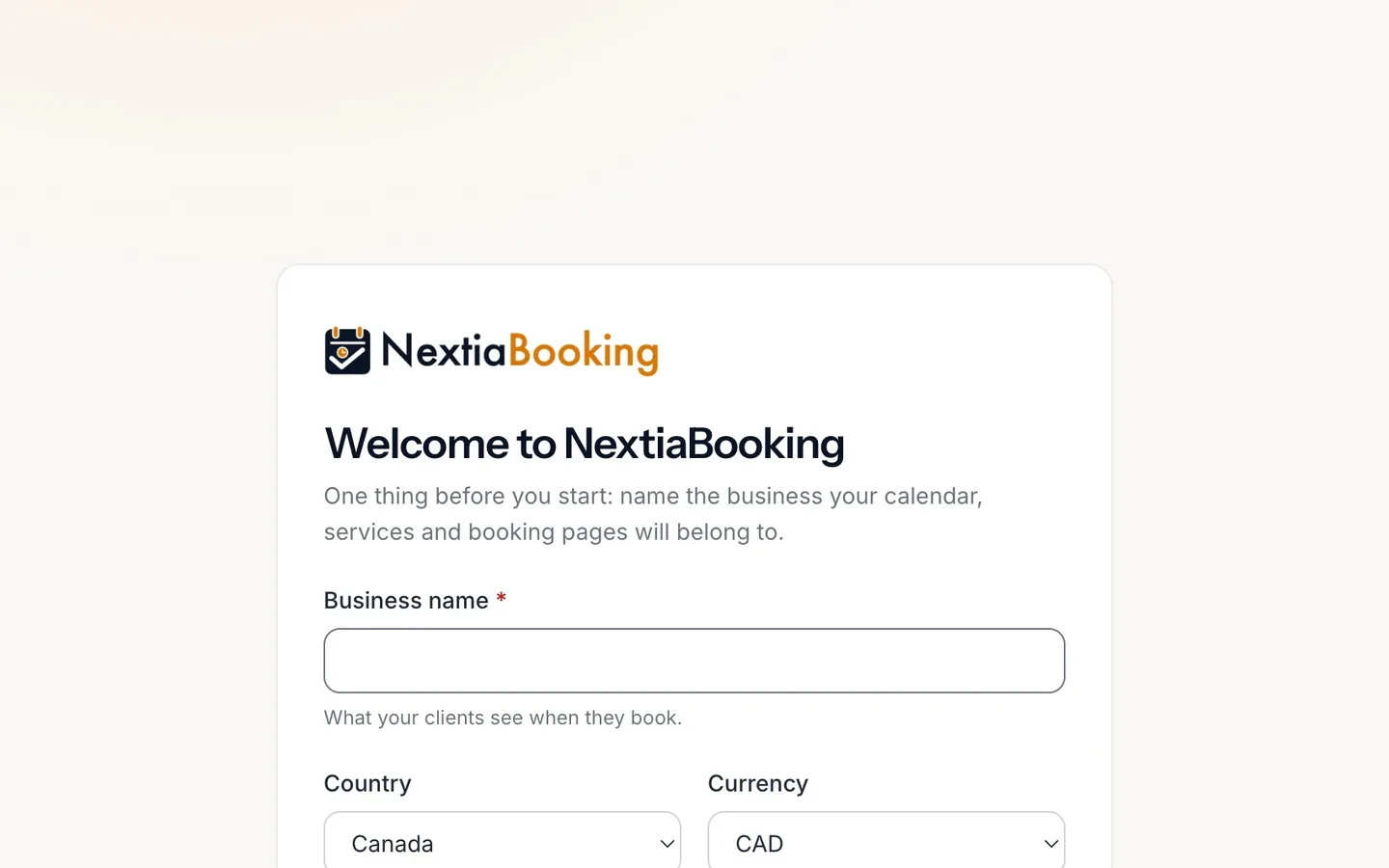
Type your Business name.
It's what your clients see when they book.
- 2
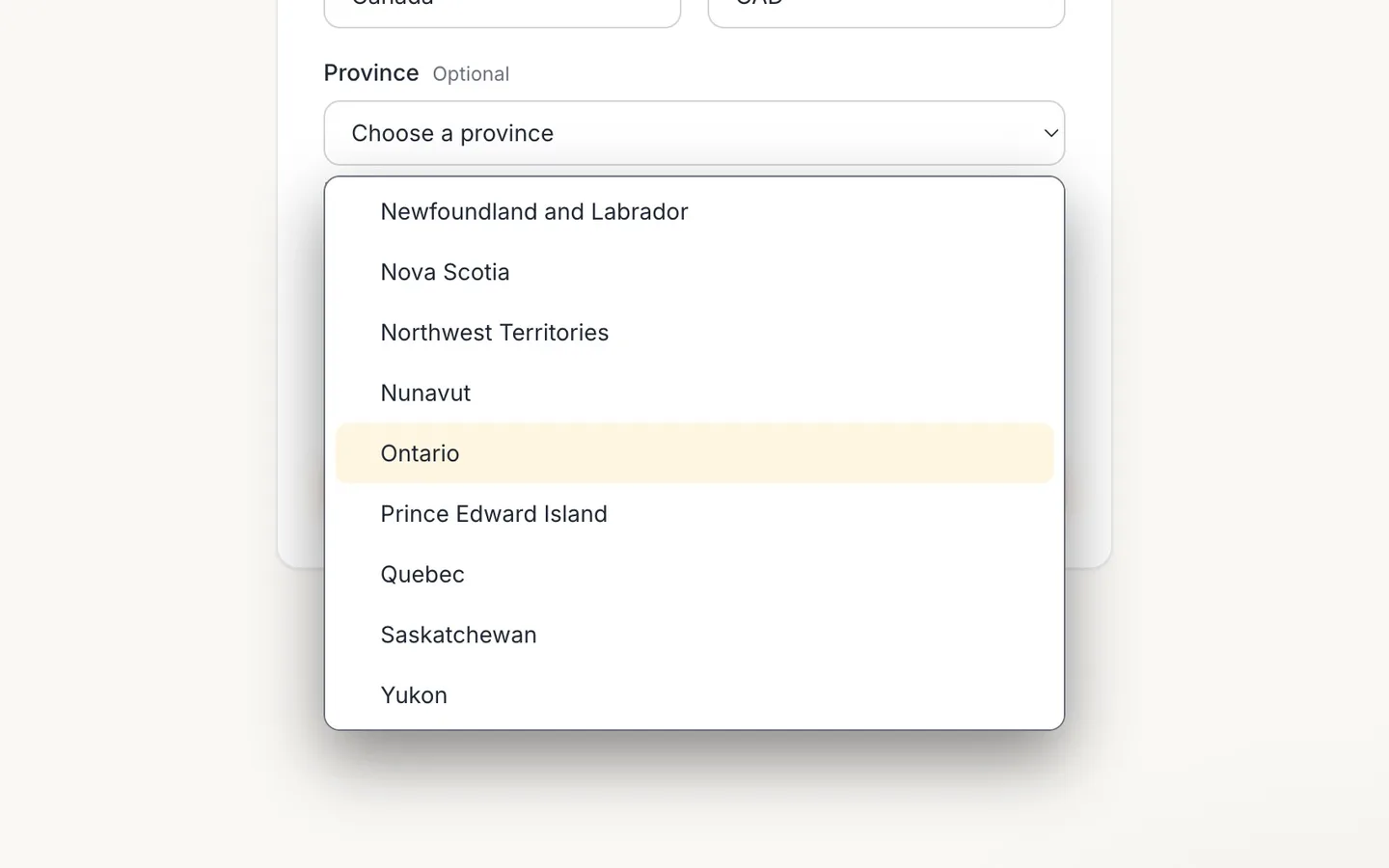
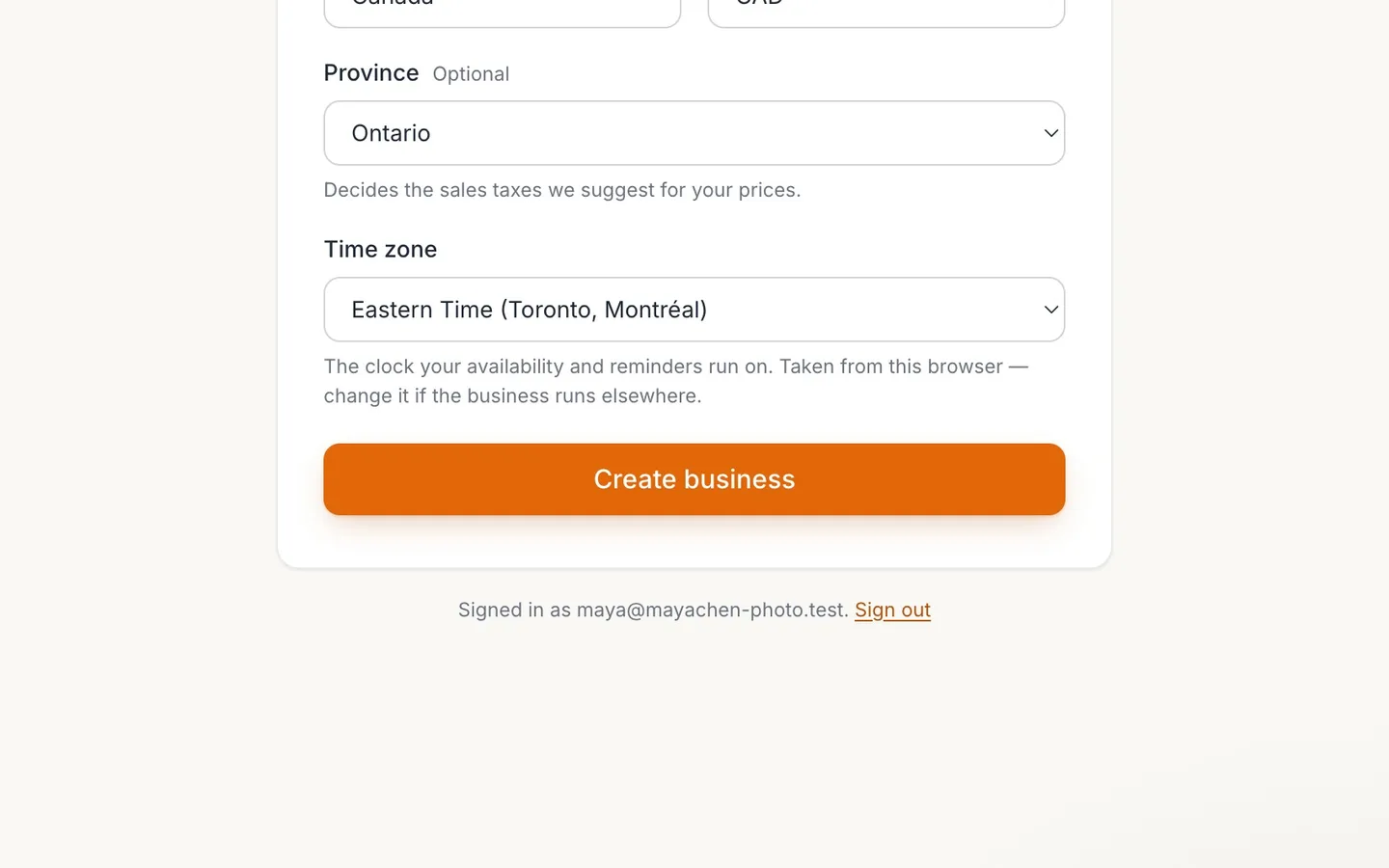
Choose your Province.
It decides the sales taxes suggested for your prices.
- 3
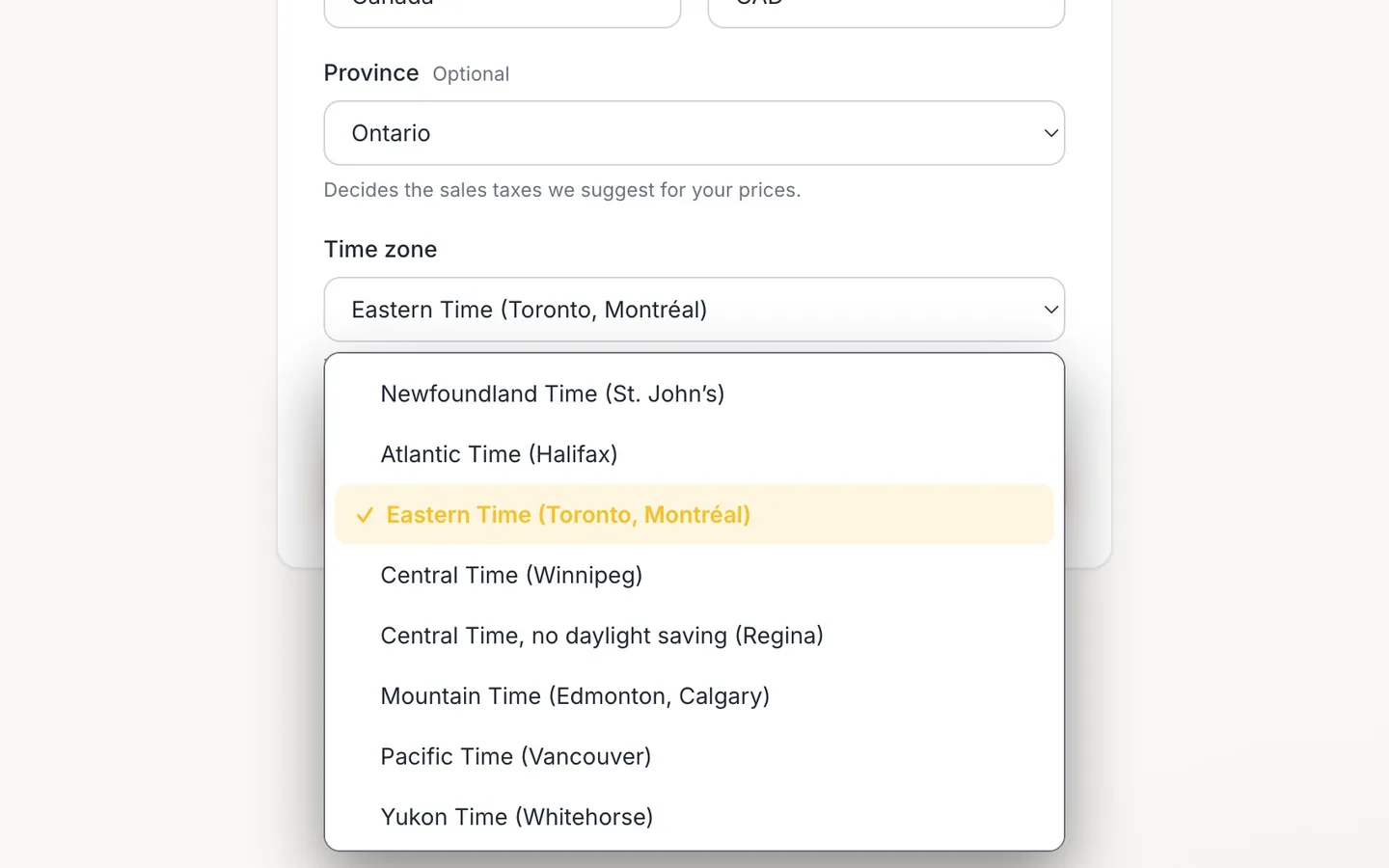
Check the Time zone.
It's taken from your browser. Your hours and reminders run on it.
- 4
Select Create business.
- 5
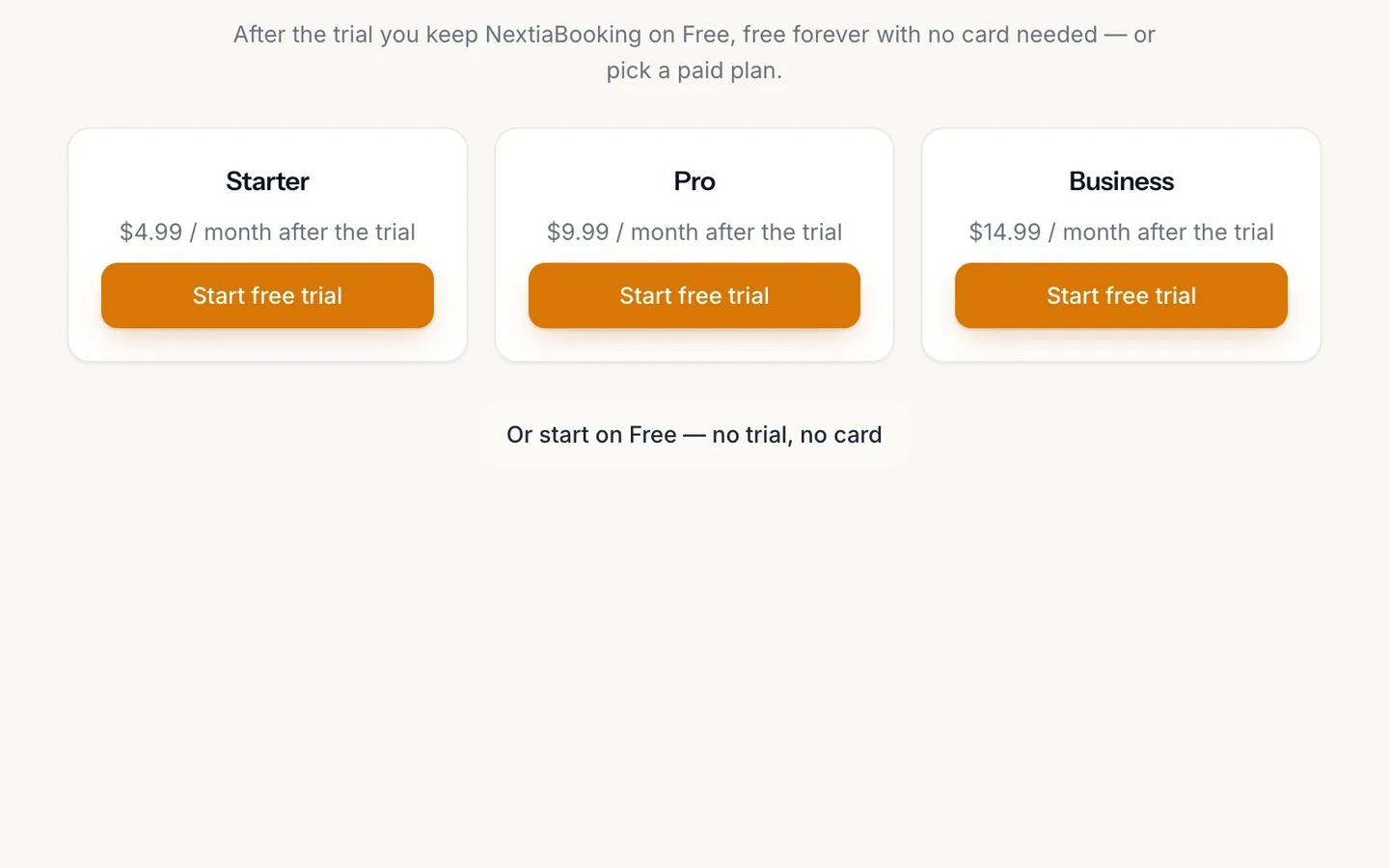
Start a free trial of a plan, or start on Free.
Free needs no trial and no card.
- 6
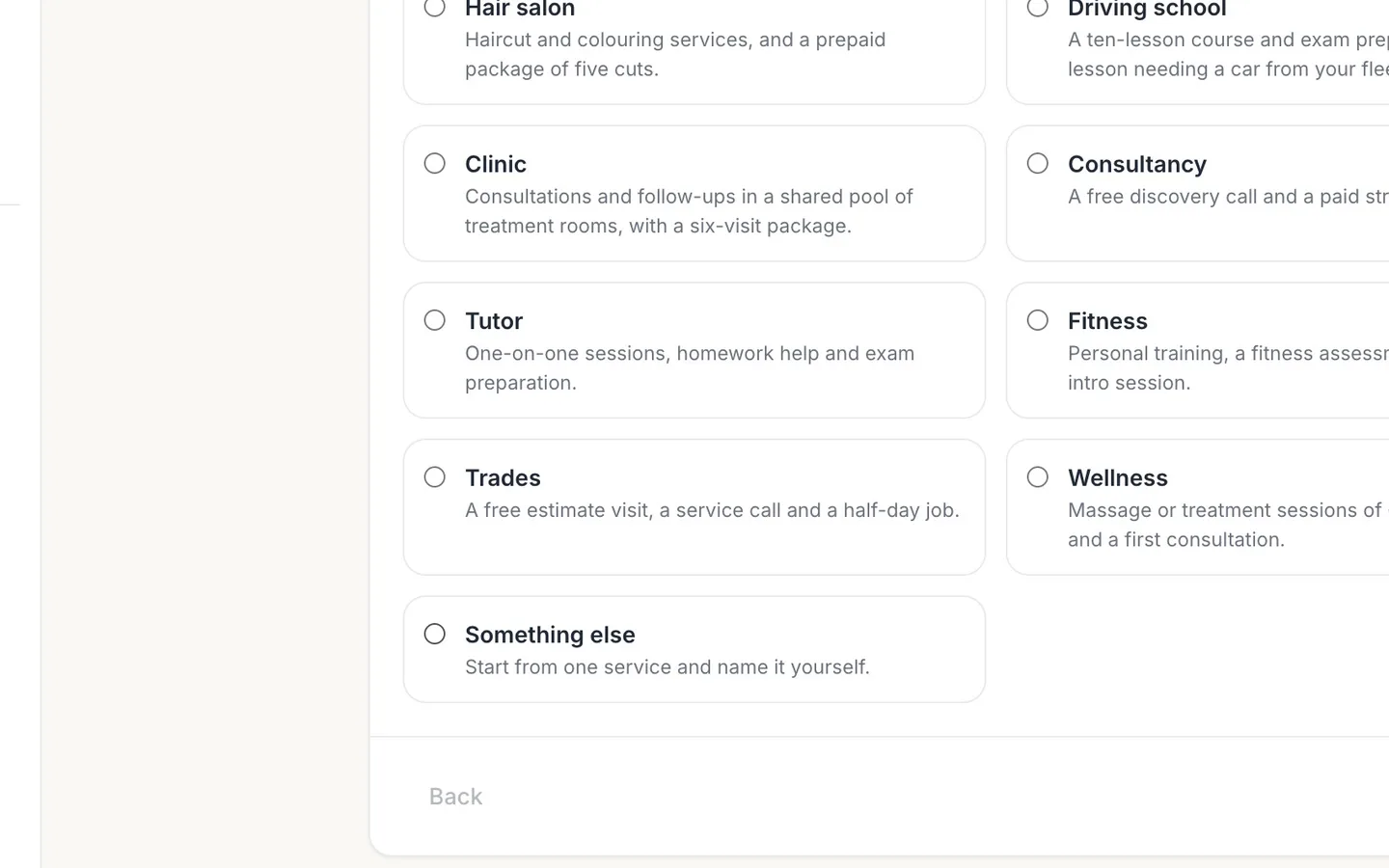
Pick what you do.
It suggests services to start from. Something else starts from one you name yourself.
- 7
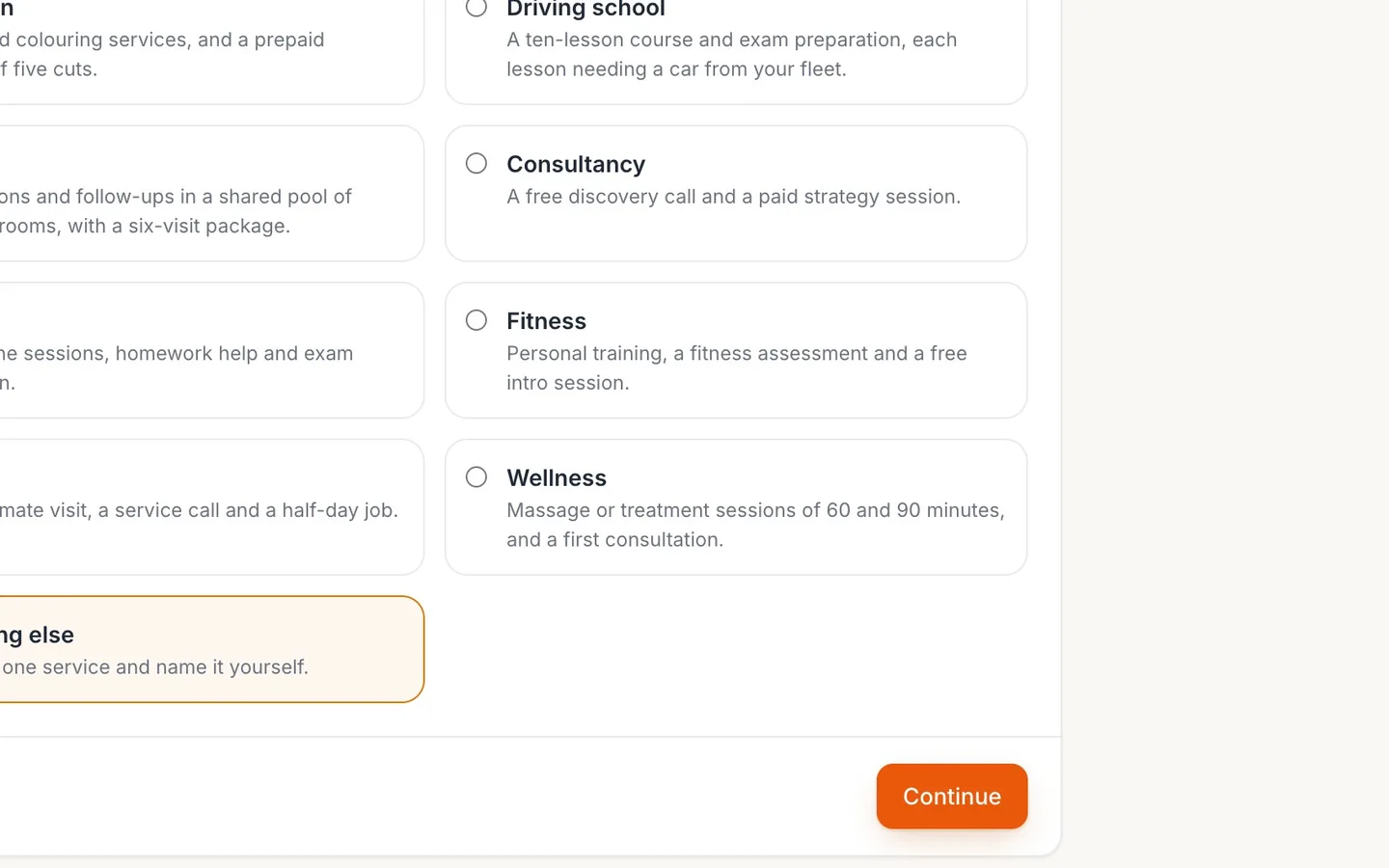
Select Continue.
- 8
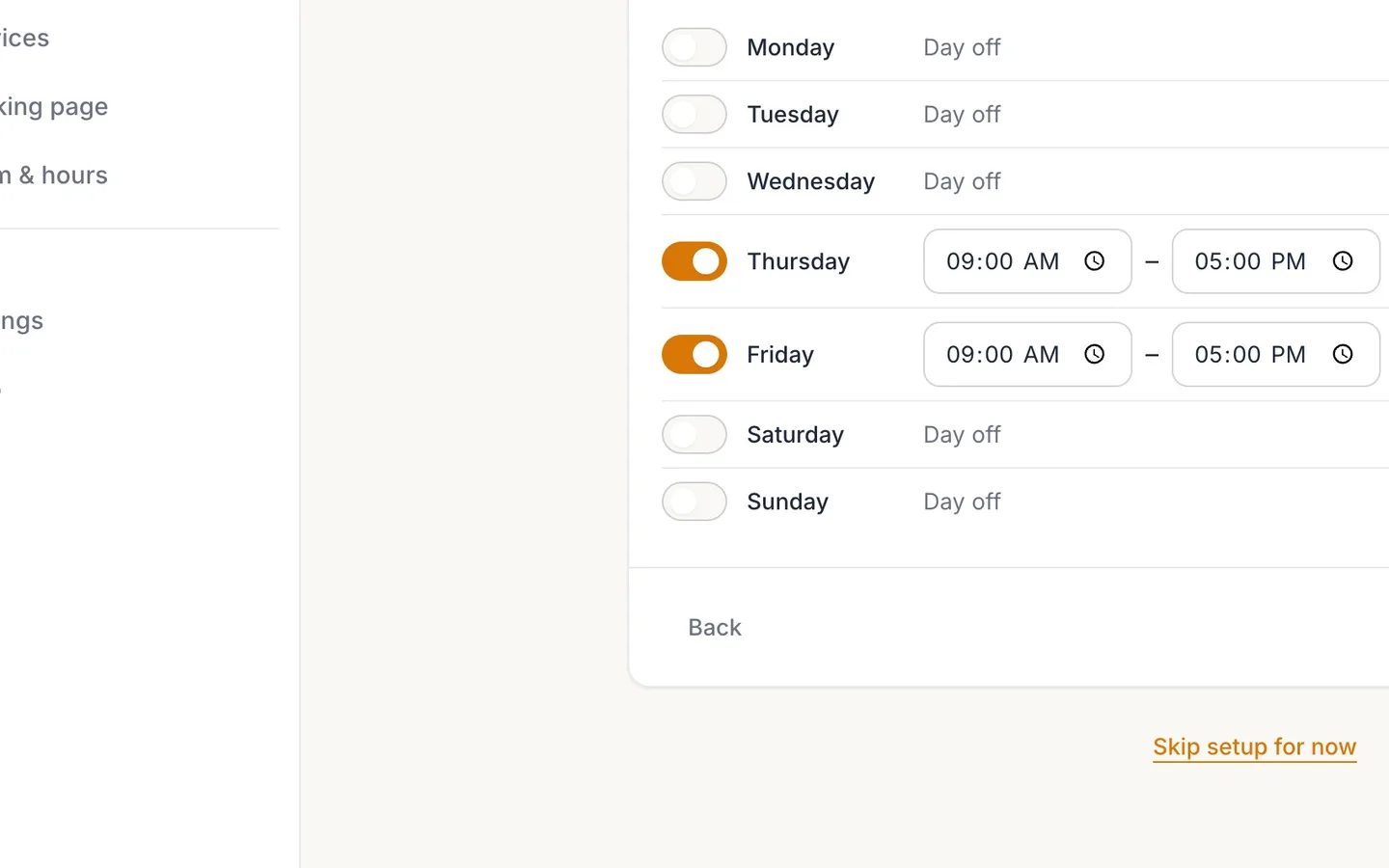
Turn on the days you work.
Clients can book you only inside these hours.
- 9
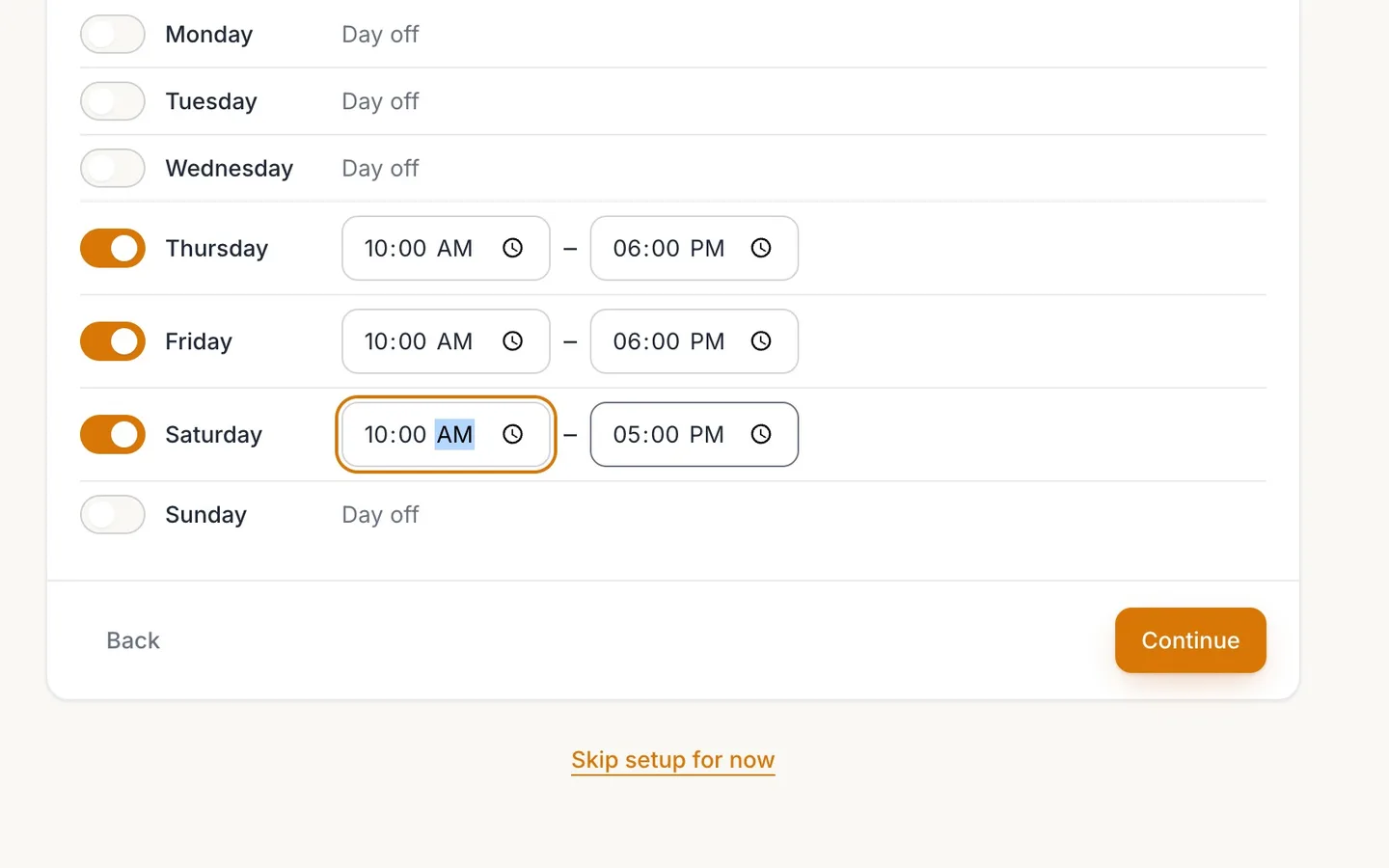
Set each day's start and end.
Times are in your business's time zone.
- 10
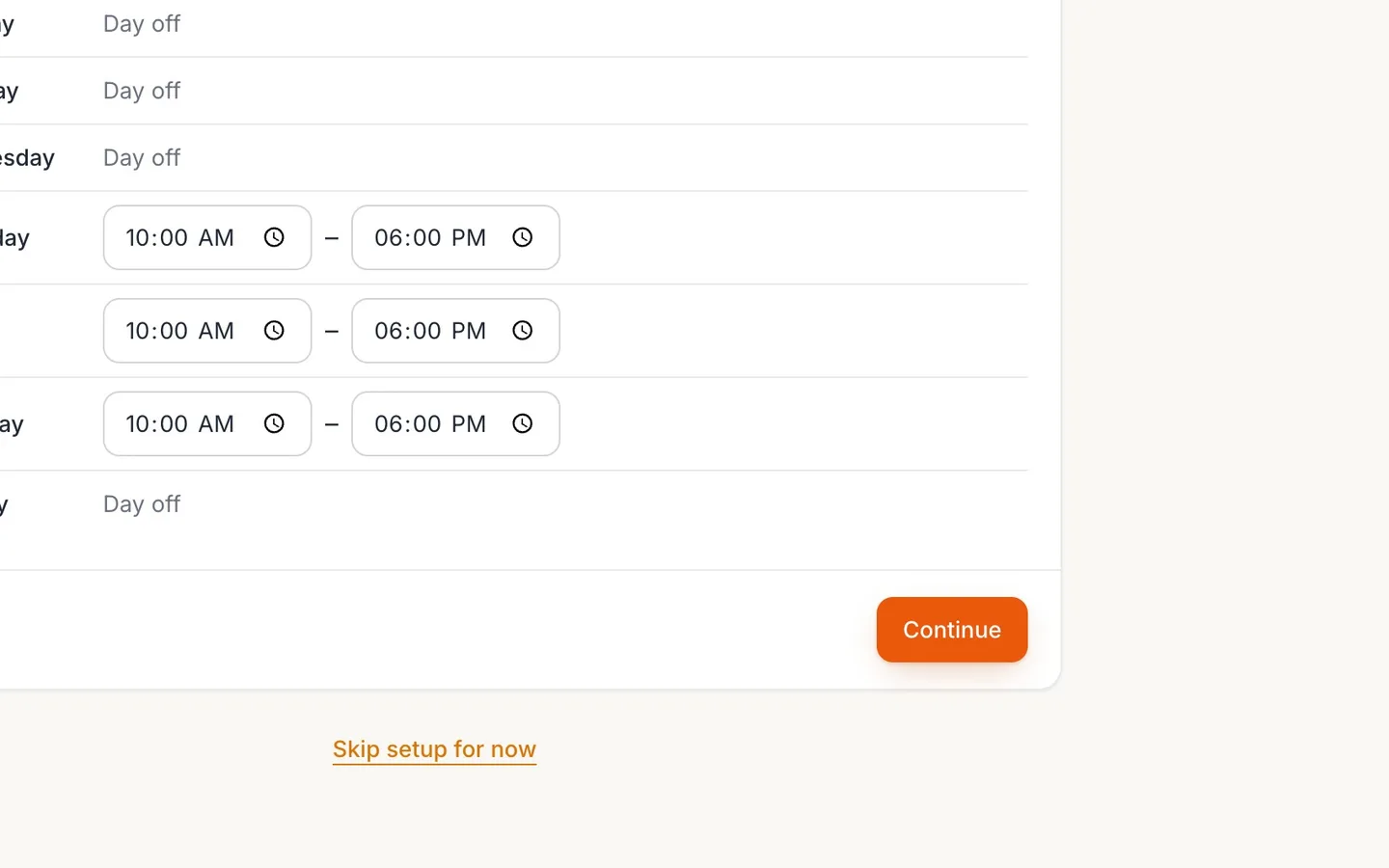
Select Continue.
- 11
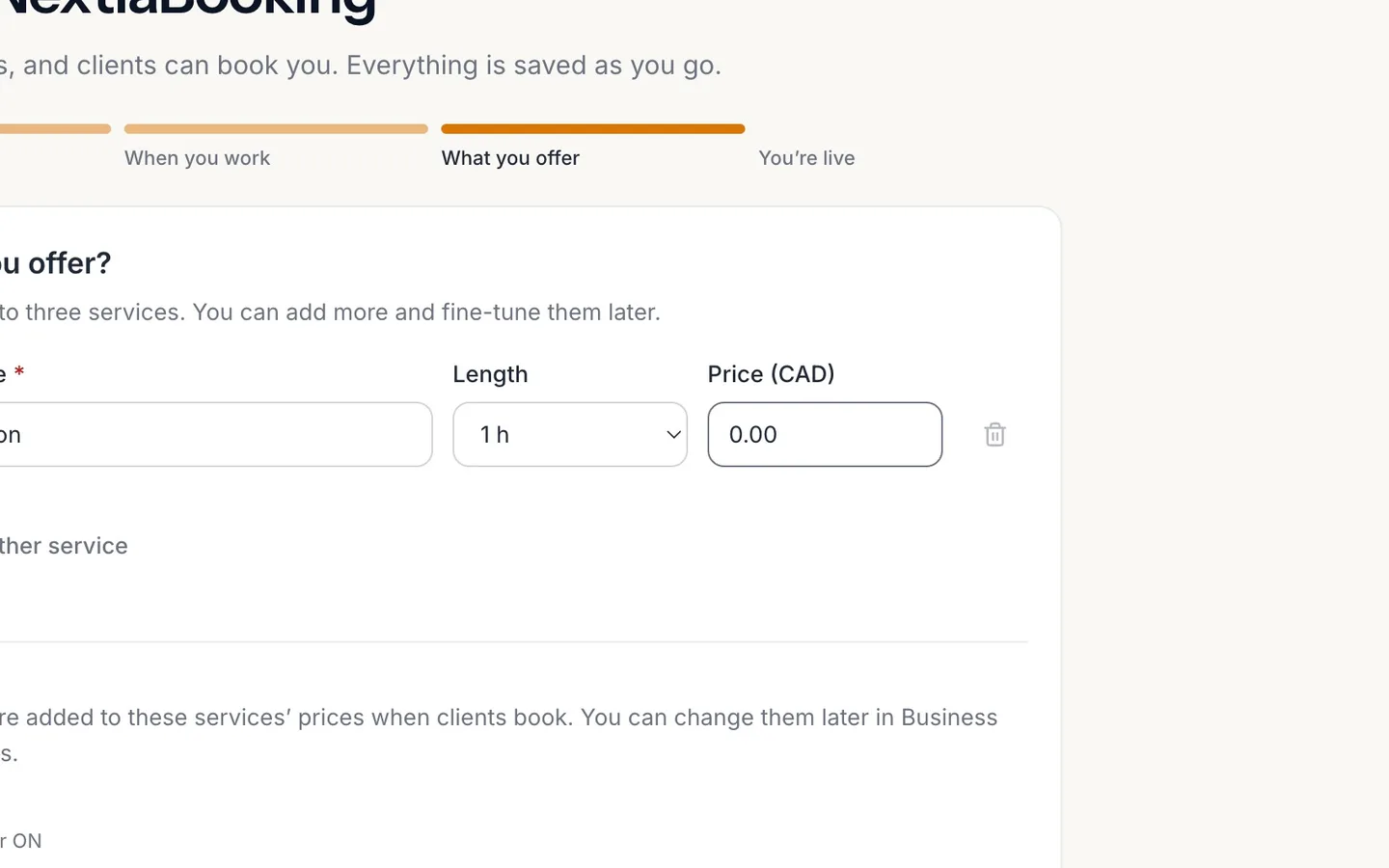
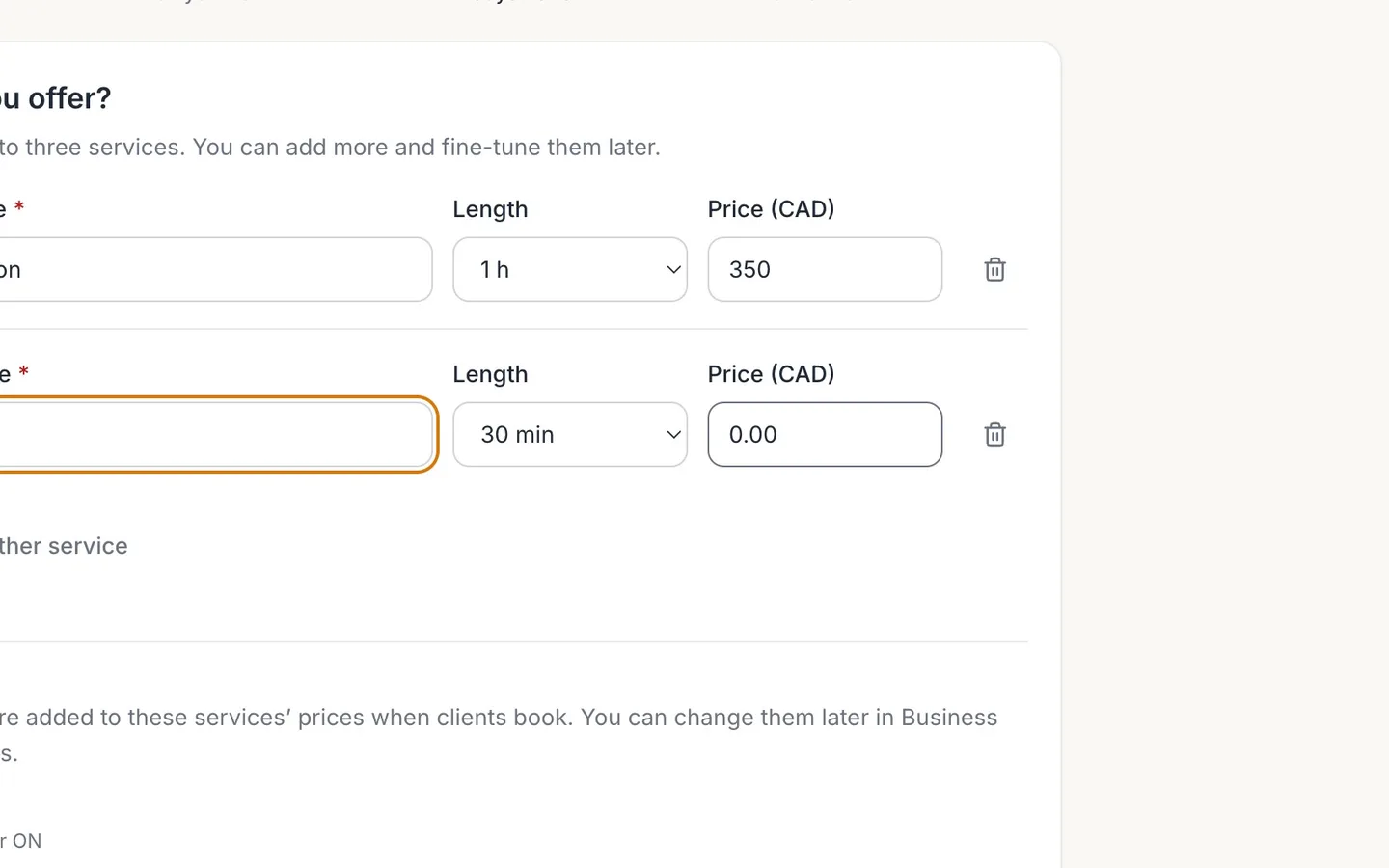
Name your first service, choose its Length and set its Price.
- 12
Select Add another service for each one.
Up to three here. You can add more and fine-tune them later.
- 13
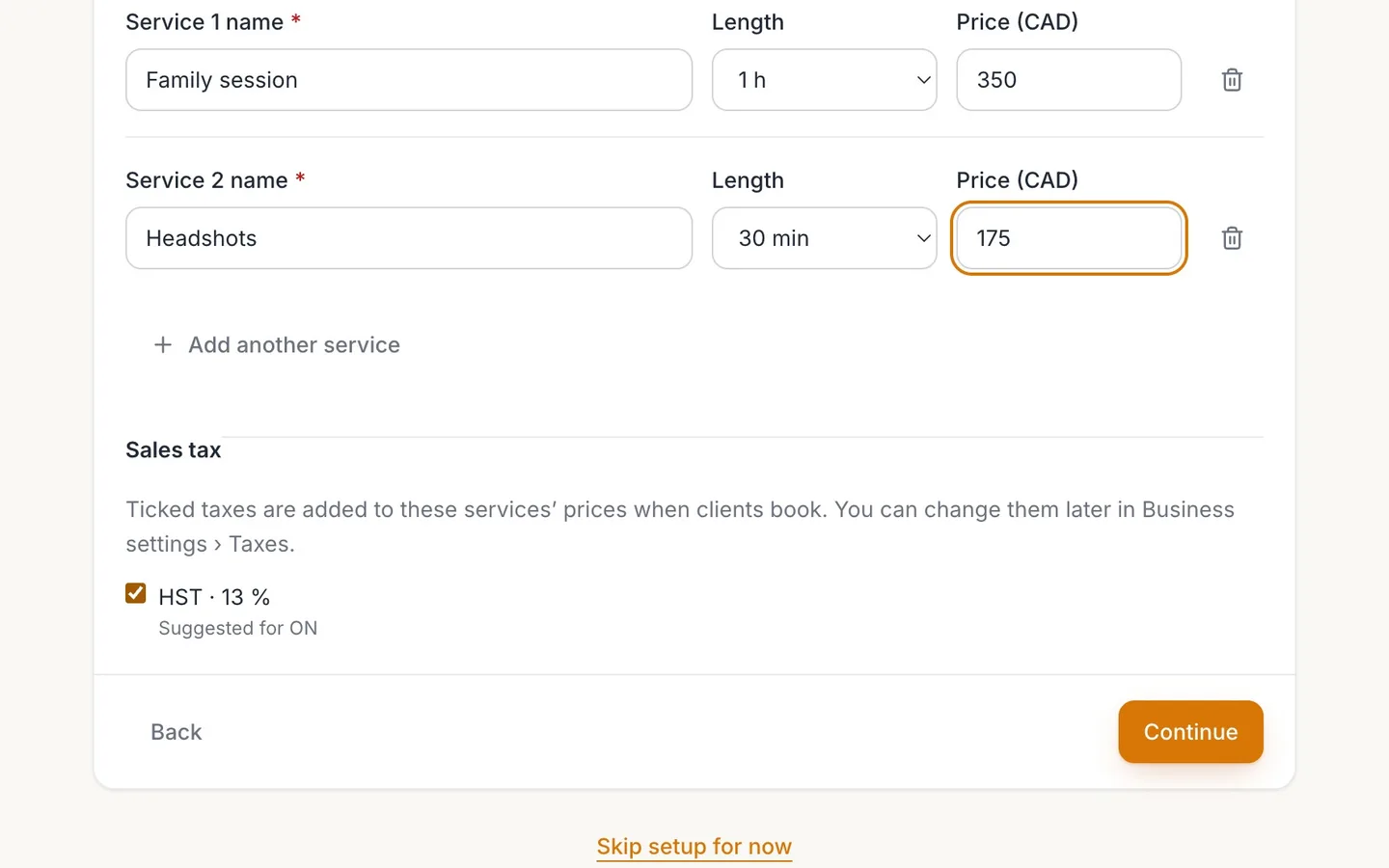
Check the Sales tax.
Ticked taxes are added to these prices when clients book.
- 14
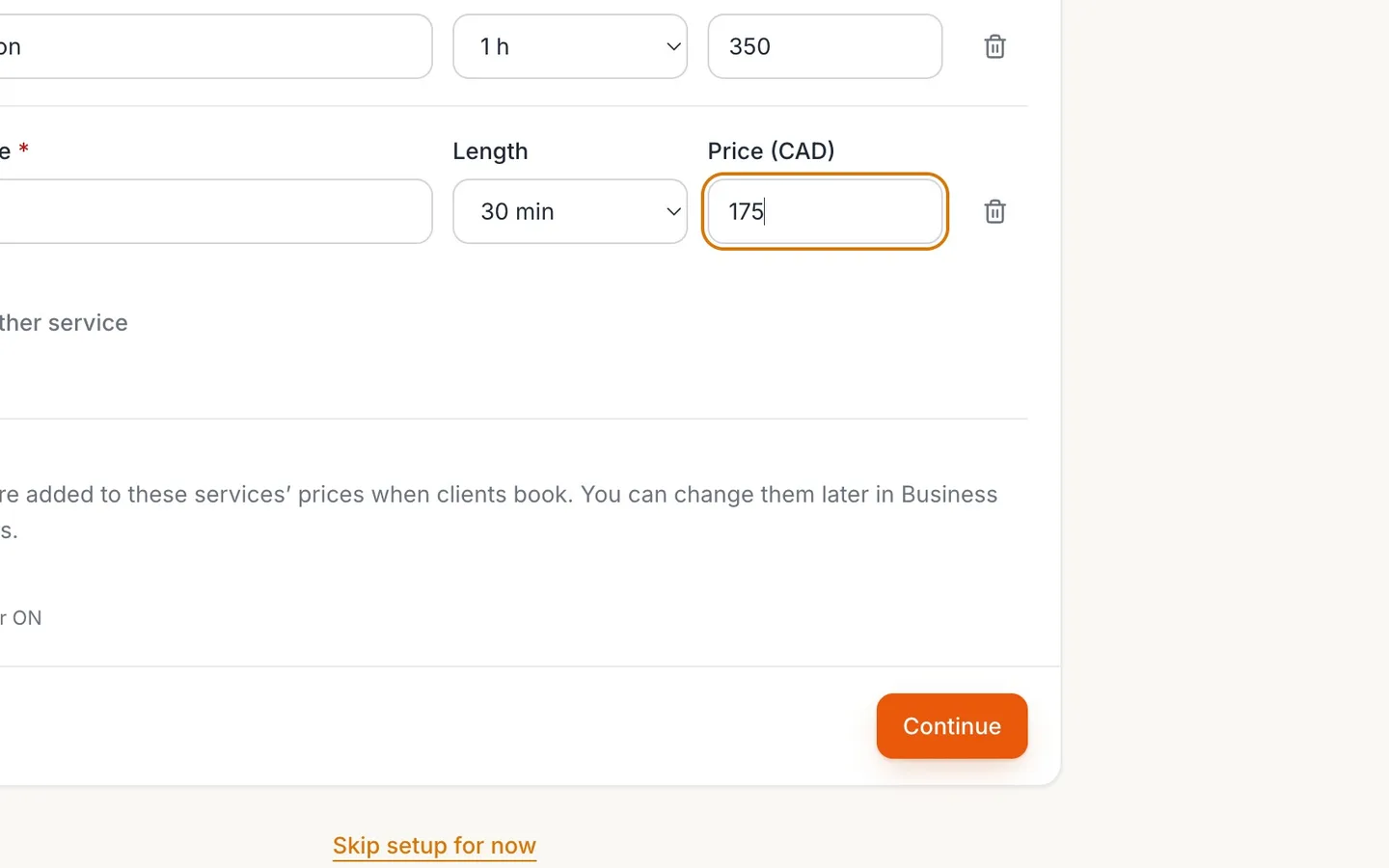
Select Continue.
- 15
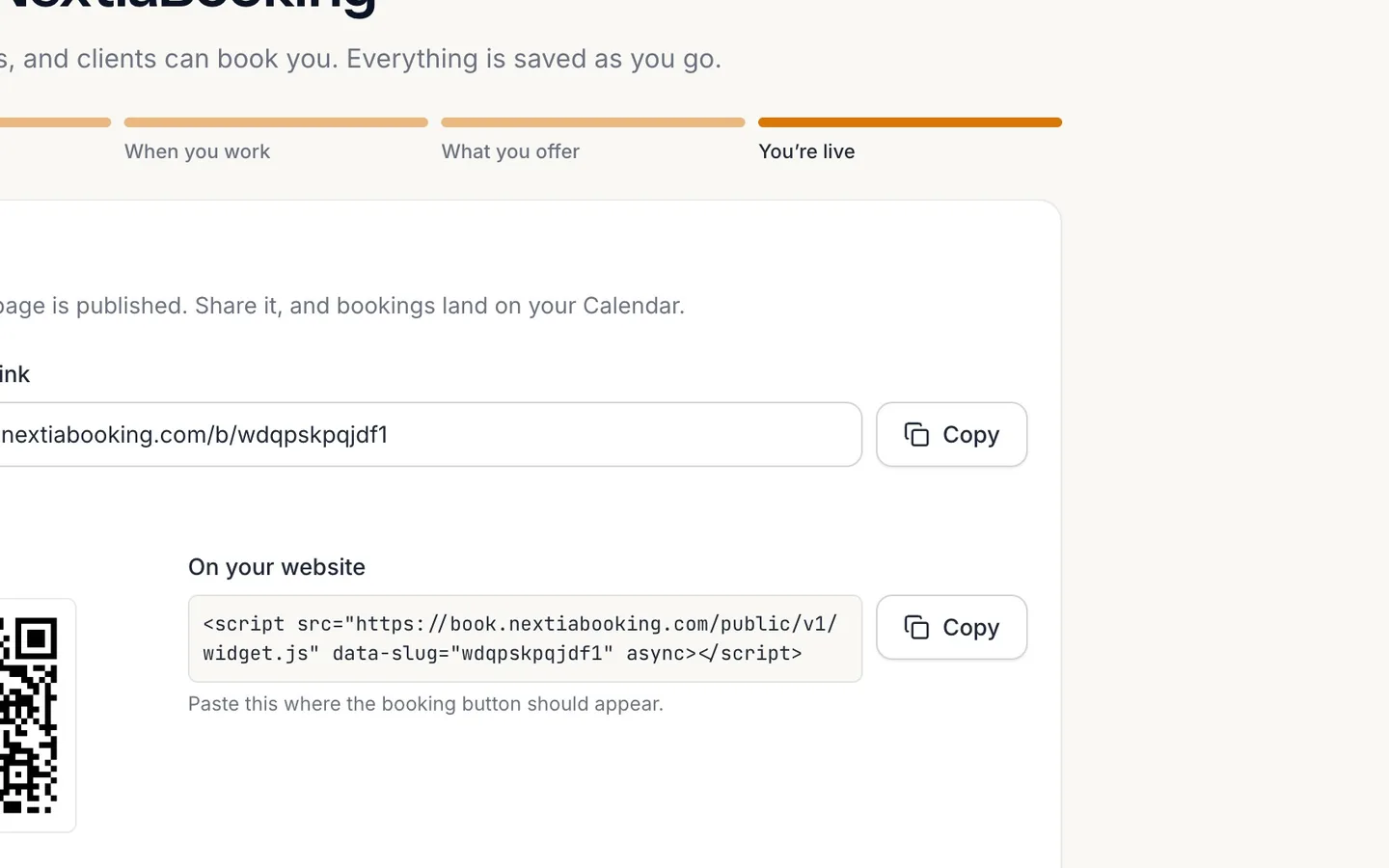
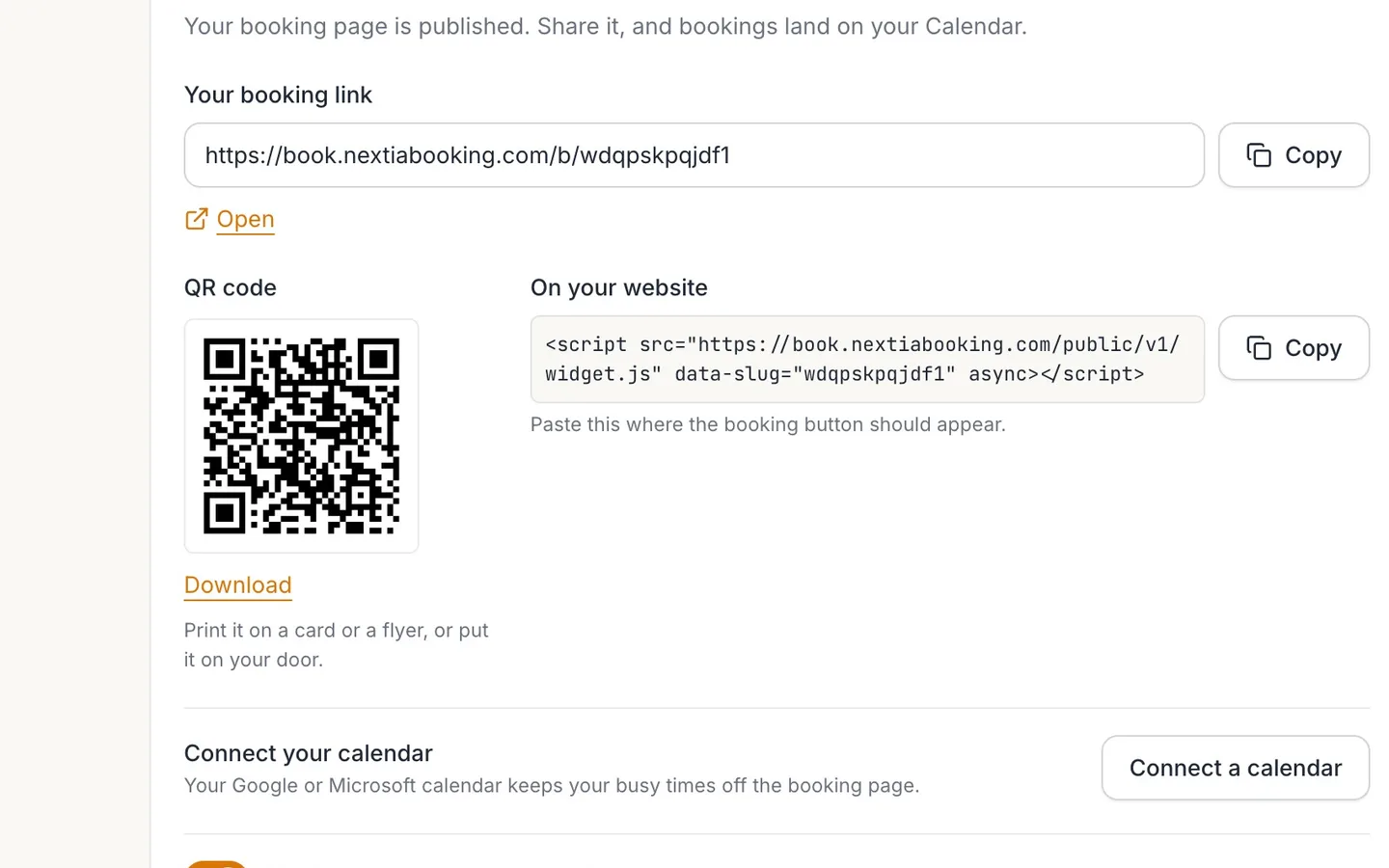
Your booking page is published. Select Copy to copy its link.
- 16
Use the QR code and the website snippet if you need them.
Print the QR code on a card or a flyer. Paste the snippet into your website.
- 17
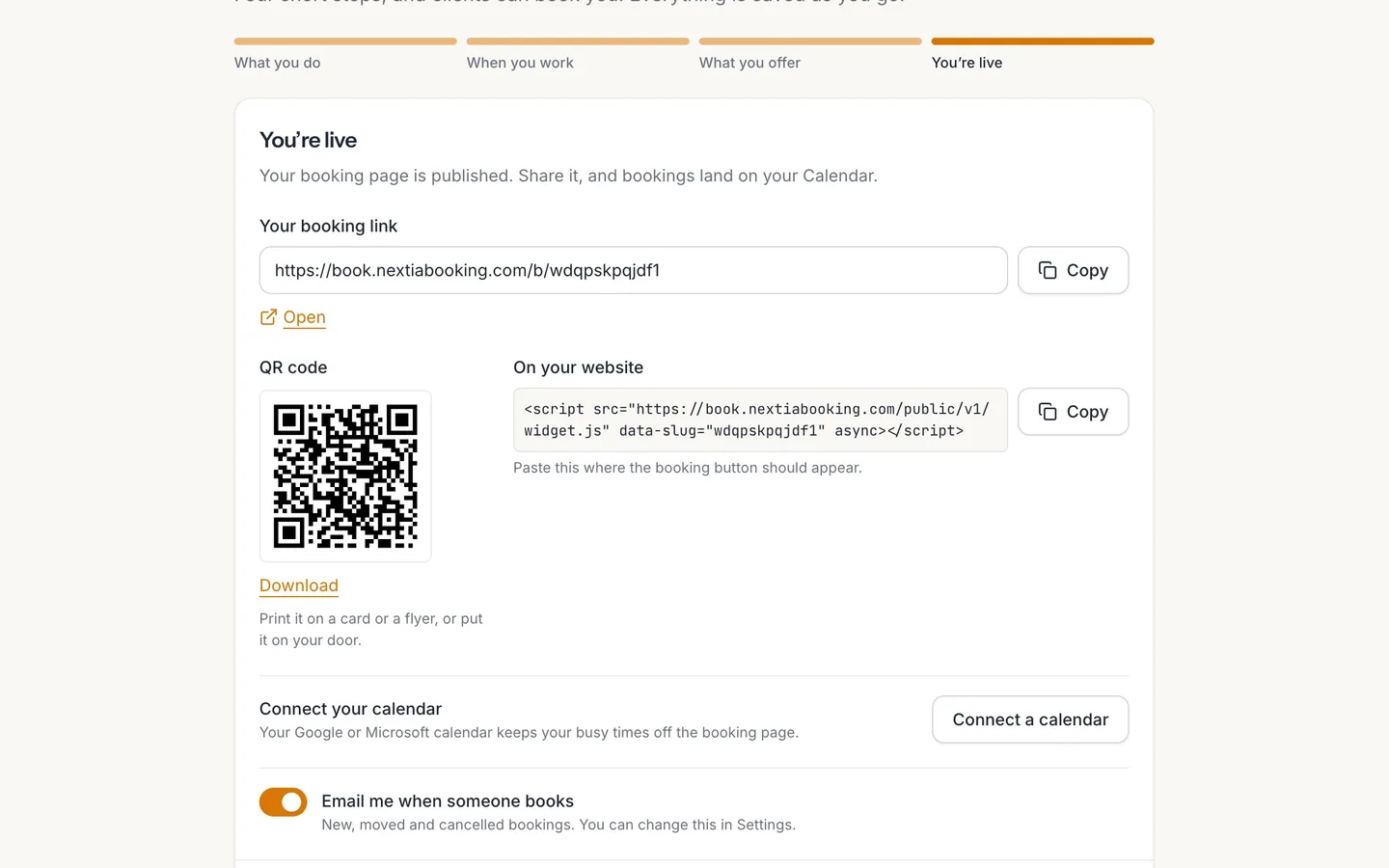
Leave Email me when someone books on.
New, moved and cancelled bookings. You can change it in Settings.
- 18
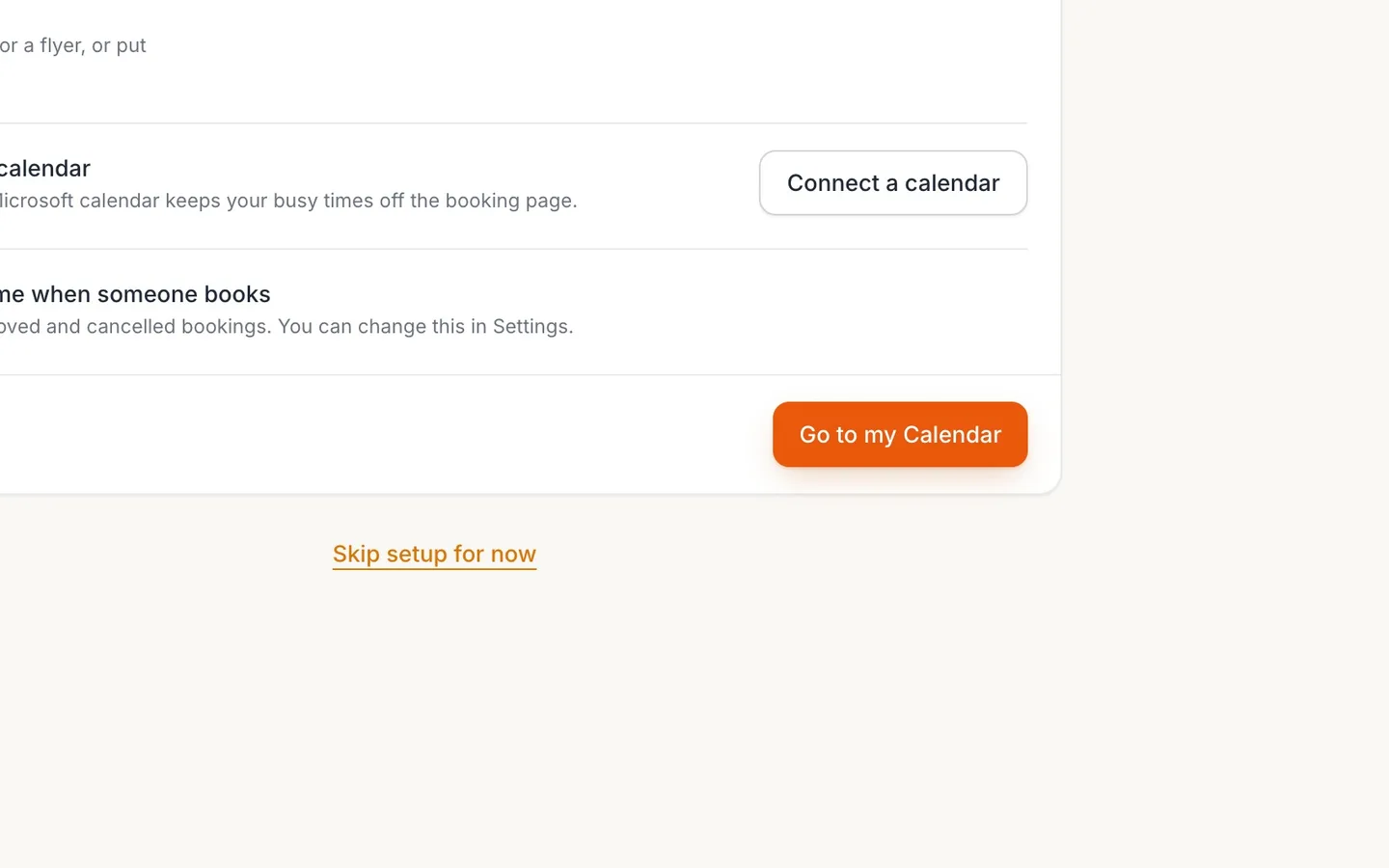
Select Go to my Calendar.
- 19
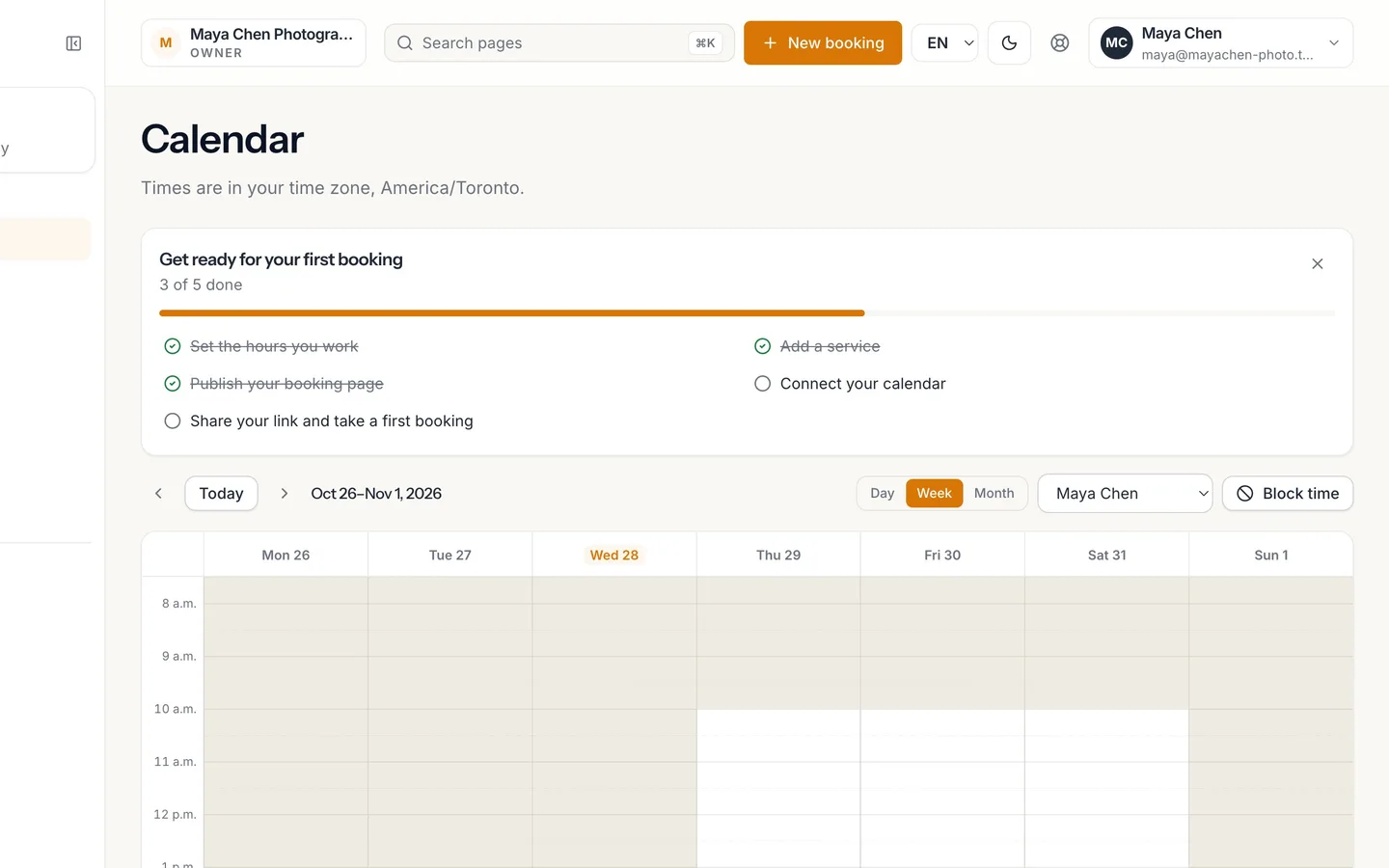
The checklist shows what's done and what's left.
Three of five: hours, a service and the published page.
- 20
Open your link to see your page as clients do.
It opens on the first day you have free times.
From sign-up to bookable in five minutes
Create your business in NextiaBooking, set what you do, when you work and what you offer, and publish a booking page your clients can use right away.
Before you start
This guide is for an owner opening NextiaBooking for the first time. By the end, you have a published booking page, a link to share and a QR code to print.
You need:
- A Nextia account to sign in with.
- Your services, how long each one takes and your prices.
- The days and hours you work.
You don't need a card. NextiaBooking has a Free plan with no trial and no card, and every paid plan starts with a 14-day free trial. On Free you can have one booking page, up to five services and 50 new bookings a month, with one staff member: you.
Step by step
-
Name your business
The first time you sign in, NextiaBooking shows Welcome to NextiaBooking and asks for one thing: the business your calendar, services and booking pages will belong to. Type it in Business name. This is what your clients see when they book, so use the name they know you by, for example "Maya Chen Photography".
Check Country and Currency below it.
-
Choose your province
Pick your Province from Choose a province. It decides the sales taxes NextiaBooking suggests for your prices later in setup. A business in Ontario, for example, is offered HST at 13%.
-
Check the time zone
Time zone is taken from your browser. It is the clock your availability and reminders run on, so if your business runs somewhere other than where you are sitting, change it. Zones are listed by name, such as Eastern Time (Toronto, Montréal).
-
Create the business
Select Create business. A message confirms that your business is ready.
-
Pick a plan, or start on Free
Next you see the plans. Each paid plan shows its price after the trial and a Start free trial button (14 days, no card). Below them, Or start on Free — no trial, no card starts you on the free plan straight away. After a trial ends, you keep NextiaBooking on Free unless you choose a paid plan.
Only an owner or admin of the business can start a plan.
-
Tell NextiaBooking what you do
Setup is four short steps: What you do, When you work, What you offer and You're live. Each one is saved as you go, so if you close the tab you come back to the first step you haven't finished.
Under What do you do?, pick the choice closest to your work. Each one suggests services to start from, and you can change all of them:
- Hair salon, Driving school, Clinic, Consultancy, Tutor, Fitness, Trades, Wellness
- Photography and creative: a photo session (60 min, $250.00), a mini session (30 min, $125.00) and headshots (30 min, $175.00)
- Something else: starts from one service, a 30-minute consultation at $0, that you name yourself
A photographer like Maya picks Photography and creative.
If you'd rather finish later, Skip setup for now takes you to the app. Setup waits for you on the Calendar.
-
Continue to your hours
Select Continue. Your choice is saved and setup moves on to When you work.
-
Turn on the days you work
Under When do you work?, every day has a switch. Until you change it, Monday to Friday are on, from 9:00 a.m. to 5:00 p.m. Turn on the days you work and turn the others off; a day that's off reads Day off. Clients can book you only inside these hours.
This step also creates your own profile, so bookings are made with you. You will see it later among your staff.
-
Set each day's hours
Set a start and an end for each working day, in 15-minute steps. Times are in your business's time zone.
If you work in two blocks on the same day, for example 9 to 12 and 1 to 5, select Add hours on that day. A second set of times appears, starting an hour after the first one ends. Use the bin button beside a set to remove it. Each set has to end after it starts, and two sets on the same day can't overlap: NextiaBooking says These hours overlap. Make one end before the next starts. and keeps you on the step until you fix it. Choose at least one working day to continue.
-
Continue to your services
Select Continue. Your hours are saved and setup moves on to What you offer.
-
Name your first service
Under What do you offer?, the services suggested by your choice in the first step are already filled in. For each one, set:
- Service 1 name: what clients see, such as "Family session".
- Length: from 15 minutes up to 8 hours.
- Price: in your currency. Enter 0 for a free service.
Maya renames the photo session to "Family session", keeps 1 h and sets the price to 350.
-
Add your other services
Select Add another service for each extra one. You can have one to three services here; use the bin button to remove one you don't need. You can add more and fine-tune them later in Services. New services are bookable from today and up to three months ahead, and are confirmed as soon as a client books.
-
Check the sales tax
Under Sales tax, the taxes suggested for your province are listed, and the default ones are already ticked. Ticked taxes are added to these services' prices when clients book. Untick any that don't apply to what you sell. You can change them later in Business settings › Taxes.
-
Continue to publish your page
Select Continue. Your services are saved and your booking page is published.
-
Copy your booking link
You're live shows Your booking link with a Copy button, and Open to see the page yourself.
The first link is a private, random address. Just below it, NextiaBooking offers Use a link with your business's name: with the address it would make, such as one ending in
/b/maya-chen-photography. Select Use this link to switch to it. If another business already has that name, a number is added to the end. You can change the link at any time on the Booking page with Edit link. -
Leave Email me when someone books on
Email me when someone books is on. It sends you an email for each new, moved and cancelled booking with you. You can change it later in Settings › Notifications.
-
Go to your Calendar
Select Go to my Calendar. A message confirms You're set up. Bookings will appear here.
-
Read the checklist
On the Calendar, Get ready for your first booking lists five things. After setup, three of five are done: Set the hours you work, Add a service and Publish your booking page. The two left are Connect your calendar and Share your link and take a first booking; each has a Do it button. When you no longer need it, select Hide this checklist.
-
See your page as clients do
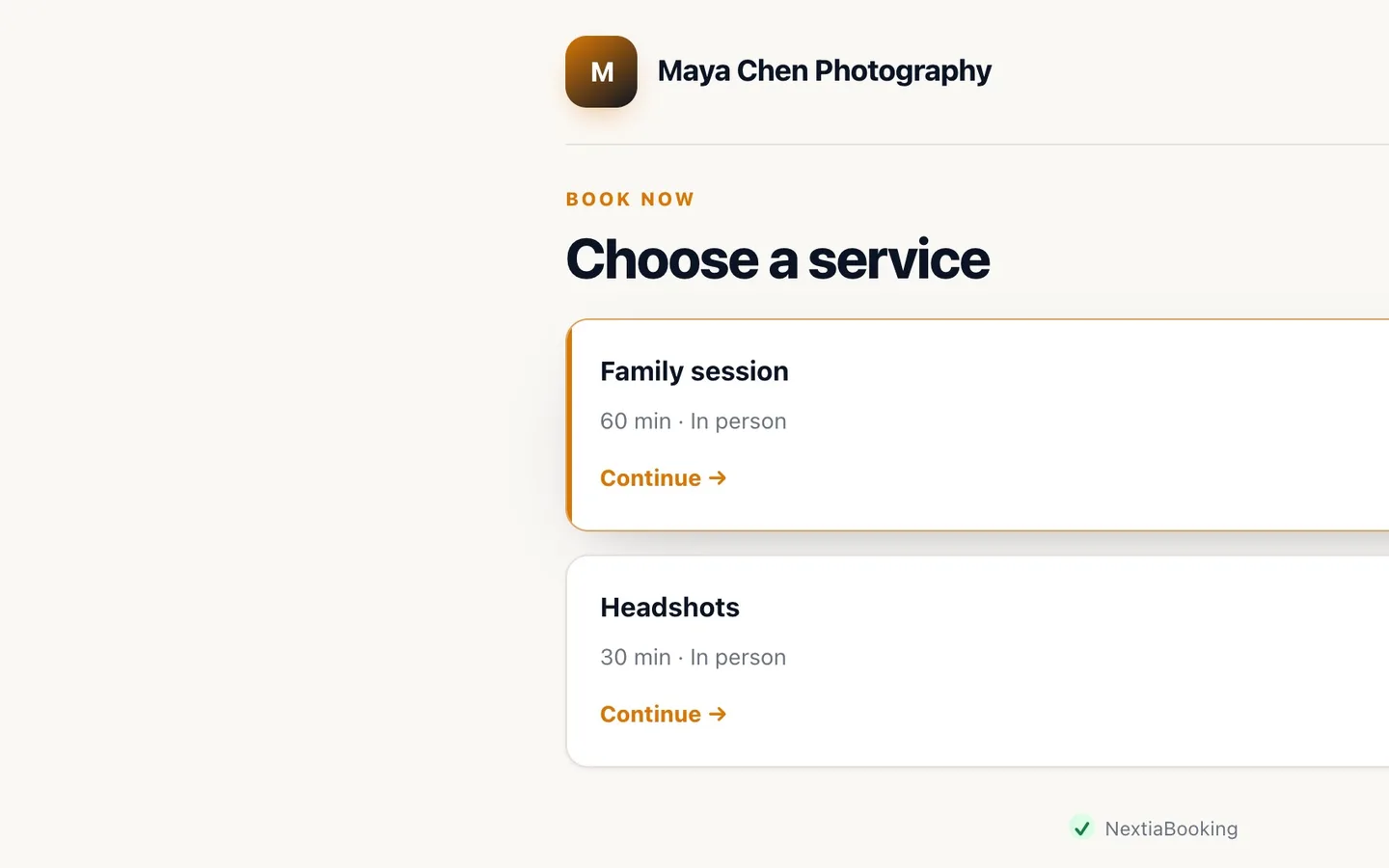
Open your link. Clients choose a service and pick a time. The page opens on the first day you have free times, not necessarily today: for Maya, who works Thursday to Saturday from 10, the first open time is on Thursday at 10:00 a.m.
What happens next
Your page takes bookings straight away. Each booking appears on your Calendar, the client gets a confirmation email with a calendar invite, and you get an email about it while Email me when someone books is on.
The usual next task is to share your link. Then look at Settings › Notifications to turn on reminders for your clients.
If something goes wrong
A day I work shows no times on my booking page
Check in My schedule that the day is on and that its end is after its start. Times are in your business's time zone, so a wrong zone shifts every time. Also check that the service's length fits inside your hours on that day.
Setup says my hours overlap
Two sets of hours on the same day share some time. Make the first set end before the next one starts, or remove one with the bin button.
No sales tax was suggested
Your business has no province set. Set your Province in Business settings, then add the tax in Taxes and tick it on each service in Services.
Setup says my new taxes haven't reached Booking yet
The taxes are being added to your business and take a moment to arrive. Wait a moment, then select Continue again.
I skipped setup and can't find it
Setup waits for you on the Calendar, under Get ready for your first booking: select Finish setup. It opens on the first step you haven't finished.
Questions
Do I need a credit card to start NextiaBooking?
No. You can start on the Free plan with no trial and no card, or start a 14-day free trial of a paid plan, which also needs no card. After a trial you stay on Free unless you choose a paid plan.
Is there a NextiaBooking template for photographers?
Yes. In setup, under What do you do?, choose Photography and creative. It suggests a photo session, a mini session and headshots, which you can rename and reprice before you continue.
Can I set two blocks of hours on the same day, like a lunch break?
Yes. In the When do you work? step, select Add hours on that day to add a second set of times. The sets can't overlap. You can change them later in My schedule.
Can I change my booking link after setup?
Yes. On the Booking page, select Edit link and type a new one: letters, numbers and dashes, at least 6. The old link stops working, so update anywhere you shared it, and download the QR code again.
What does the Free plan include in NextiaBooking?
One booking page, up to five services, up to 50 new bookings a month and one staff member. On Free, the footer of your booking page also names NextiaBooking.