
Every client's history, and Book again
Find a client, see their bookings and payments, keep notes and tags only your team sees, and book them again with their details filled in.
- 10 steps
- About 1 min
- Checked against NextiaBooking on October 28, 2026
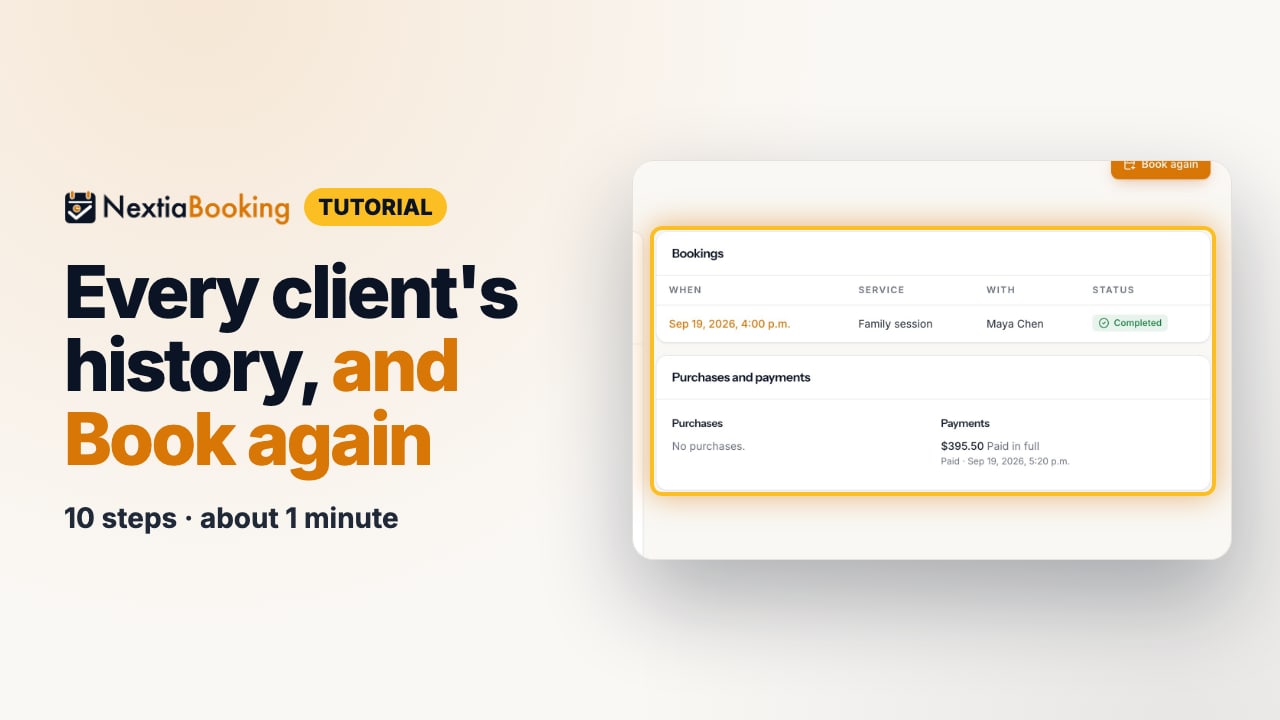
The video is on its way. The step-by-step and written versions are ready now.
- 1
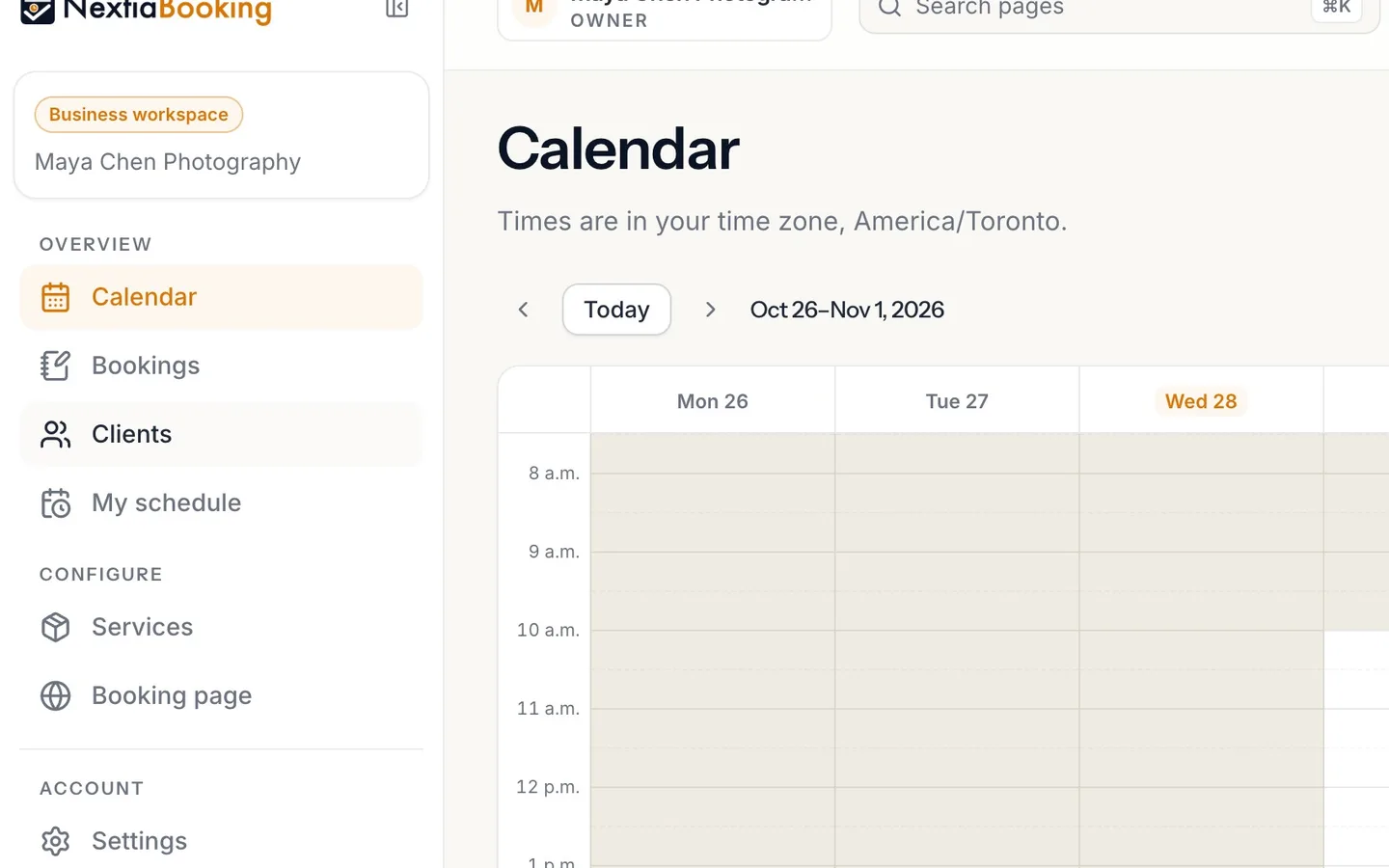
Select Clients in the sidebar.
- 2
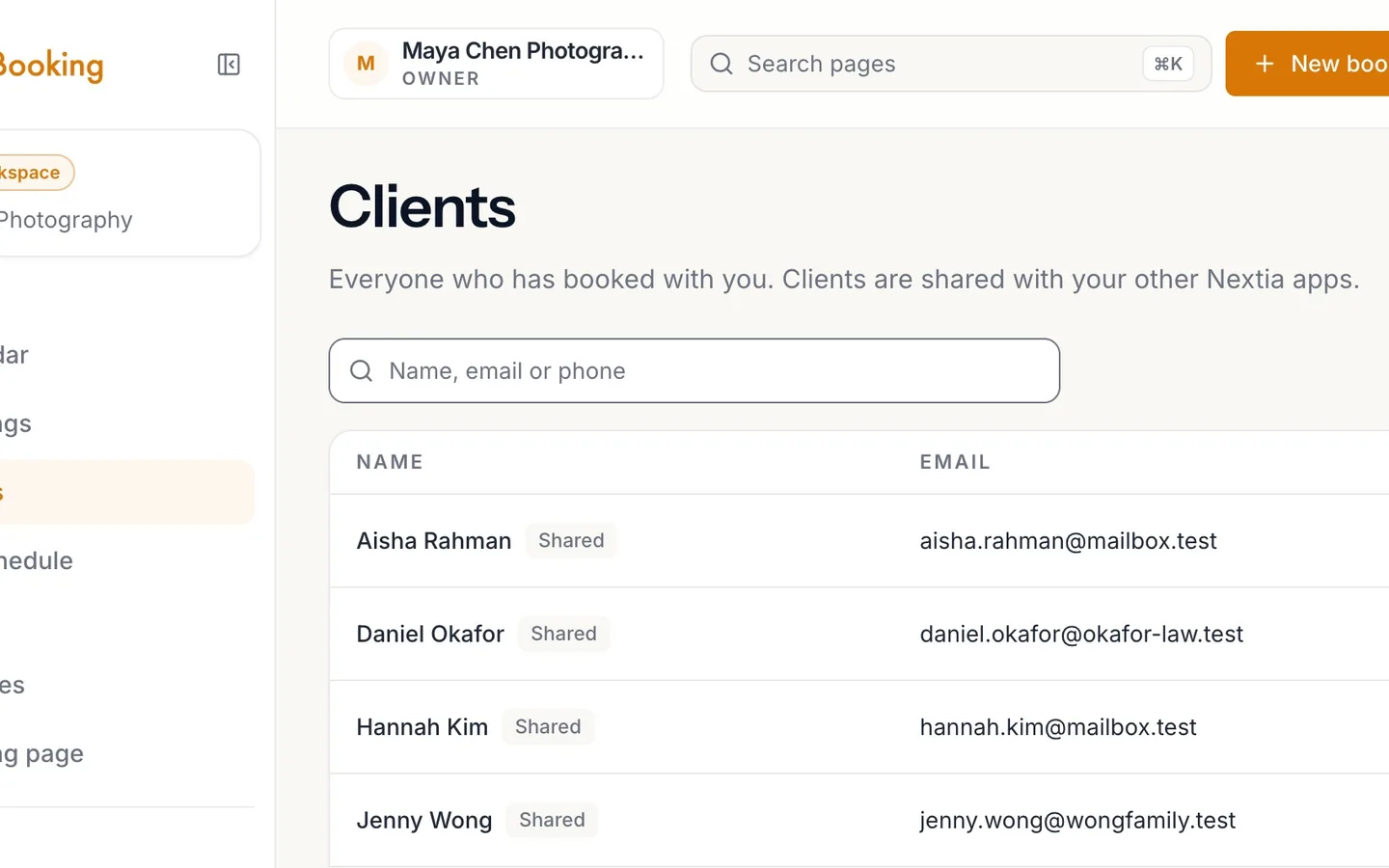
Search by name, email or phone.
- 3
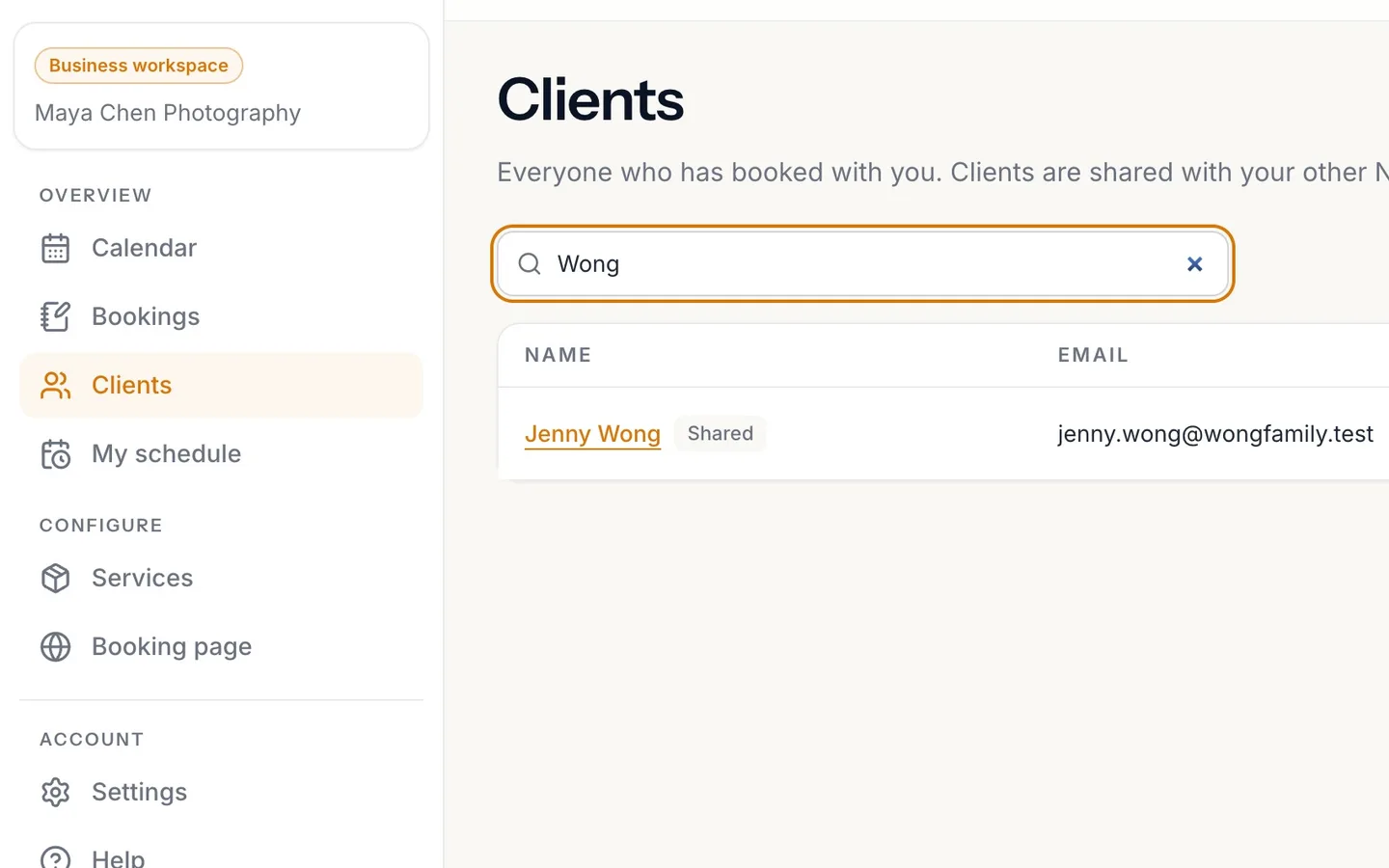
Select the client to open their page.
- 4
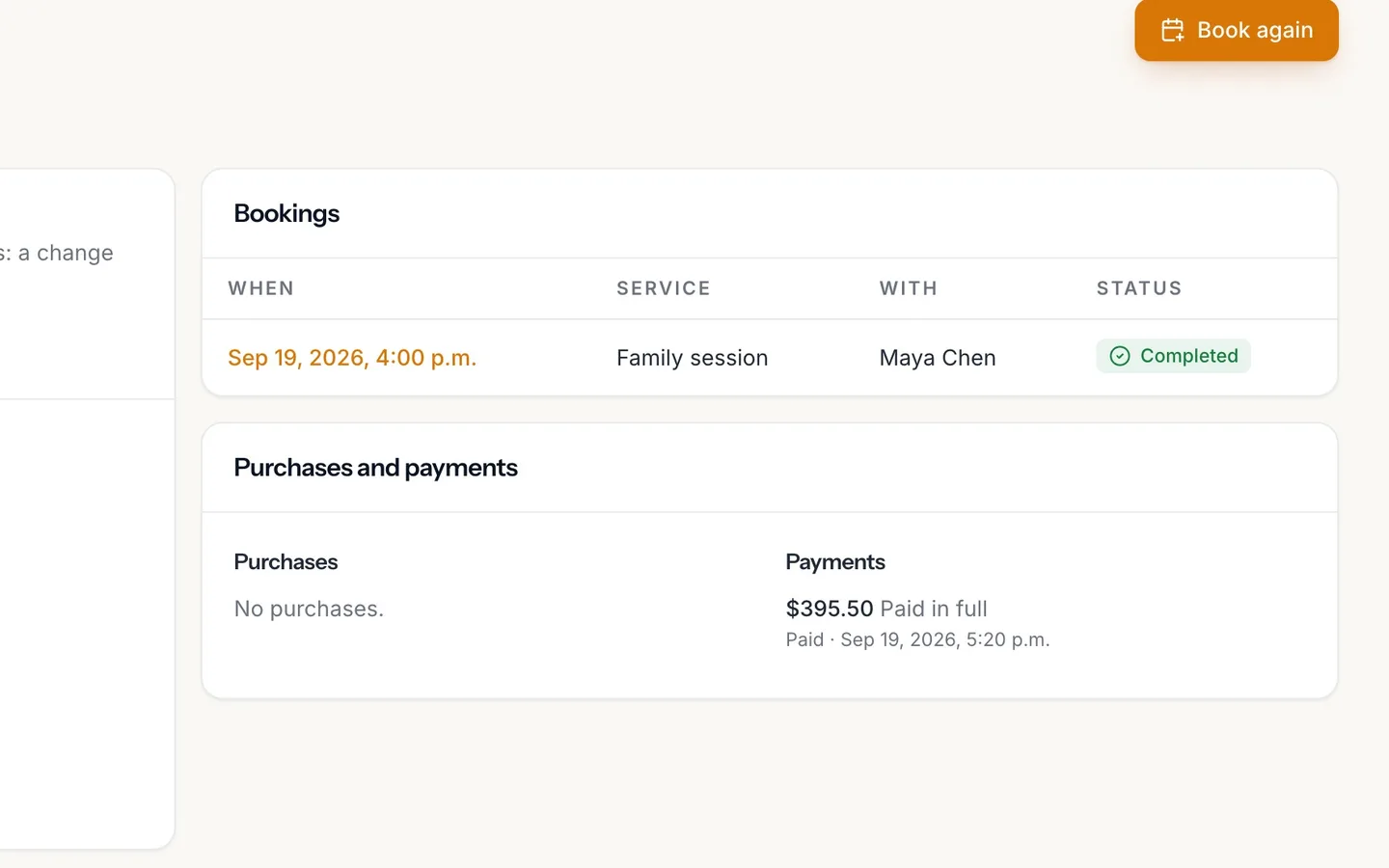
See their Bookings and Purchases and payments.
Newest first.
- 5
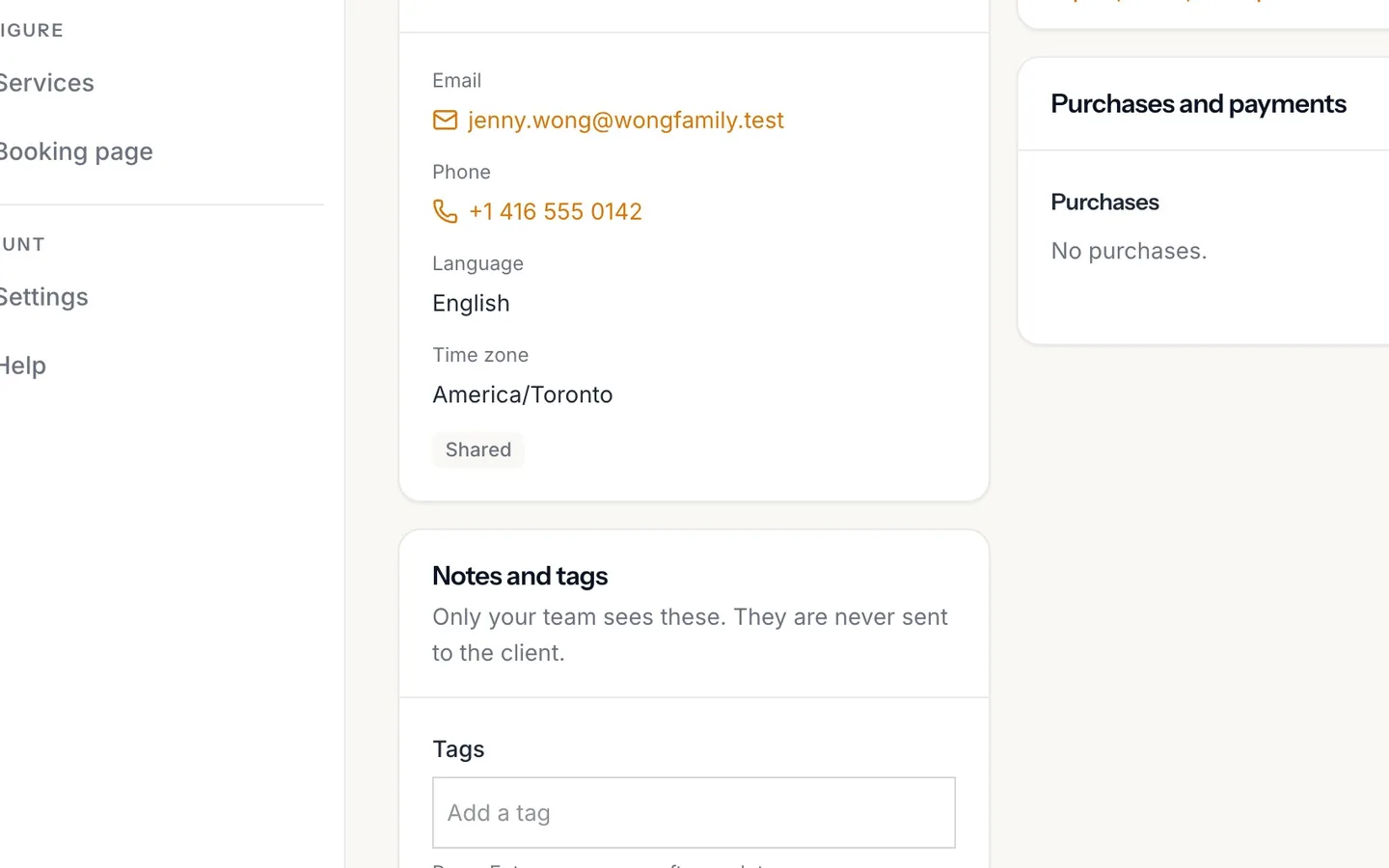
Type a tag and press Enter.
Only your team sees tags and notes. They are never sent to the client.
- 6
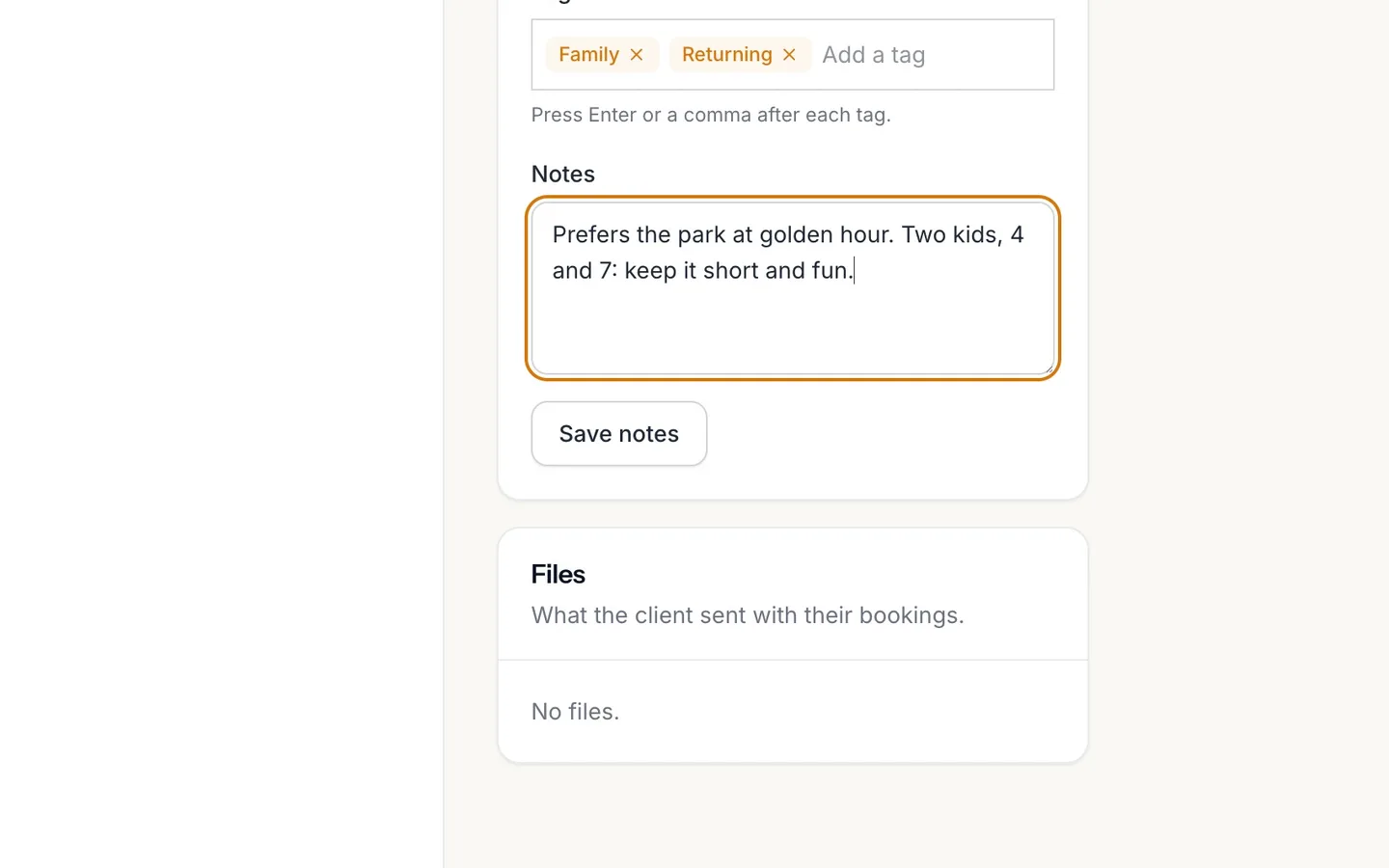
Write a note, then select Save notes.
- 7
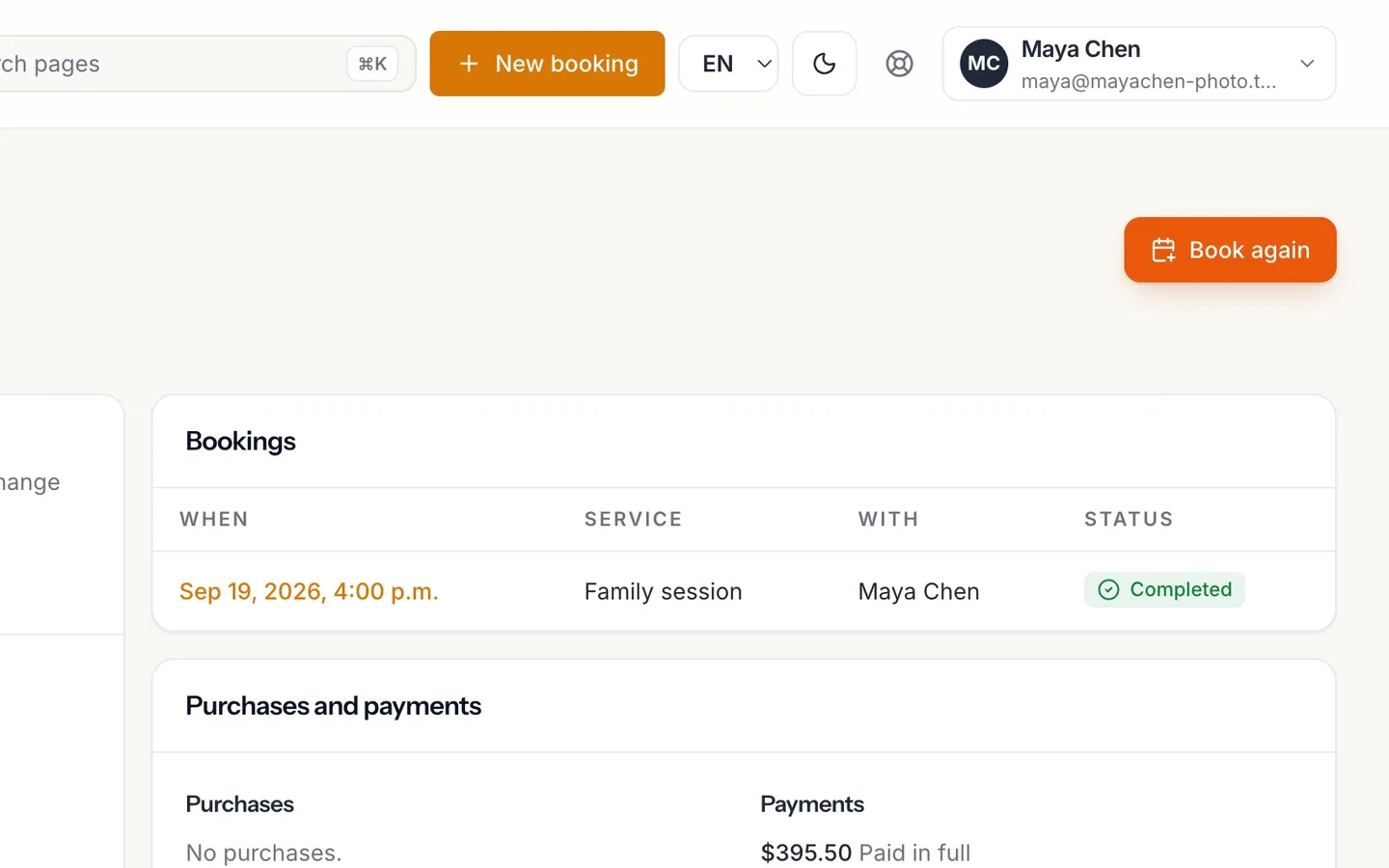
Select Book again.
The client and their last service are filled in.
- 8
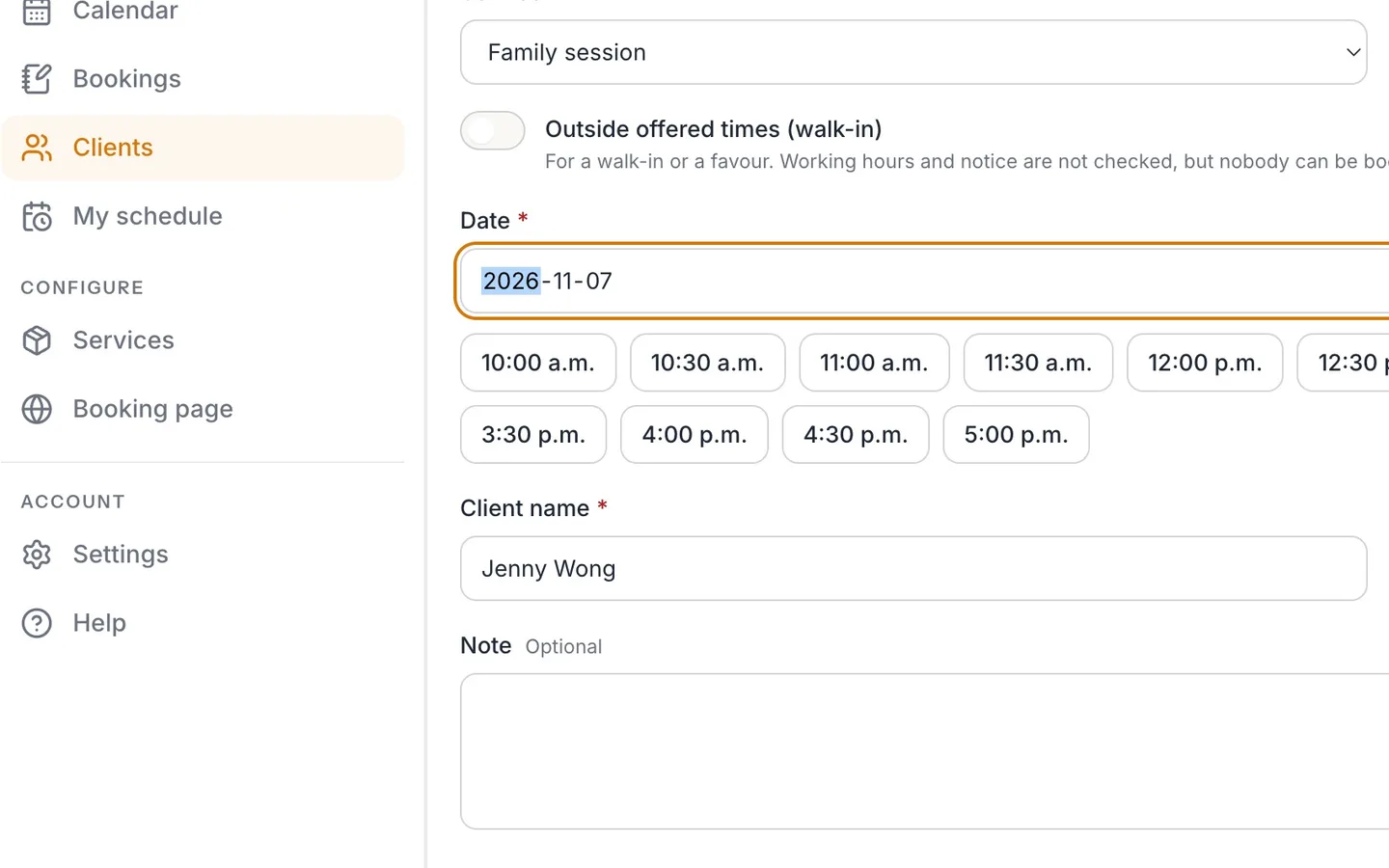
Pick the date, then one of the times offered.
Only real free times are shown.
- 9
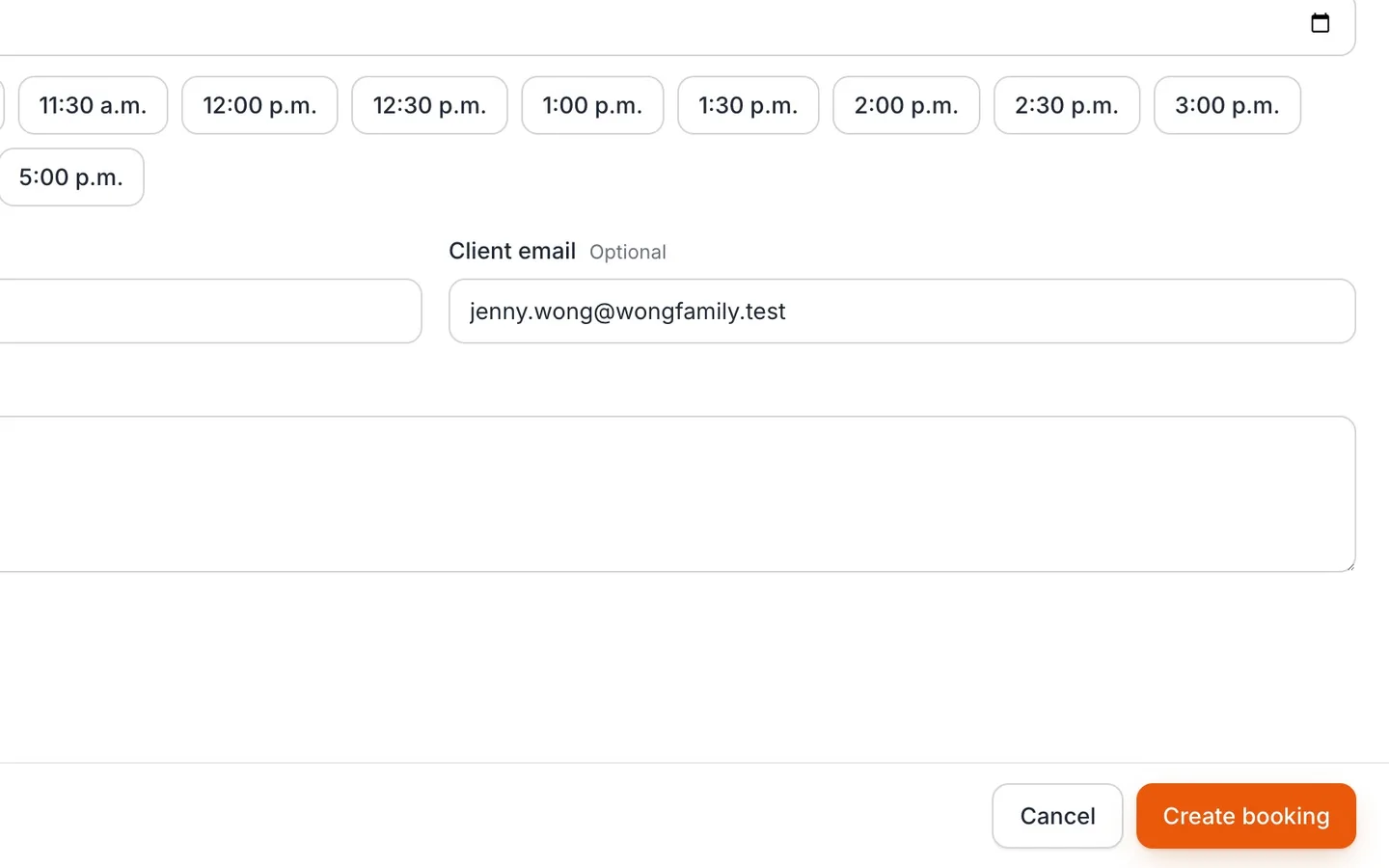
Select Create booking.
- 10
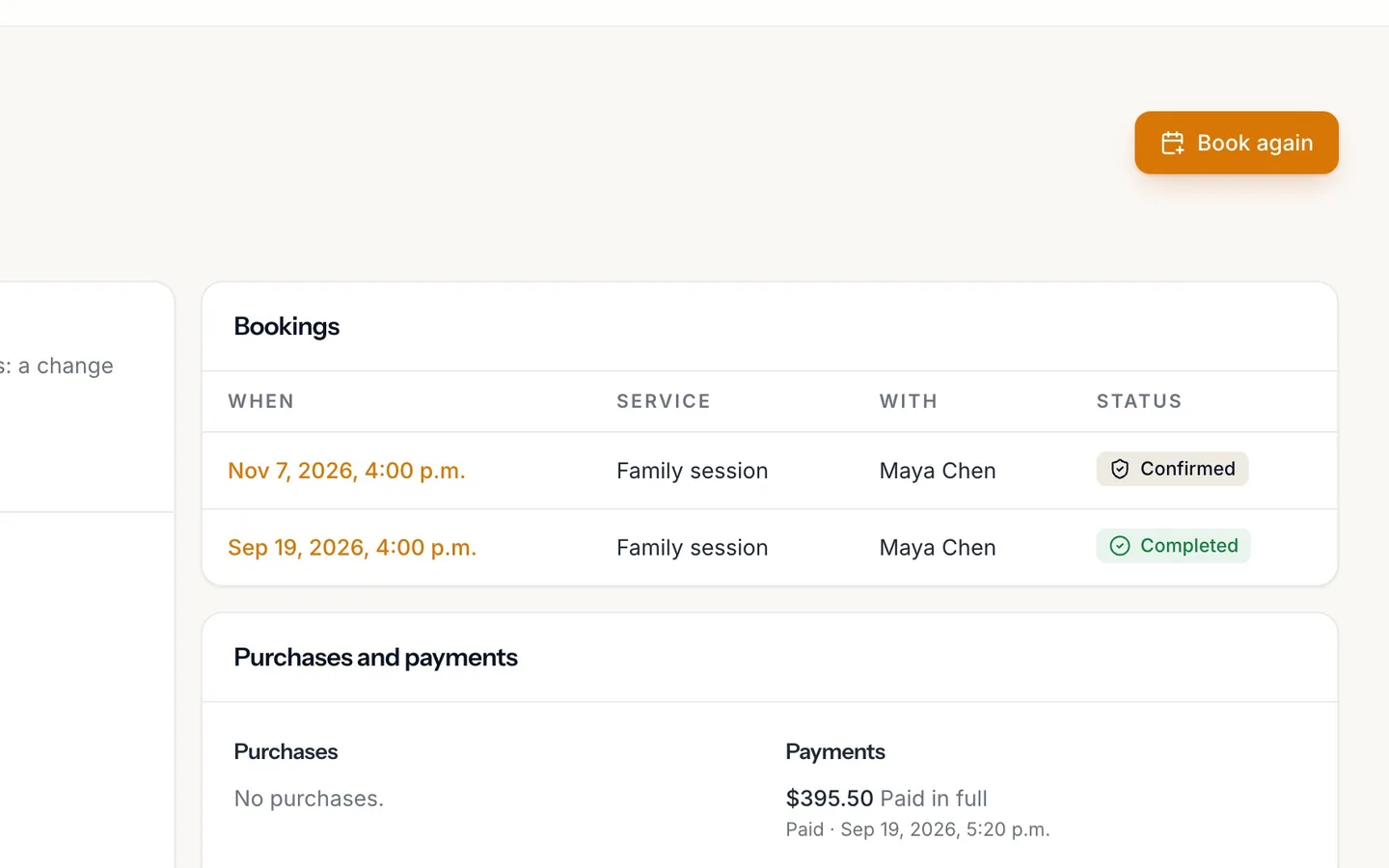
The new booking heads their history.
Your clients: history, notes, Book again
Find a client in NextiaBooking, see their bookings and payments, keep notes and tags only your team sees, and book them again with one select.
Before you start
This guide is for anyone who books clients in NextiaBooking and wants to see what happened last time before booking them again. Maya Chen Photography is the example: the Wongs want a second family session, and Maya looks back at their first one before she books it.
What you need:
- A client already in NextiaBooking. A client appears in Clients the first time they book, whether they booked on your booking page or you added the booking yourself in New booking.
- To edit notes and tags, or to use Book again, a role that can manage bookings. People who can only look see the client's page, notes and tags, but can't change them.
Clients are shared with your other Nextia apps. A client who books with you in NextiaBooking is the same client in NextiaInvoices or NextiaTax, so a change to their email or phone made in one app shows in the others.
Step by step
-
Open Clients
Select Clients in the sidebar. The page lists everyone who has booked with you, with their Name, Email and Phone. A client linked to your shared Nextia client list carries a Shared badge.
If nobody has booked yet, the page reads No clients yet: clients appear here the first time they book.
-
Search by name, email or phone
Type in Search clients. The box takes part of a name, an email or a phone number (its placeholder reads Name, email or phone). Maya types "Wong".
If nothing matches, you see No client matches. Try a shorter part of the name, or search by email or phone instead.
-
Open the client's page
Select the client's name to open their page. Maya opens Jenny Wong.
The top of the page shows the client's name and Client since the date they were first added. Below it:
- Contact details: their Email and Phone (select either to write or call), their Language (English or French, the language their emails are sent in), and their Time zone when one is known. When the client is shared, the card reminds you: "Shared with your other Nextia apps: a change here shows in all of them." Select Edit to change their name, email or phone.
- Notes and tags, covered below.
- Files: what the client sent with their bookings, each labelled with the booking it came with. Select a file name to download it.
-
See their bookings and payments
Bookings lists every booking this client has made with you, newest first, with When, Service, With (the staff member) and Status. Twenty show at a time; select Show older bookings for the rest. Select a booking to open it.
Purchases and payments shows what they bought and what they paid:
- Purchases: bundles or courses of sessions, with how many sessions are left (for example "3 of 10 sessions left"), what is still owed, or Paid in full.
- Payments: each payment, marked Deposit, Paid in full or Balance, and any amount refunded.
Every amount on this page comes from NextiaBooking's own records. The page lists them; it doesn't add them up itself.
-
Write a note, then save
Write what you want to remember in Notes: Maya writes down the park at golden hour, two young kids, and keeping it short and fun. A note can be up to 5,000 characters.
Select Save notes. This saves the notes and the tags together, and Notes saved confirms it. A tag still being typed when you save is kept too.
-
Select Book again
At the top of the client's page, select Book again. New booking opens with the client already filled in, along with the service and the staff member from their latest booking. You can change any of them.
Under the name, the form says "Booking for this existing client. Type the name again for someone else." The booking is made for this same client record, never a second copy.
-
Pick the date, then a time
Choose the Date. NextiaBooking shows only real available times for that service and person: the same times a client would be offered on your booking page, so the two never disagree. The form tells you which time zone the times are in.
If the day isn't one you work, or it's full, you see "No available times on this day. Try another date." Maya picks the Saturday the Wongs asked for, and 4:00 p.m.
Leave Staff on Any staff member to see everyone's free times, or pick one person. You can also add a Note for this booking.
-
Select Create booking
Select Create booking. Booking created. confirms it.
You don't have to start from the client's page. In New booking anywhere in the app, start typing in Client name: after two letters, up to five of your existing clients that match the name, email or phone appear under Existing clients. Choose one with the mouse, or with the arrow keys and Enter, and their name, email and phone are filled in. If you type a name without choosing a suggestion, NextiaBooking looks for an existing client with the same email; with no match, it adds a new client.
-
See the new booking in their history
Back on the client's page, the new booking heads their Bookings list, with your notes and tags right beside it, ready for the day.
What happens next
When the client has an email, NextiaBooking sends them a confirmation of the new booking, in English and French in one message, unless you've turned off Confirmation to the client for that service. The booking shows on your Calendar and in Bookings, where its source reads Added by you.
If you edit a shared client's name, email or phone, the change goes to the shared client record, so your other Nextia apps see it too.
The usual next task is the day itself: open the booking from the calendar when the client arrives, or move it if plans change.
If something goes wrong
Book again shows no times
That day isn't one the person works, or it's already full. Pick another date. If the client usually sees one staff member and they're away, set Staff to Any staff member to see who else is free.
I need to book someone at a time that isn't offered
If your role can manage bookings, turn on Outside offered times (walk-in) in New booking. Working hours and notice aren't checked, but nobody can be booked twice at once: if the time overlaps another booking for that person, you're asked to pick another time.
The same client is listed twice
A second record is made when a booking is added with a typed name, no suggestion picked, and an email that doesn't match the first record (or no email at all). Next time, choose the client from Existing clients as you type, or use Book again from their page.
I can't see Save notes or Book again
Your role can look at clients but not change them. Ask the business owner or an admin to change your role in Settings → Team.
My client says they never got the confirmation
Check the email on their page under Contact details. A client with no email gets no message. If it's wrong, select Edit, fix it, and save.
Questions
Can my clients see the notes and tags I write?
No. Notes and tags are for your team only and are never sent to the client. They show on the client's page in NextiaBooking and nowhere the client can see.
How do I find a client by phone number in NextiaBooking?
Open Clients and type the number, or part of it, in Search clients. The search looks at names, emails and phone numbers.
What does Book again fill in?
It fills in the client, and the service and staff member from their latest booking. You still pick the date and one of the available times, and you can change anything before you select Create booking.
Are clients shared between NextiaBooking and my other Nextia apps?
Yes. Clients are shared with your other Nextia apps. A shared client shows a Shared badge, and editing their name, email or phone changes it everywhere.
Where do the files a client sent end up?
On their page, under Files, labelled with the booking each one came with. Select the file name to download it.
Does adding a booking myself count toward my plan?
Yes. On the Free plan you can make 50 bookings a month; if you reach that, New booking shows an upgrade prompt instead of an error. Paid plans have no monthly limit.