
What your client sees: book, then reschedule
What your clients see when they book you: your page on their phone, the confirmation email, and the link that lets them move or cancel it.
- 12 steps
- About 2 min
- Checked against NextiaBooking on October 28, 2026
The video is on its way. The step-by-step and written versions are ready now.
- 1
Your client taps a service.
- 2
The times open on the first day with free times.
Marked Next available.
- 3
They move to the day they want and tap a time.
- 4
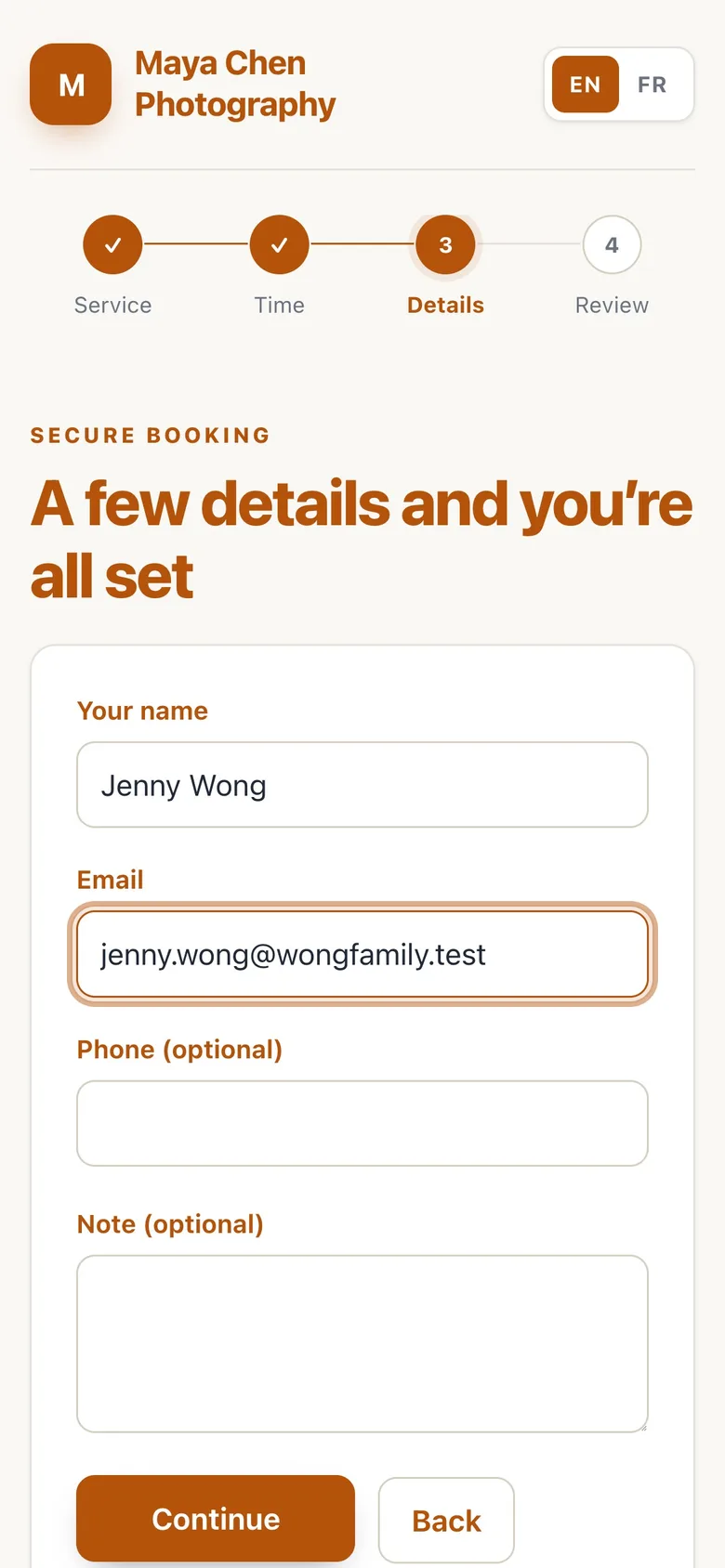
They type their name and email, and tap Continue.
- 5
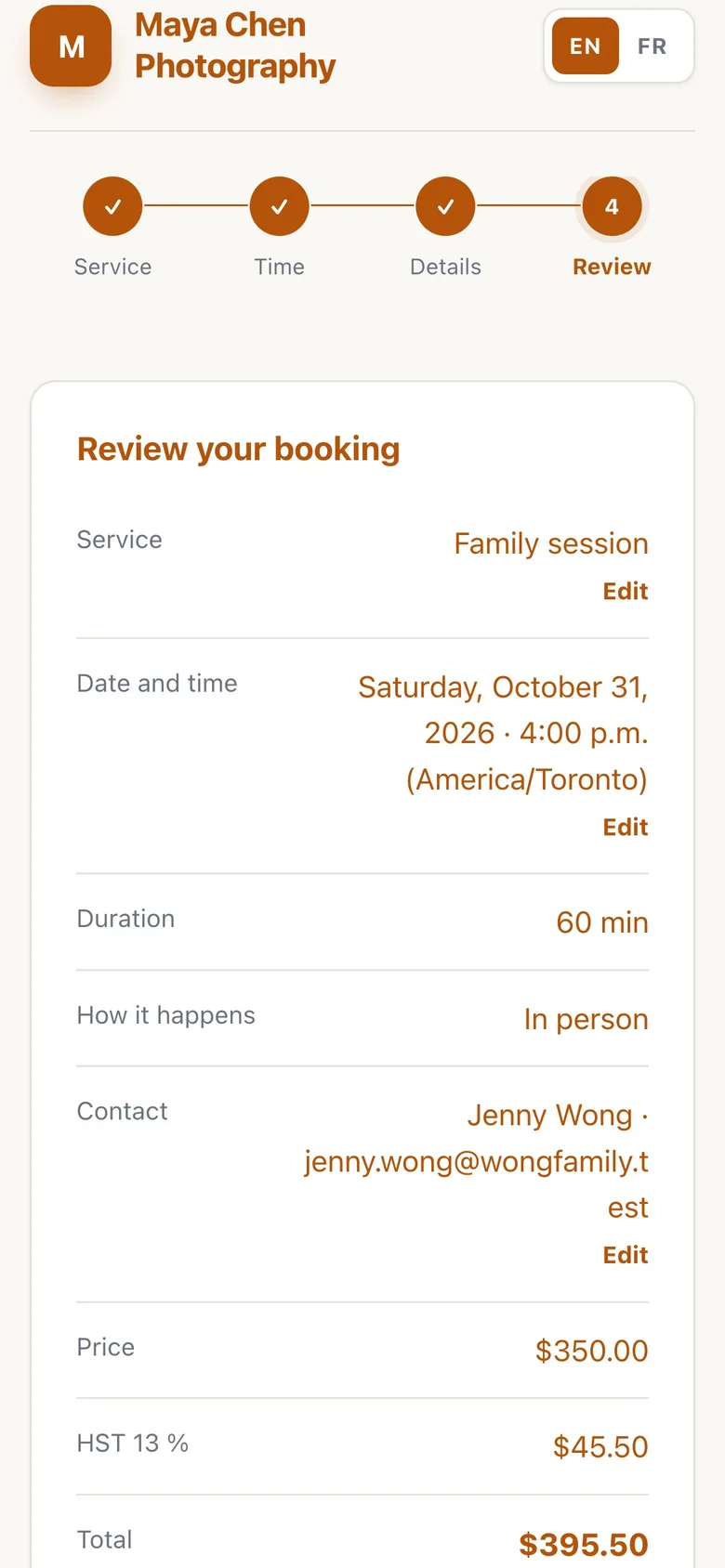
They check the booking: the time, the price, the tax and the total.
- 6
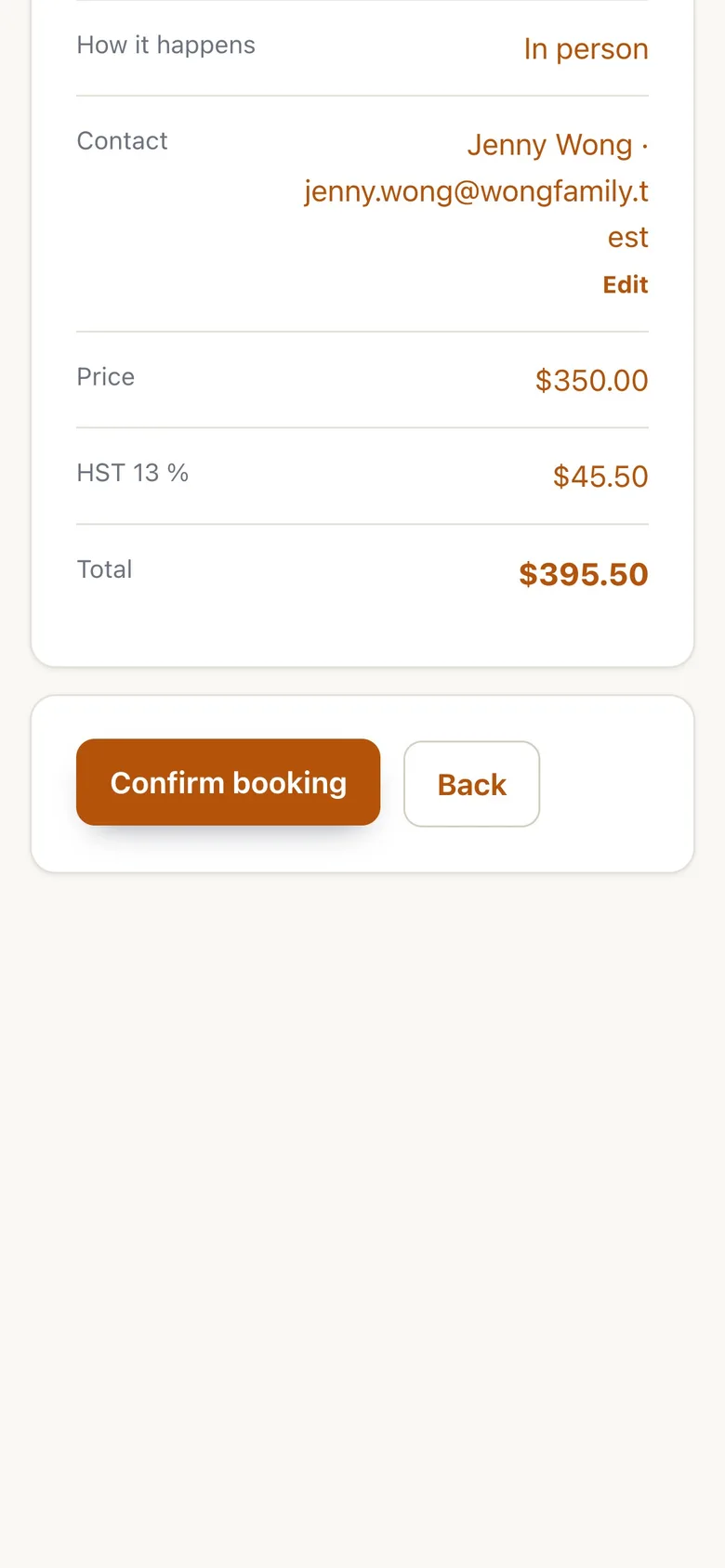
They tap Confirm booking.
- 7
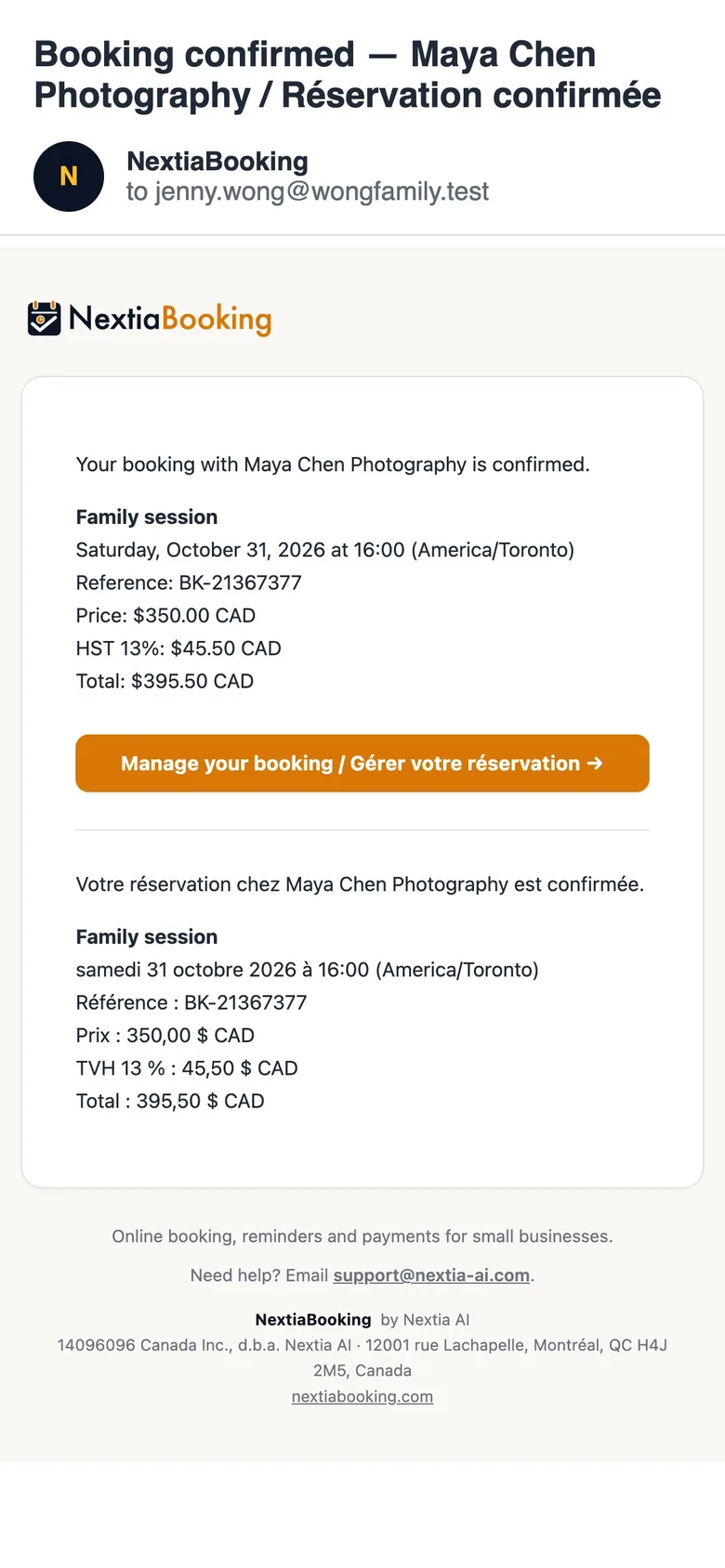
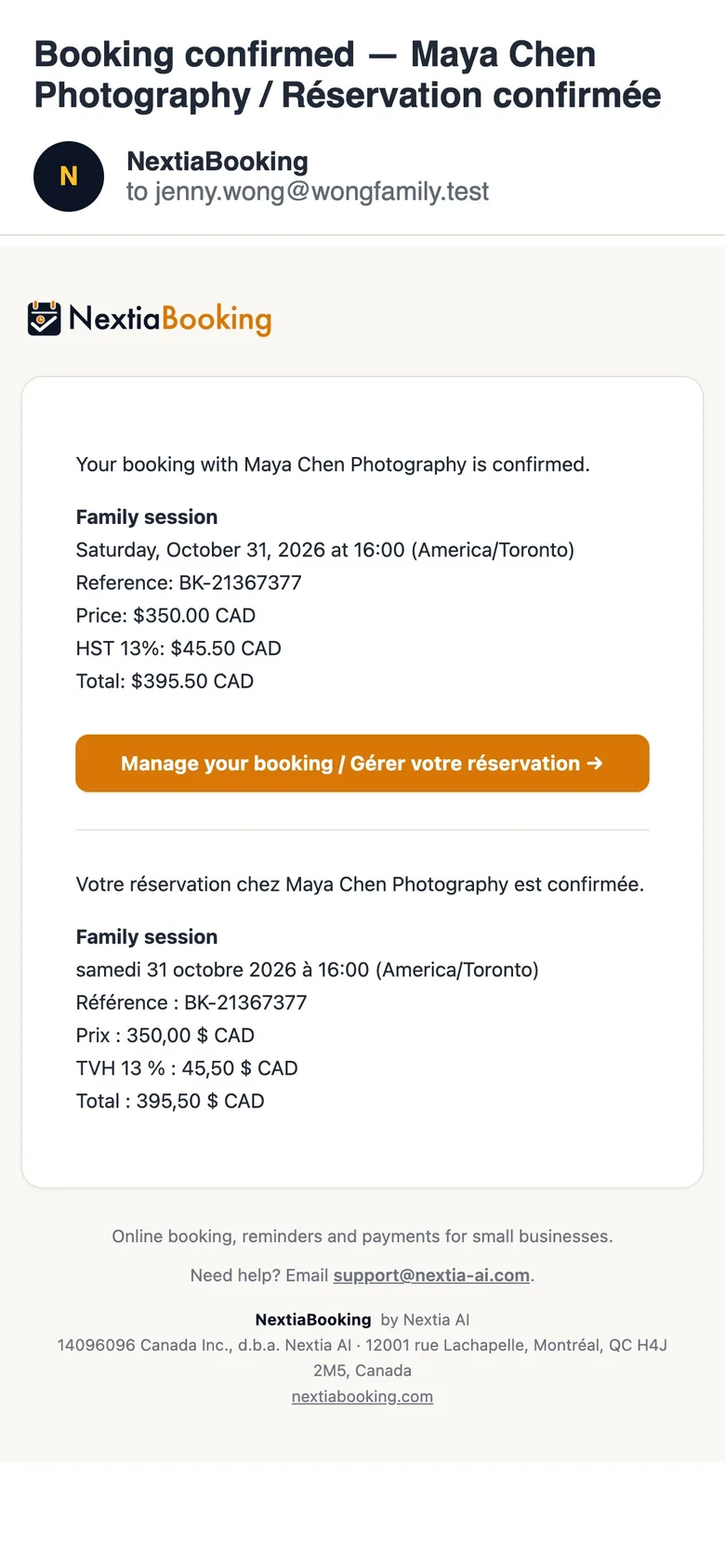
Your client gets a confirmation email.
With every detail, in English and French, and a Manage your booking link.
- 8
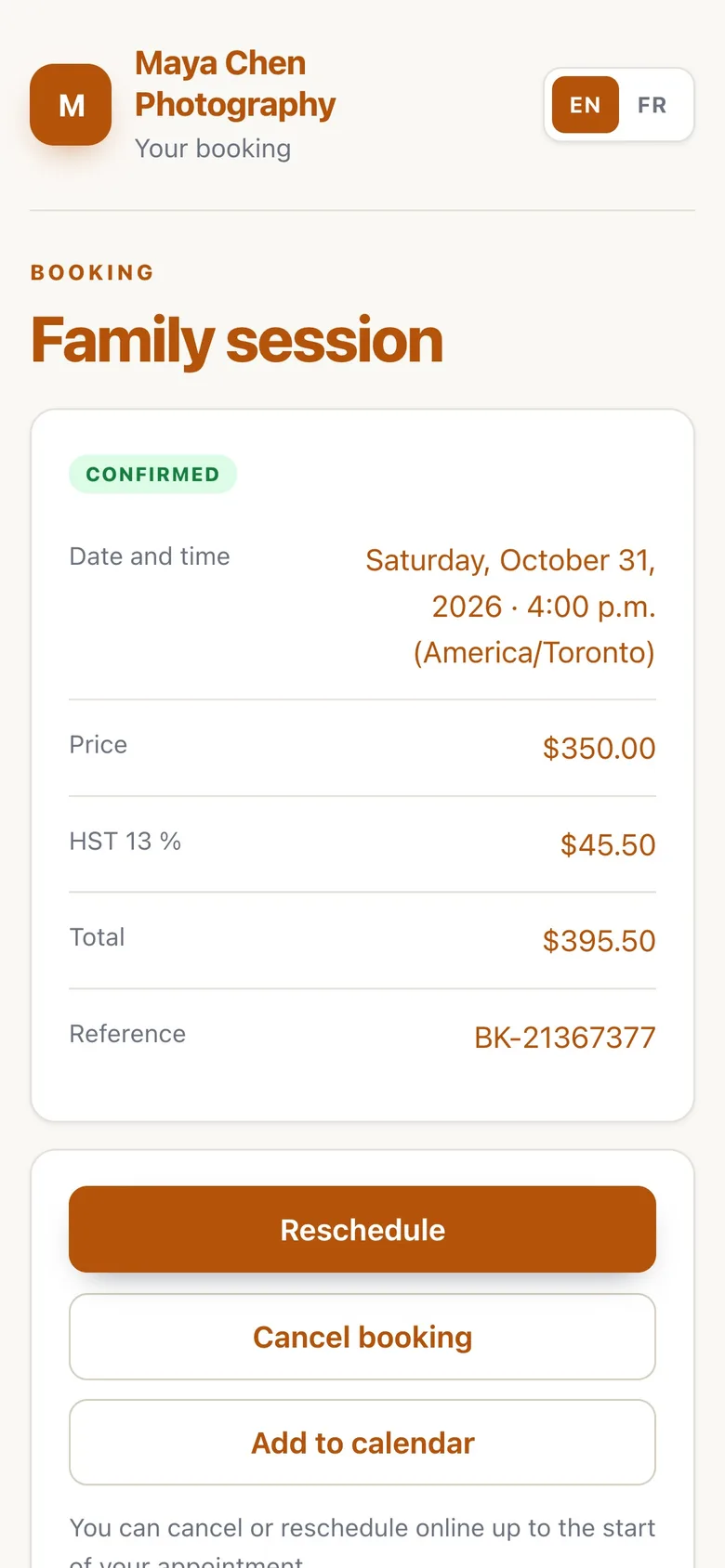
The link opens their booking.
No account or password needed.
- 9
They tap Reschedule.
- 10
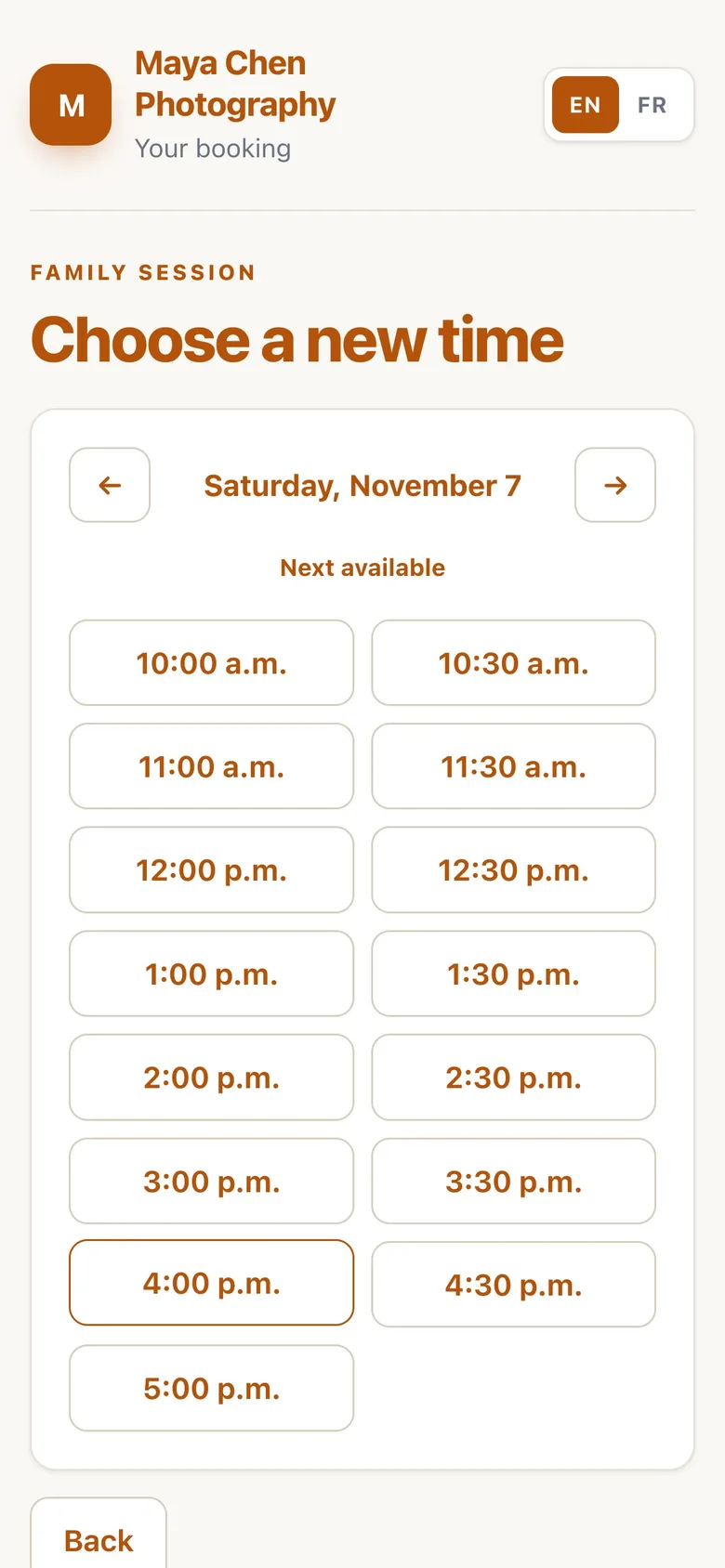
They pick a new day and time.
- 11
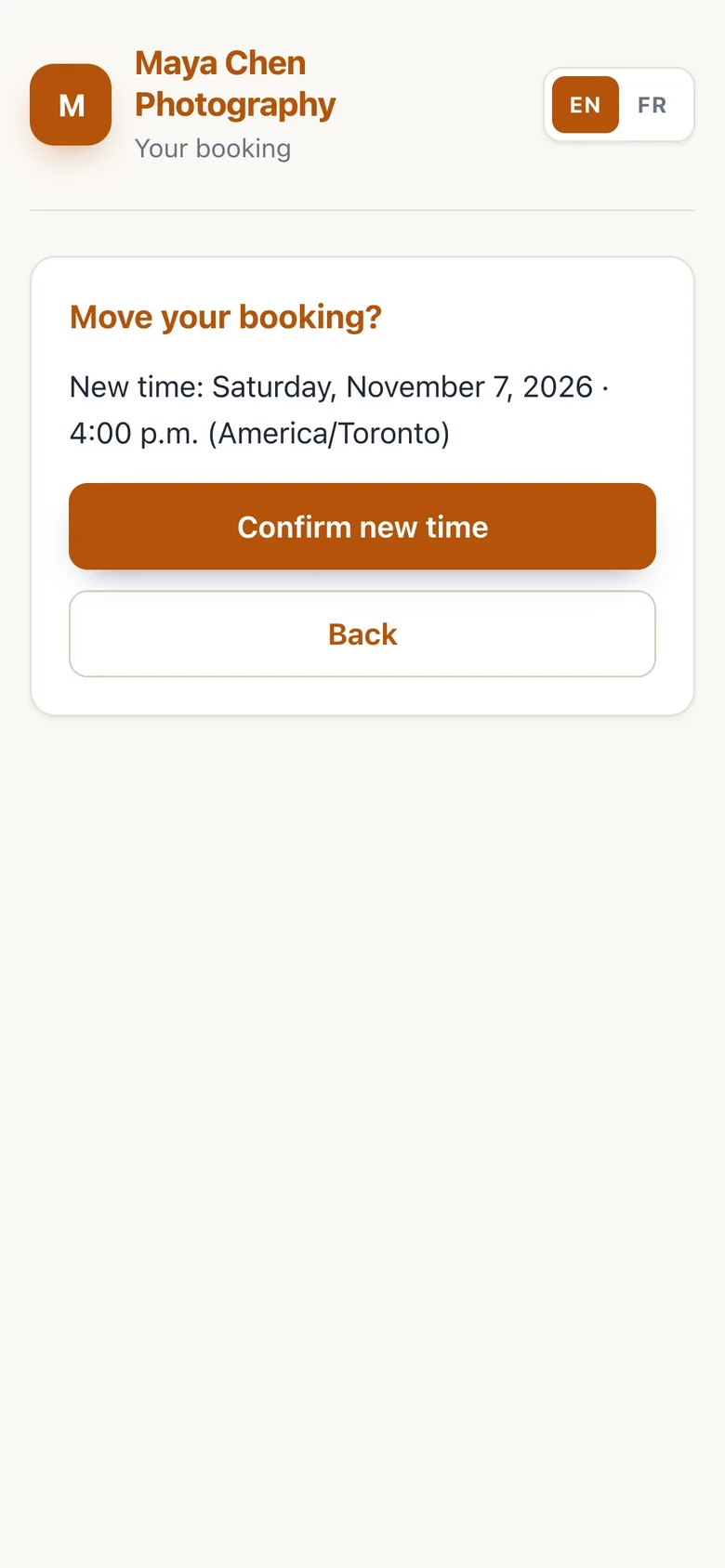
They tap Confirm new time.
- 12
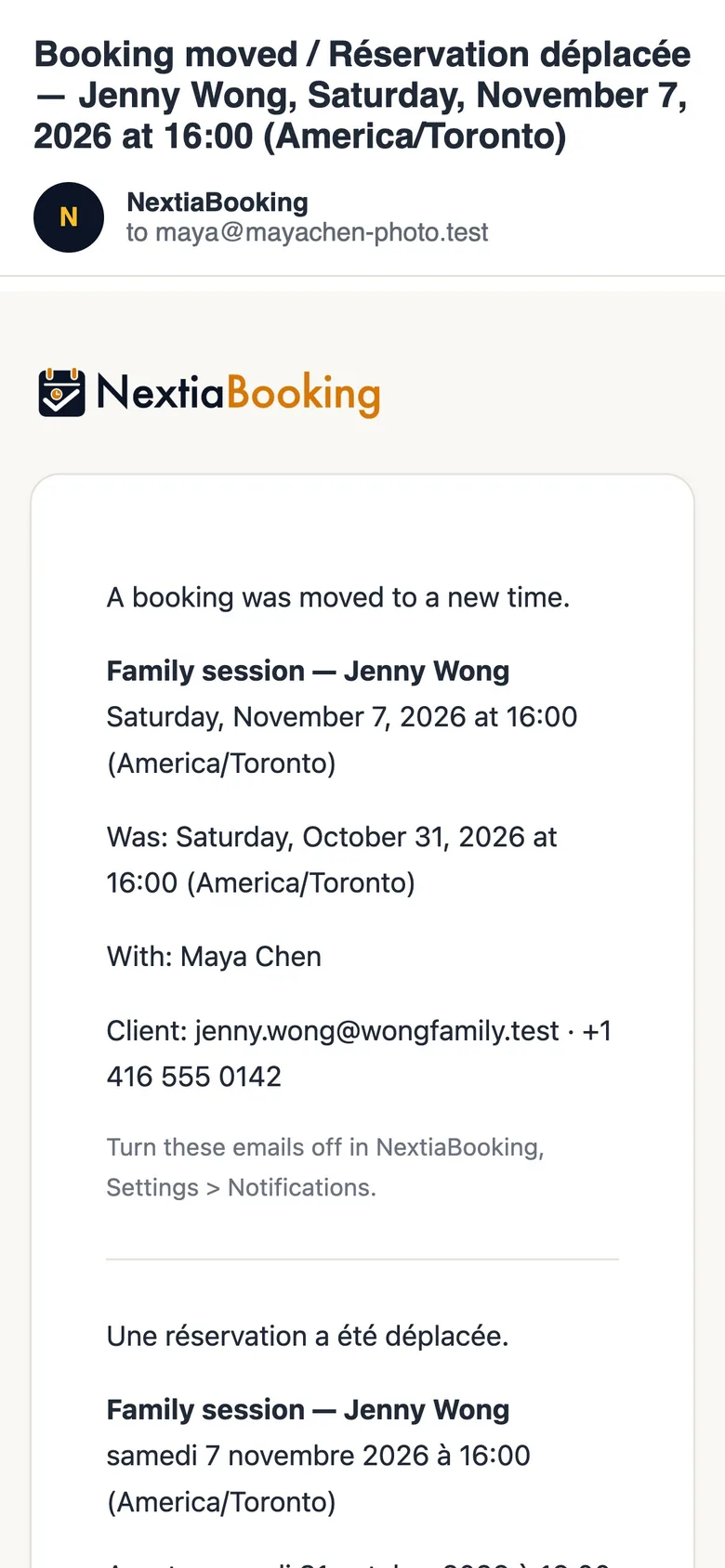
You're emailed straight away.
Booking moved, with the new time and the old one.
What your client sees: book, then reschedule
See what clients see when they book you in NextiaBooking, from your page on their phone to the confirmation email and the link to move their booking.
Before you start
This guide is for owners who want to know exactly what their clients go through before sharing their booking link. It follows one client, Jenny Wong, as she books a family session with Maya Chen Photography on her phone, then moves it a week later. Your clients do the same on your page.
What you need:
- A published booking page, with at least one service on it and your hours set. Setup does all three (see booking/getting-started).
- Nothing on your client's side: no account, no password and no app. The page opens in any browser, on a phone or a computer.
Times on your page are shown in your client's own time zone, the one their device uses. The time step shows it next to Available times, so a client travelling or living elsewhere sees the right local time.
Step by step
-
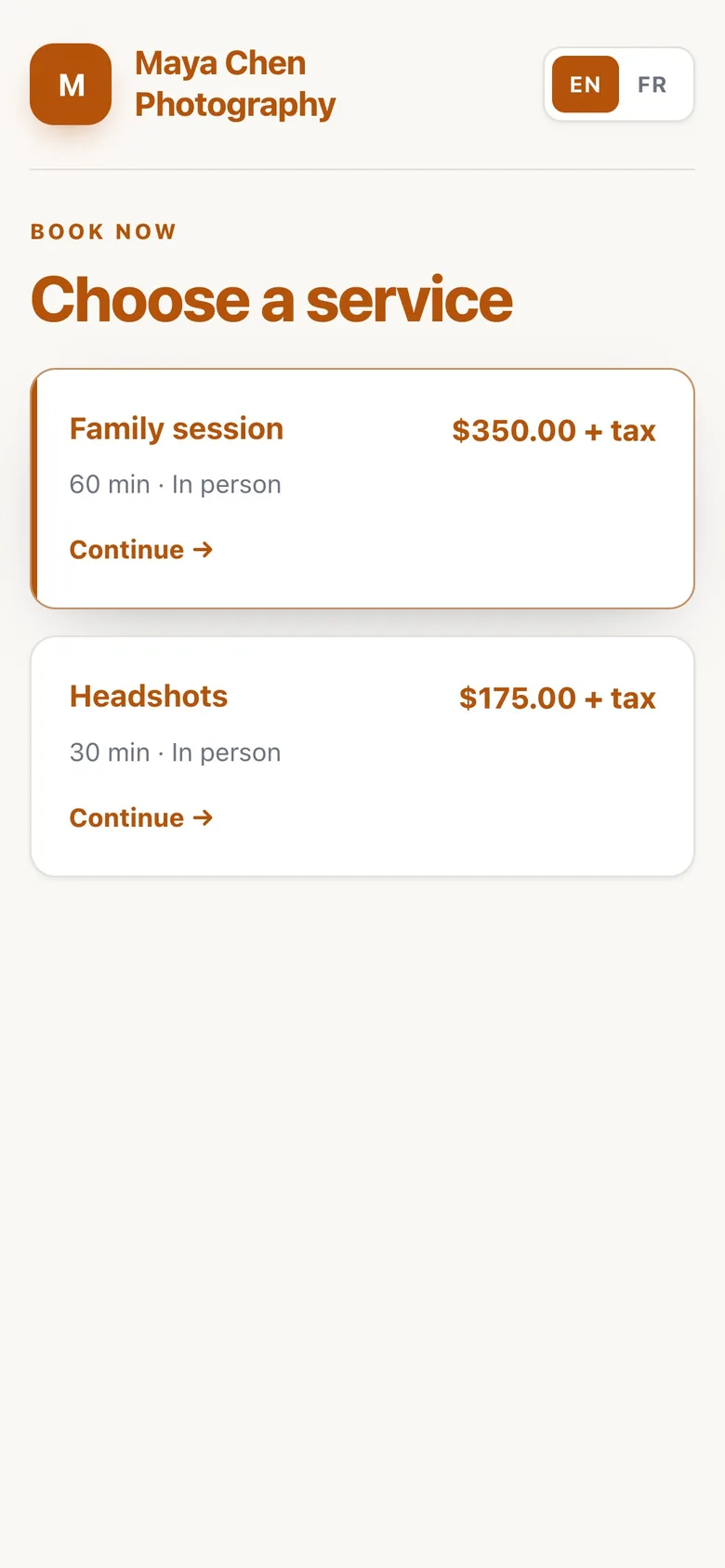
Your client taps a service
Your page opens on Choose a service. Each service shows its name, its length and its price. Your client taps the one they want; here, Jenny taps Family session.
If a service is set up with choices first, such as where, with whom or a few preferences, the page asks those before the times. A one-person business with plain services goes straight to the times.
-
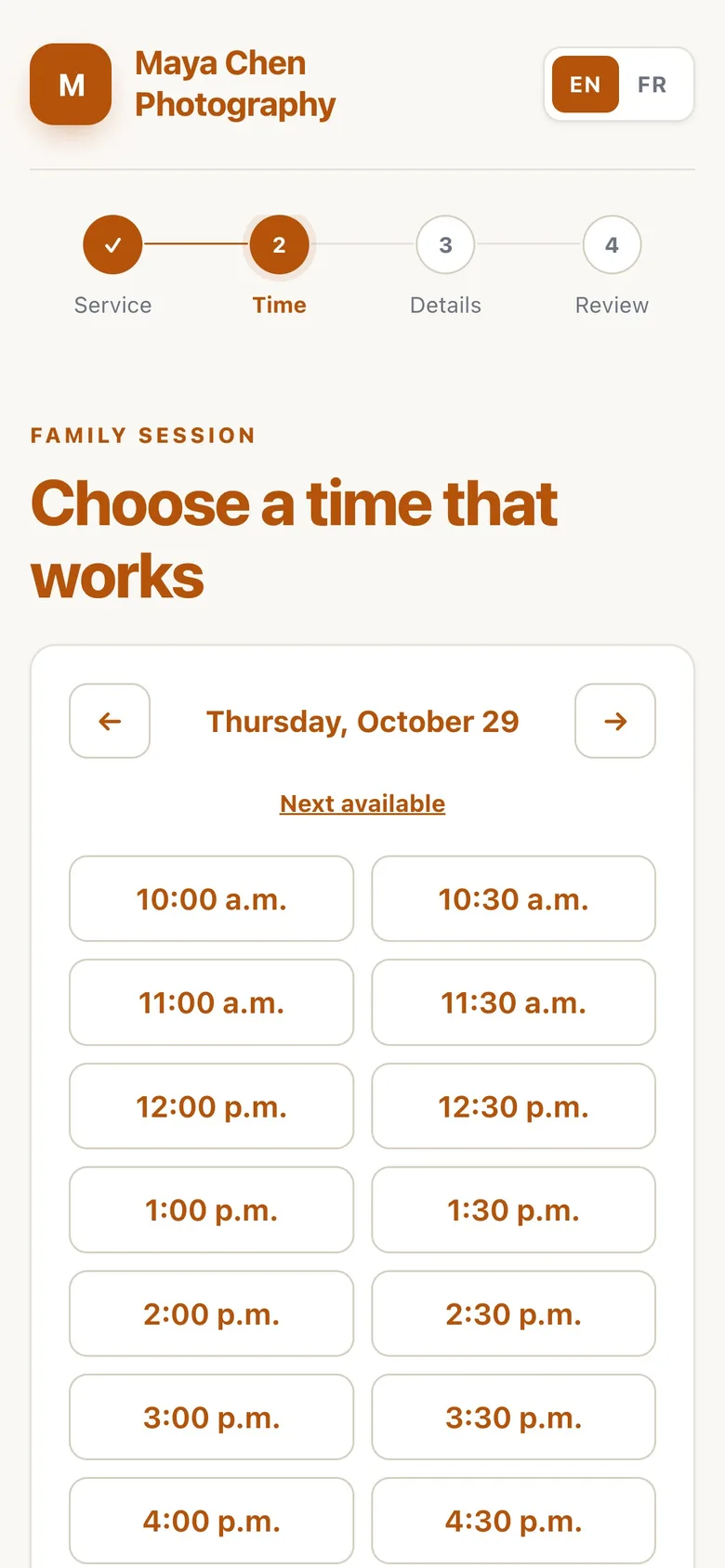
The times open on the first day with free times
The page doesn't open on an empty day. It goes to the first day that has a free time and marks it Next available. Times only appear inside your hours, after the service's minimum notice, and never on top of another booking.
If there is nothing to offer at all for the next weeks, the page says so: No open times in the coming weeks.
-
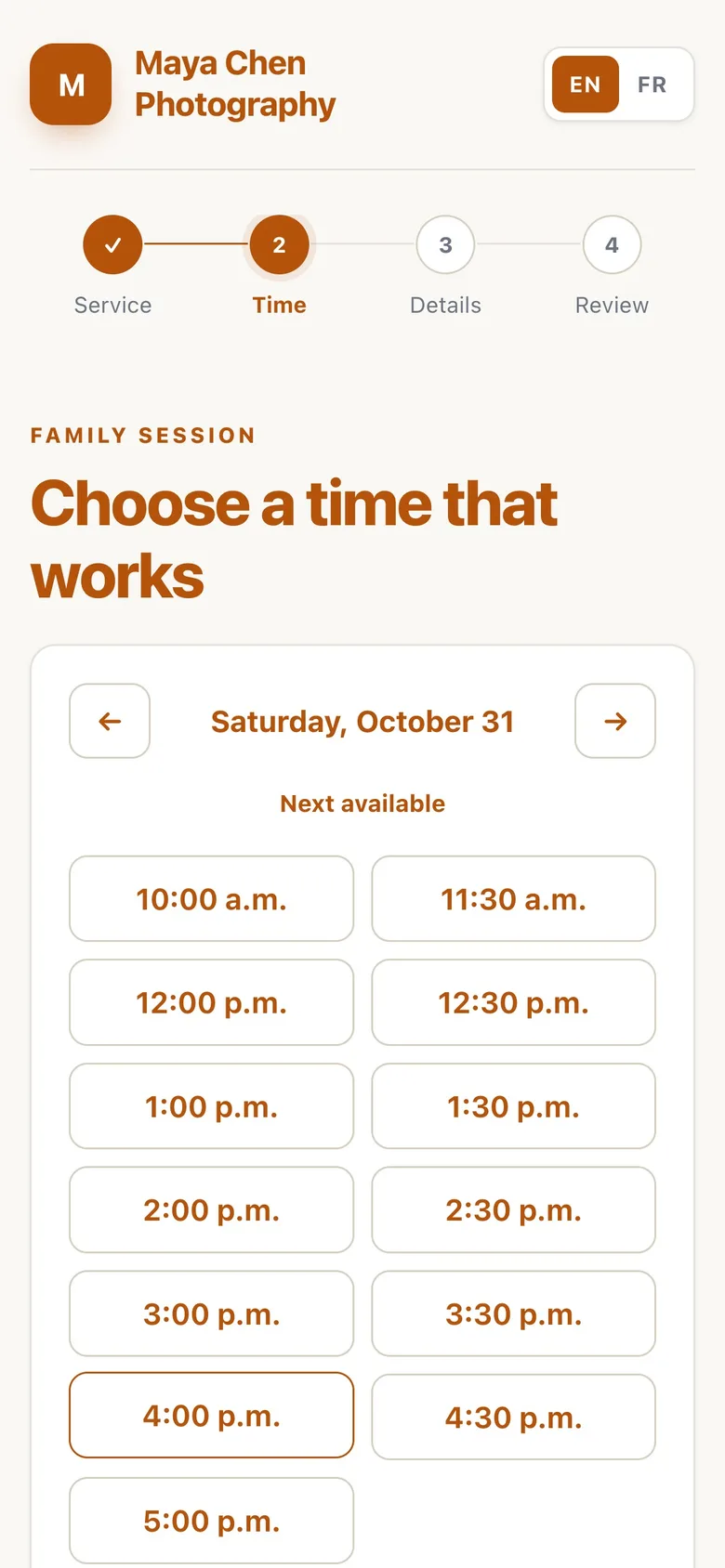
Your client picks the day they want and taps a time
Your client moves from day to day with Previous day and Next day, or through the month with Previous month and Next month. A day with nothing free reads No times available this day. Jenny wants Saturday, so she moves two days on and taps 4:00 p.m.
-
They type their name and email, and tap Continue
The details step asks for Your name and Email. Phone (optional) and Note (optional) can be left empty. If your service asks its own questions, they appear here too, and the page won't go on until every required one is answered: Please fill in every required field.
Your client then taps Continue.
The email address matters. It's where the confirmation goes, and it's how NextiaBooking recognises a returning client: a booking made with the same address is filed under the same client in Clients.
-
They check the booking: time, price, tax and total
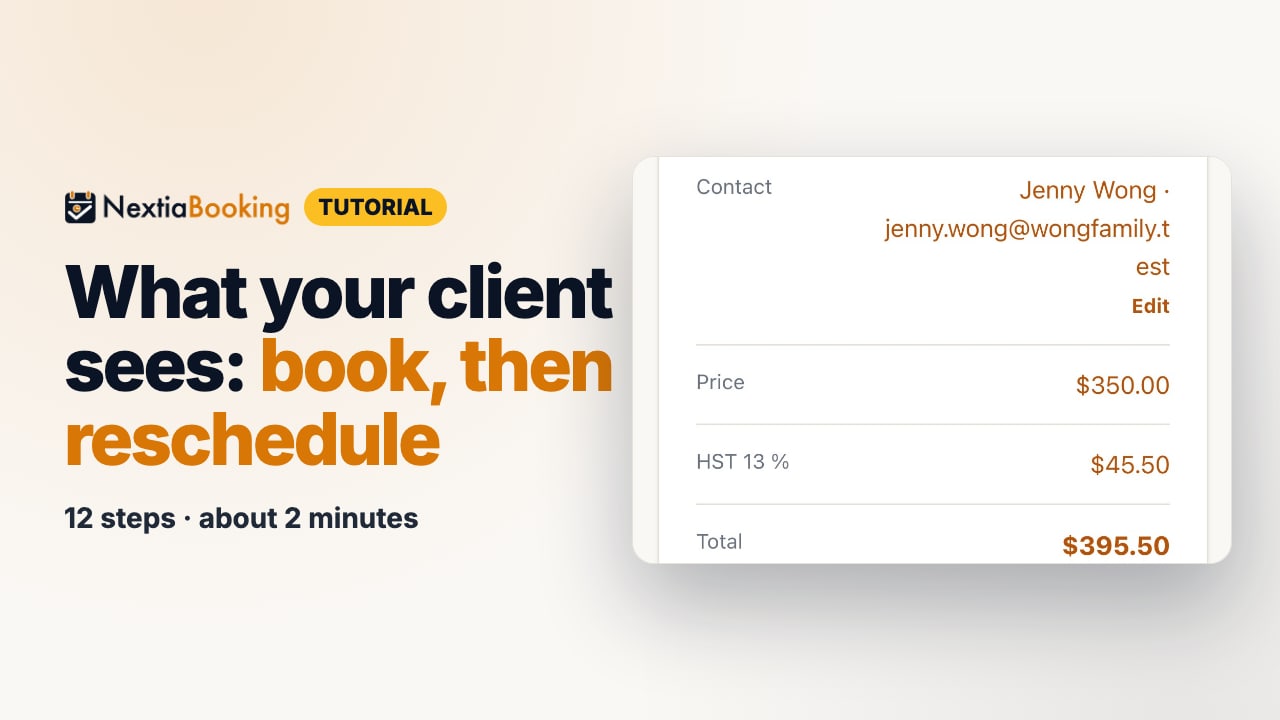
Review your booking shows everything before anything is booked: the service, the date and time, the length, the price, each sales tax on its own line, and the total. The amounts come from NextiaBooking's own tax calculation, so what your client sees is what the booking records. For Jenny: $350.00, HST 13 % $45.50, $395.50 in total.
Edit takes your client back to change a detail.
-
They tap Confirm booking
When your client taps Confirm booking, the page shows: Your booking is confirmed. A confirmation email is on its way. It also shows the link to keep, under Keep this link to change or cancel your booking:.
If a service needs you to approve each booking, the page says instead: Your request was sent. You will get an email when it is confirmed.
If you take Interac e-Transfers and the booking owes money, the confirmation also shows Pay by Interac e-Transfer: the amount, your payment address and the reference to put in the message (see booking/interac).
-
Your client gets a confirmation email
The email arrives within moments, with the subject Booking confirmed — Maya Chen Photography / Réservation confirmée. It is written in English and in French, and gives the service, the date and time, the booking's reference, the price with its tax lines, a calendar invitation, and a Manage your booking link. When Interac e-Transfer is on, it repeats how to pay.
-
The link opens their booking
When something comes up, your client opens Manage your booking from the email. No account or password is needed: the link itself opens their booking, with its status (for example Confirmed), the service, the date and time, the price and the reference.
Under the details, the page says how late changes can be made online. With no notice set on the service, it reads You can cancel or reschedule online up to the start of your appointment.
-
They tap Reschedule
Your client taps Reschedule. Cancel booking and Add to calendar are beside it.
-
They pick a new day and time
Choose a new time opens on the first day with free times, marked Next available, exactly like the booking page. Jenny goes to the Saturday after and taps the same time, 4:00 p.m.
-
They tap Confirm new time
NextiaBooking asks Move your booking? and shows the New time:. Your client taps Confirm new time. The page says Your booking was moved. A confirmation email is on its way. and the client gets a second email, Booking rescheduled, with the new time and the same link.
-
You're emailed straight away
You hear about it right away. NextiaBooking sends a Booking moved email (Réservation déplacée in French) with the client's name, the service, the new time, and the old one under Was:. You don't have to answer anything; the booking has already moved on your Calendar.
The email goes to the staff member the booking is with. In a business of one, that's you. It's on by default, and you can turn it off in Settings → Notifications.
What happens next
The booking sits on your Calendar and in Bookings at its new time. The client is filed in Clients with their name and email, and every later booking with the same email is added to their history.
If you'd rather limit late changes, set them on each service in Services: Cancellation notice, Reschedule notice (0 means right up to the start), and Times a booking may move. The manage page then tells clients, for example, Online rescheduling closes 2 hours before the appointment. If neither cancelling nor moving is allowed online, it says To change this booking, contact the business.
If something goes wrong
My client says no times show on my page
The page only offers times inside your hours, after the service's minimum notice and up to how far ahead the service can be booked. Check your hours in My schedule, check the service's notice in Services, and make sure the service is on your booking page.
My client never got the confirmation email
Open the booking in Bookings and check the email address. A typo there means the email went elsewhere; correct it and ask the client to keep the manage link from the confirmation page. Otherwise, ask them to look in their spam or promotions folder.
My client can't move their booking online any more
The service's Reschedule notice has passed, or the booking has already moved as many times as Times a booking may move allows. The manage page tells the client to contact you. Move it yourself from Bookings with Reschedule.
My client sees times in a different time zone from mine
The public pages show times in the client's own time zone, so a client in Vancouver sees a 10:00 a.m. Toronto slot as 7:00 a.m. The appointment itself doesn't change. Your own hours run on your business's time zone.
I didn't get the Booking moved email
The email goes to the staff member the booking is with. Check that Email me about my bookings is on in Settings → Notifications, then look in your spam folder.
Questions
Do my clients need an account to book with NextiaBooking?
No. Your booking page asks only for a name and an email, with phone and note optional. There is no sign-up, no password and no app to install.
How does a client reschedule a booking in NextiaBooking?
They open Manage your booking from their confirmation email, tap Reschedule, choose a new day and time, and tap Confirm new time. They get a new confirmation and you get a Booking moved email.
Can I stop clients from moving or cancelling at the last minute?
Yes. On each service in Services, set a Reschedule notice and a Cancellation notice, and if you like, Times a booking may move. The manage page tells clients when online changes close.
What does the client see on the review step?
The service, the date and time, the length, the price, each sales tax on its own line, and the total. The same figures appear in the confirmation email.
Is the confirmation email in French?
Every client email from NextiaBooking is written in both English and French, so a client can read it in either language.
Will I know when a client moves their booking?
Yes. NextiaBooking emails a Booking moved notice with the new time and the old one, as soon as it happens. It's on by default and can be turned off in Settings → Notifications.