
Payments to review: the ones that need you
Interac e-Transfers that couldn't be matched to a booking for certain wait in Payments to review. Choose what each one pays, or ignore it.
- 6 steps
- About 1 min
- Checked against NextiaBooking on October 28, 2026
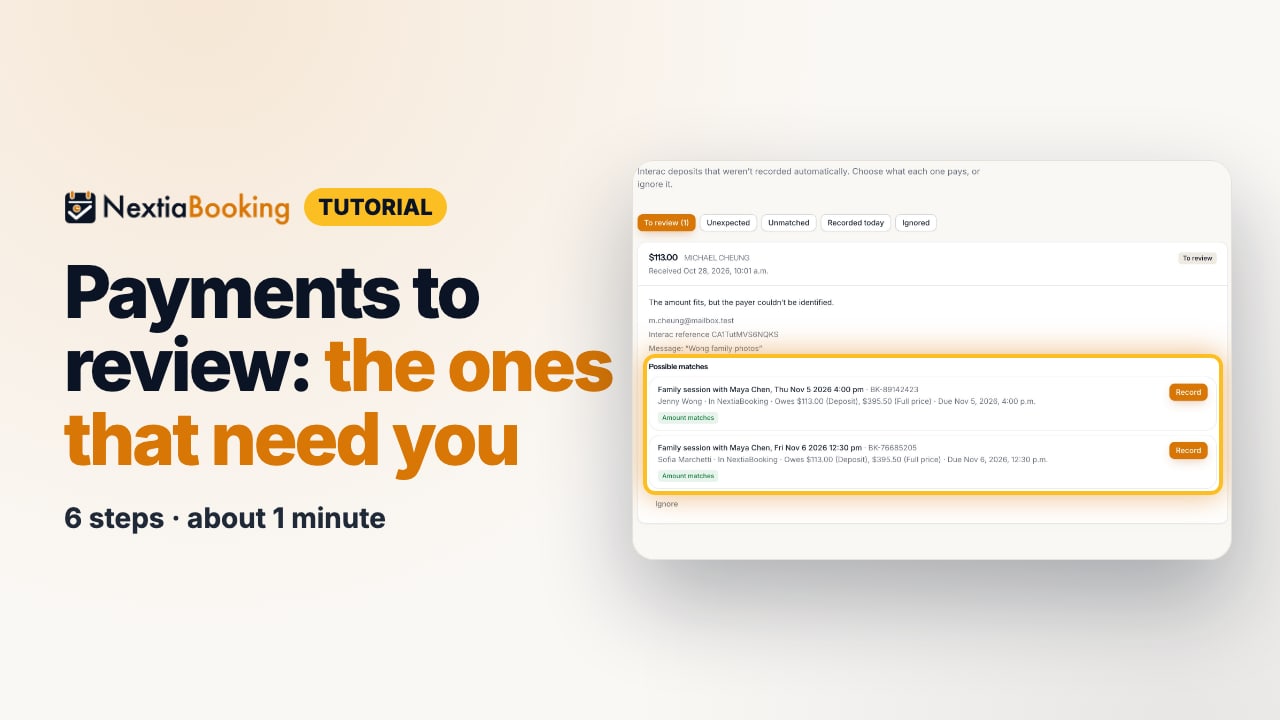
The video is on its way. The step-by-step and written versions are ready now.
- 1
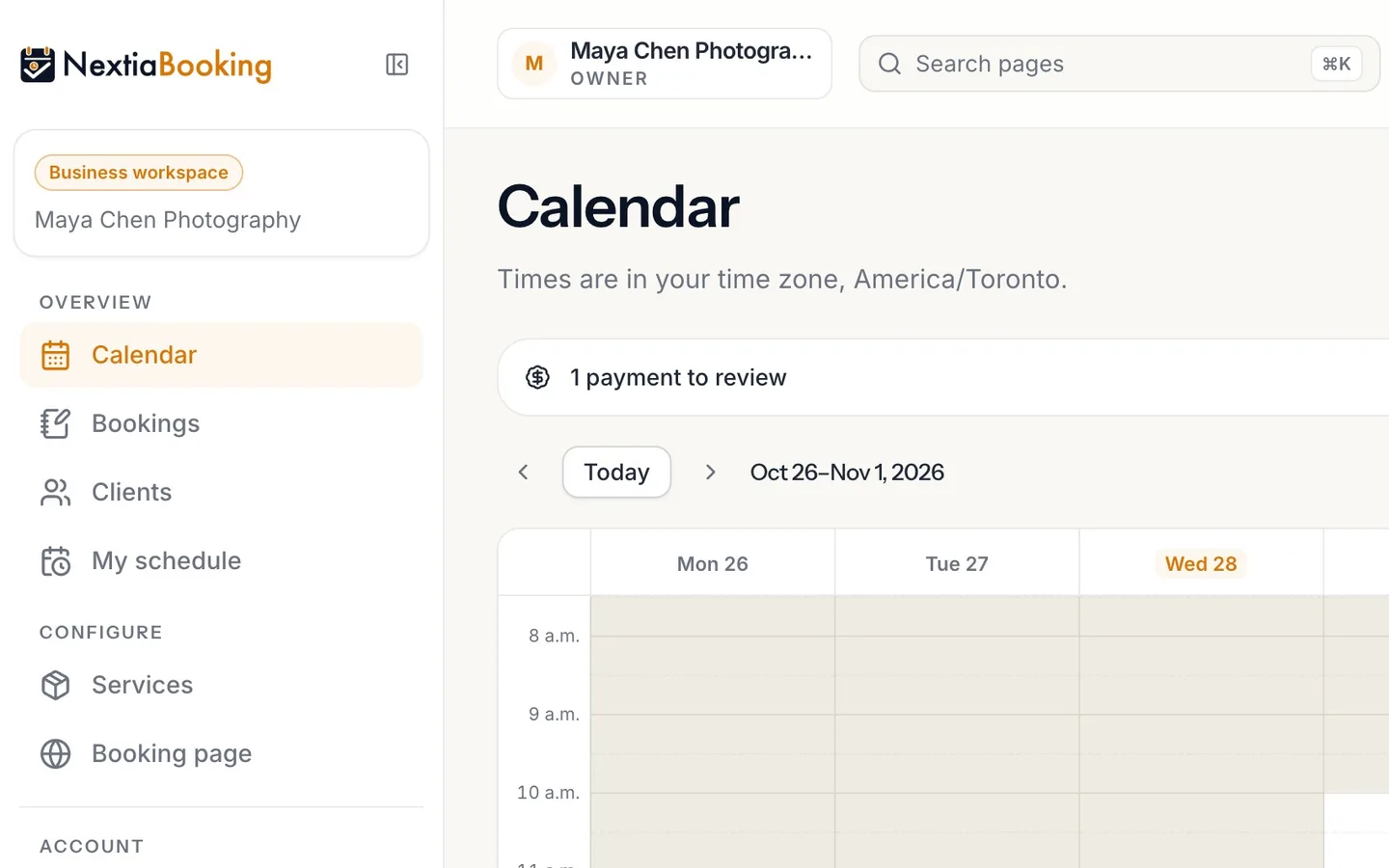
Select 1 payment to review on your Calendar.
It shows while a deposit waits for you.
- 2
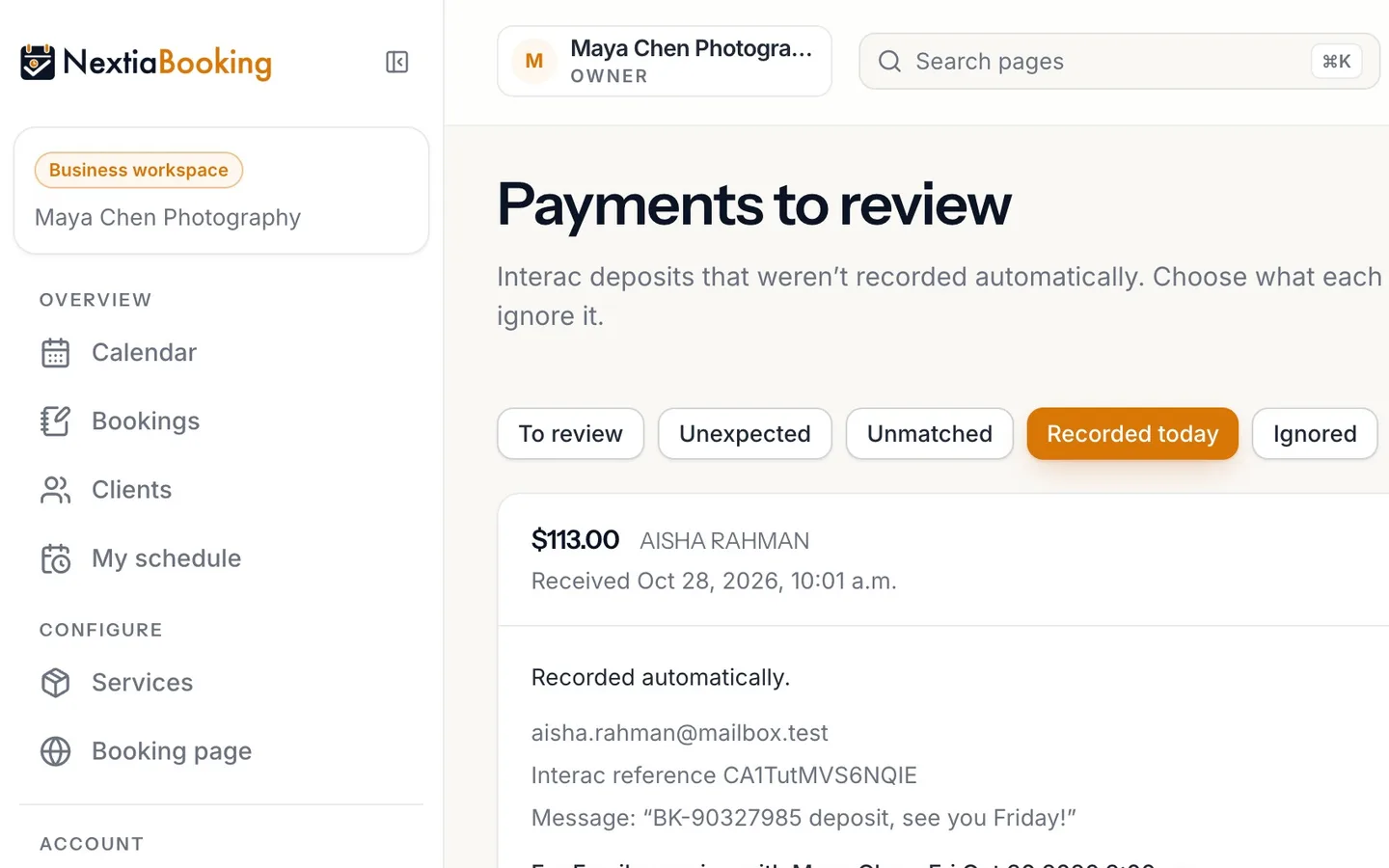
Recorded today shows what was recorded for you.
A deposit that quotes its booking's reference, for exactly what it owes, records itself.
- 3
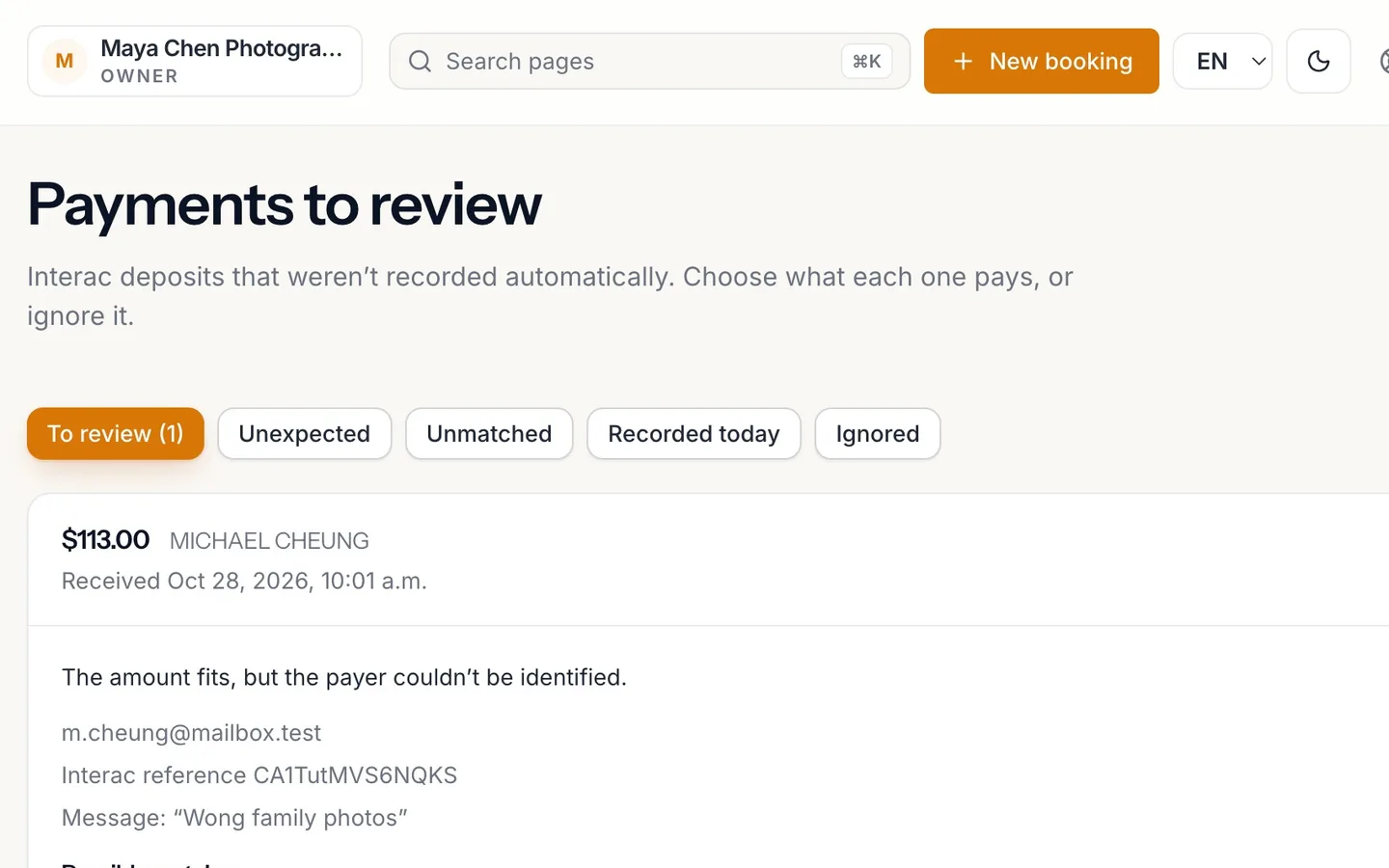
To review shows the deposits that need you.
With the reason it wasn't recorded, and the sender's message.
- 4
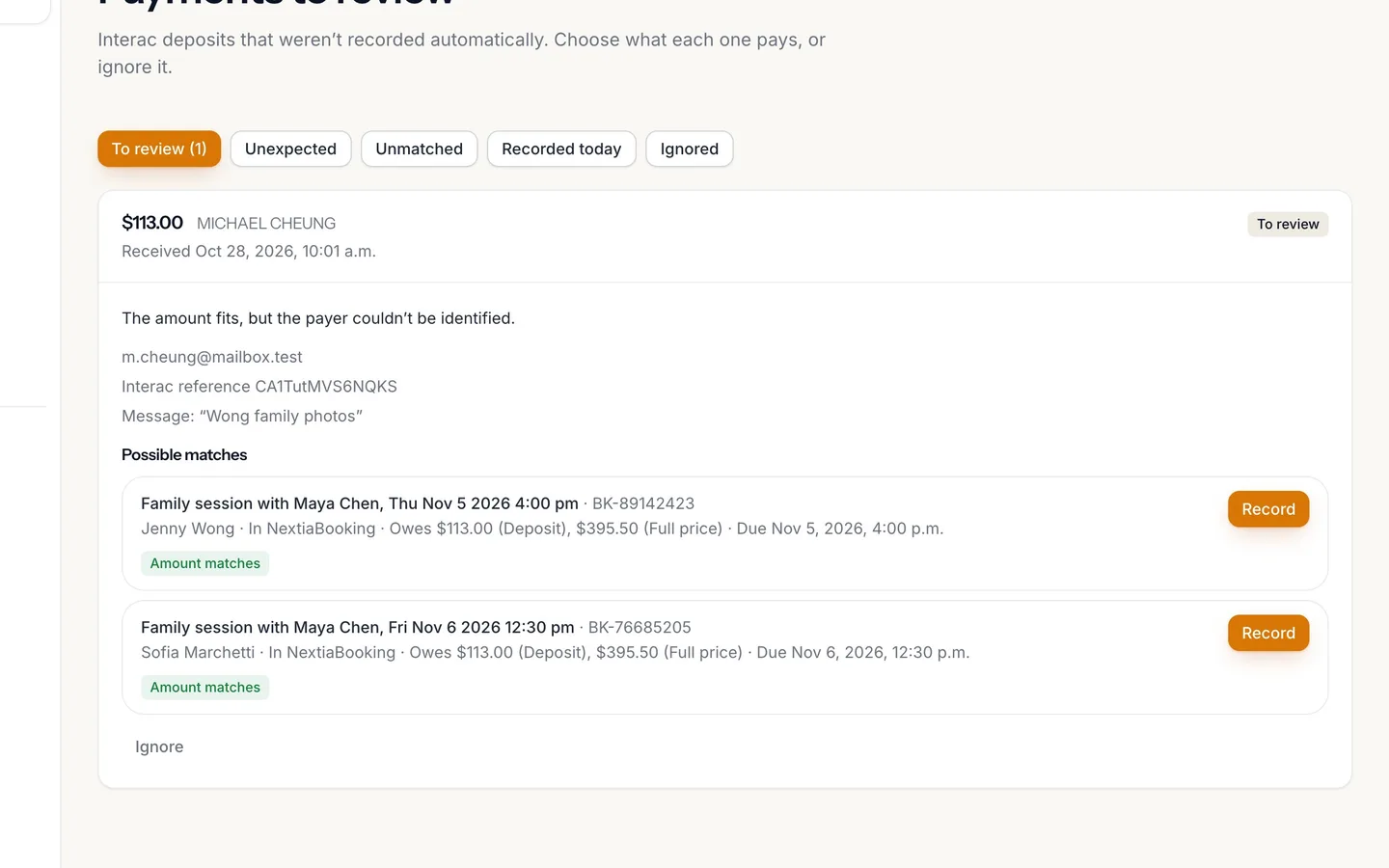
Check the Possible matches.
Each says why it could be the one.
- 5
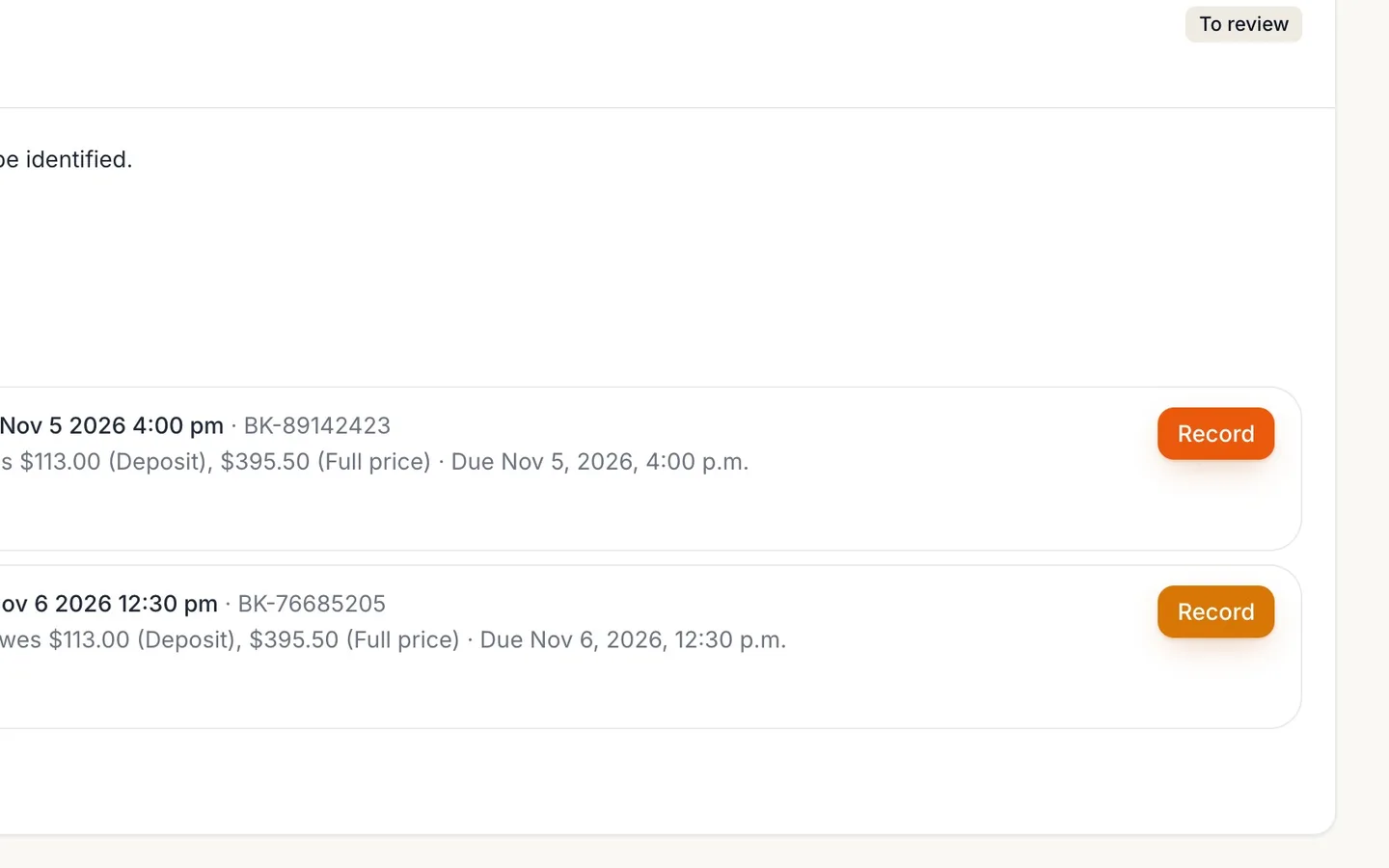
Select Record on the right one, then Record payment.
The client gets a receipt.
- 6
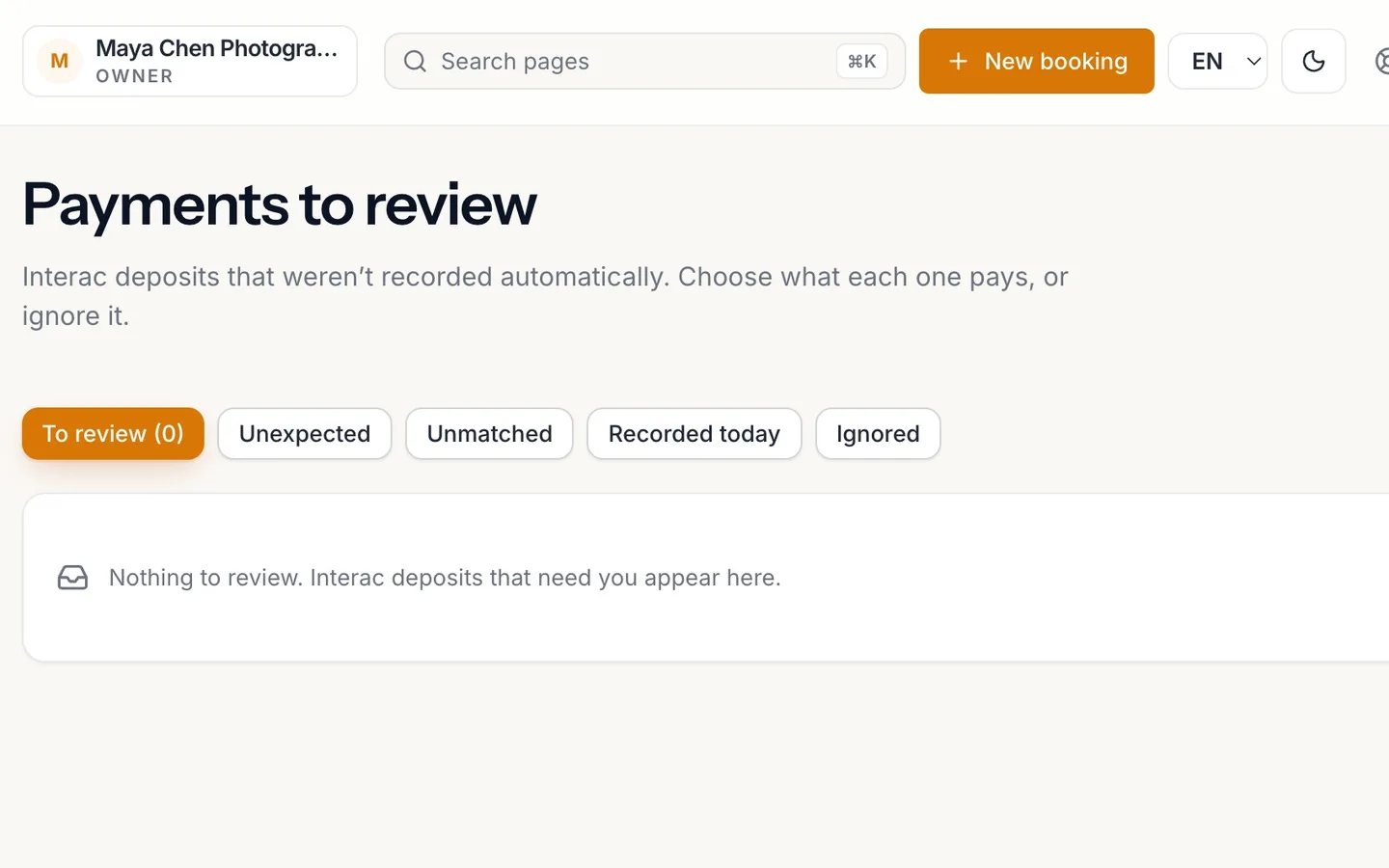
It moves to Recorded today, with Undo.
Picked the wrong one? Undo puts it back in review.
Payments to review: the ones that need you
In NextiaBooking, Interac e-Transfers that couldn't be matched for certain wait in Payments to review. See why, choose the booking each pays, or ignore it.
Before you start
This guide is for whoever looks after the money in a NextiaBooking business. Once Interac e-Transfer is on, most deposits record themselves. The ones that can't be matched to a booking for certain are never guessed: they wait in Payments to review until someone decides.
What you need:
- Interac e-Transfer turned on in Settings → Interac e-Transfer, with your payment address registered for Autodeposit at your bank (see booking/interac).
- Access to the payments to review. Owners, admins and managers have it by default. Without it, the page says You don't have access to the payments to review.
The example follows Maya Chen Photography on a morning when two e-Transfer deposits reached her bank: one recorded itself, the other came from an account she doesn't recognise.
Step by step
-
Recorded today shows what was recorded for you
Start with Recorded today to see what's already done. Aisha Rahman put her booking's reference in the e-Transfer message, for exactly the deposit she owed: $100.00 plus HST, $113.00. That is a clear match, so it was recorded with no one's help and reads Recorded automatically, with the booking it went to under For.
A deposit records itself only when exactly one booking or invoice is owed that exact amount and the payer is clearly identified, and only while Record clear matches automatically is on in Settings → Interac e-Transfer. It's on unless you turn it off.
-
To review shows the deposits that need you
Switch to To review. Each deposit shows the payer's name as the bank gives it, the amount, when it was received, the Interac reference, the sender's message, and why it wasn't recorded. The reasons are plain:
- The amount fits, but the payer couldn't be identified.
- Several bookings or invoices could be the one.
- The reference in the message points to something else.
Maya's second deposit came from Michael Cheung, with no booking reference. The amount fits, but he isn't one of her clients. His message reads "Wong family photos". The email from Interac lets you see the original notice.
-
Check the possible matches
Under Possible matches, NextiaBooking lists the bookings this deposit could pay, best first. Each shows what it Owes, when it's due, and why it could be the one: Amount matches, Reference matches, Email matches, Name matches, Name partly matches or Paid before. Show more matches opens the rest.
Here, Jenny Wong's family session is one of them, and the message makes it clear that's the one.
If nothing fits, the deposit says Nothing waiting for payment matches this deposit.
-
Select Record on the right booking, then Record payment
Select Record on Jenny Wong's booking. NextiaBooking asks first: Record this payment? It says the amount is recorded in NextiaBooking for that booking, as an Interac e-Transfer, and that The client gets a receipt. You can add a Note (optional). Select Record payment.
If the amount isn't one the booking owes, the dialog warns you: it's recorded as a part payment or an overpayment, never as paid in full.
-
It moves to Recorded today, with Undo
The deposit moves to Recorded today, marked Recorded by you, with Undo. Jenny gets a Payment received email with the amount and her booking's reference, to keep as her receipt.
Picked the wrong booking? Select Undo, then Undo payment. The payment and its receipt are taken back, what was owed is owed again, and the deposit comes back to review. The client is sent a short email saying the receipt was recorded against the wrong item and is withdrawn.
What happens next
The booking shows the payment as an Interac e-Transfer, and the deposit as paid when that's what it covered. If your business also uses NextiaTax, the payment reaches your books there once; an undo sends the reverse, so the books net to zero.
A deposit that isn't for a booking at all, such as a personal transfer, can be set aside with Ignore. Add Why (optional) and confirm. Nothing is recorded, and Bring back in Ignored returns it to review.
To have fewer deposits waiting, ask clients to put their booking's reference, like BK-04821377, in the e-Transfer message. The reference is on their confirmation, their booking page and their confirmation email.
If something goes wrong
A deposit I expected isn't in Payments to review
It may have recorded itself: look in Recorded today. If not, check Unmatched. If it isn't anywhere, check that your payment address is registered for Autodeposit at your bank and that Settings → Interac e-Transfer shows Autodeposit confirmed.
A client paid the wrong amount
A known payer sending an amount they don't owe lands in Unexpected, with The payer is known, but the amount isn't what they owe. It's never recorded by itself. Record it on their booking as a part payment, or ignore it if you're refunding it outside NextiaBooking.
I recorded a payment on the wrong booking
Select Undo under Recorded today, then Undo payment. The deposit comes back to review, and you can record it on the right booking.
Record says the booking isn't waiting for payment any more
The booking was paid or cancelled in the meantime: That isn't waiting for payment any more: it was paid or cancelled meanwhile. Choose another. Choose another match, or ignore the deposit.
A deposit says an app couldn't be reached
NextiaBooking couldn't answer when the deposit arrived, so some of what's owed may be missing from the matches. It's asked again for 24 hours. Try again shortly.
Questions
What is Payments to review in NextiaBooking?
It's the list of Interac e-Transfer deposits that weren't recorded automatically. For each one you see why, the sender's message and the bookings it could pay, then choose what it pays or ignore it.
Why wasn't my e-Transfer recorded automatically?
A deposit records itself only when exactly one booking or invoice is owed that exact amount and the payer is clearly identified. A missing reference from an unknown payer, several bookings with the same amount, or a different amount all wait for you.
Does the client get a receipt when I record an e-Transfer?
Yes. Recording sends the client a Payment received email with the amount and the booking's reference. If you undo the payment, the client is told the receipt is withdrawn.
Can I undo an e-Transfer that was recorded automatically?
Yes. Every recorded deposit in Recorded today has Undo. The payment and its receipt are taken back and the deposit returns to review.
How do I stop personal transfers from showing up?
Select Ignore on the deposit. Nothing is recorded, and you can bring it back from Ignored if you change your mind.
Who can see Payments to review?
Owners, admins and managers, by default. Others don't see the count on the Calendar and can't open the page.