
Get paid by Interac e-Transfer, recorded for you
Turn on Interac e-Transfer, register your business's payment address for Autodeposit, and deposits that quote their booking's reference are recorded for you.
- 8 steps
- About 2 min
- Checked against NextiaBooking on October 28, 2026
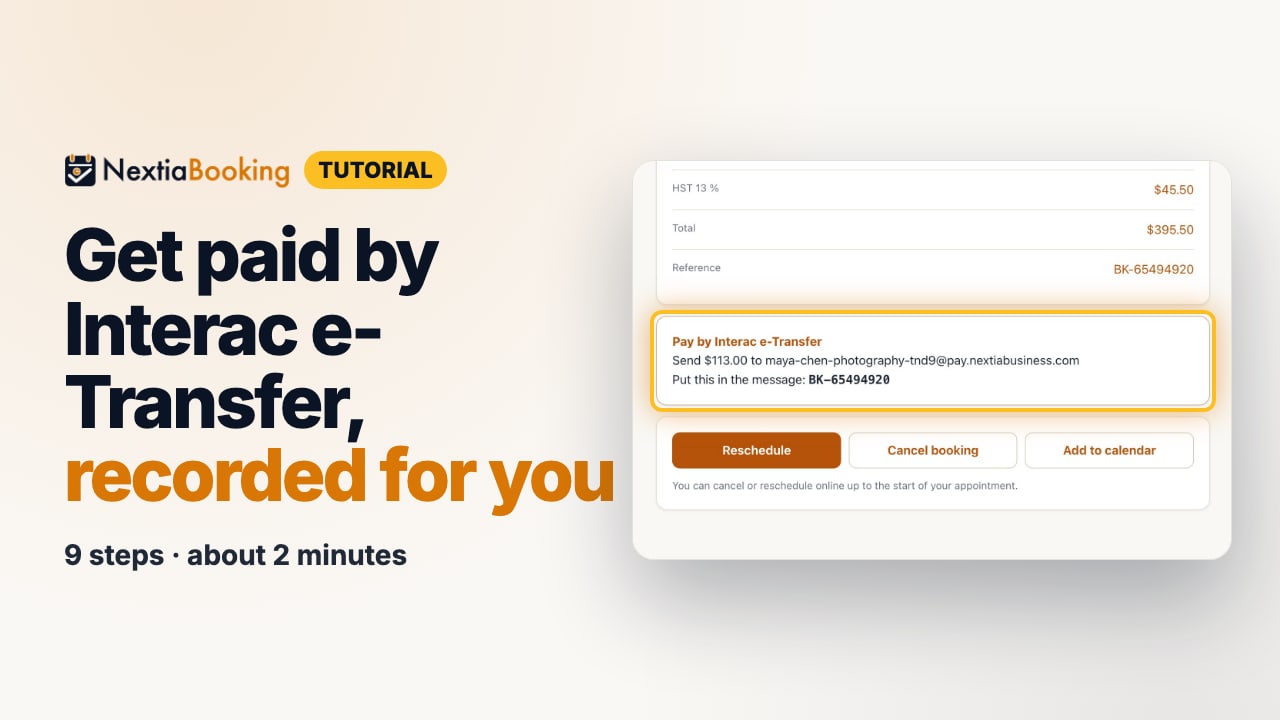
The video is on its way. The step-by-step and written versions are ready now.
- 1
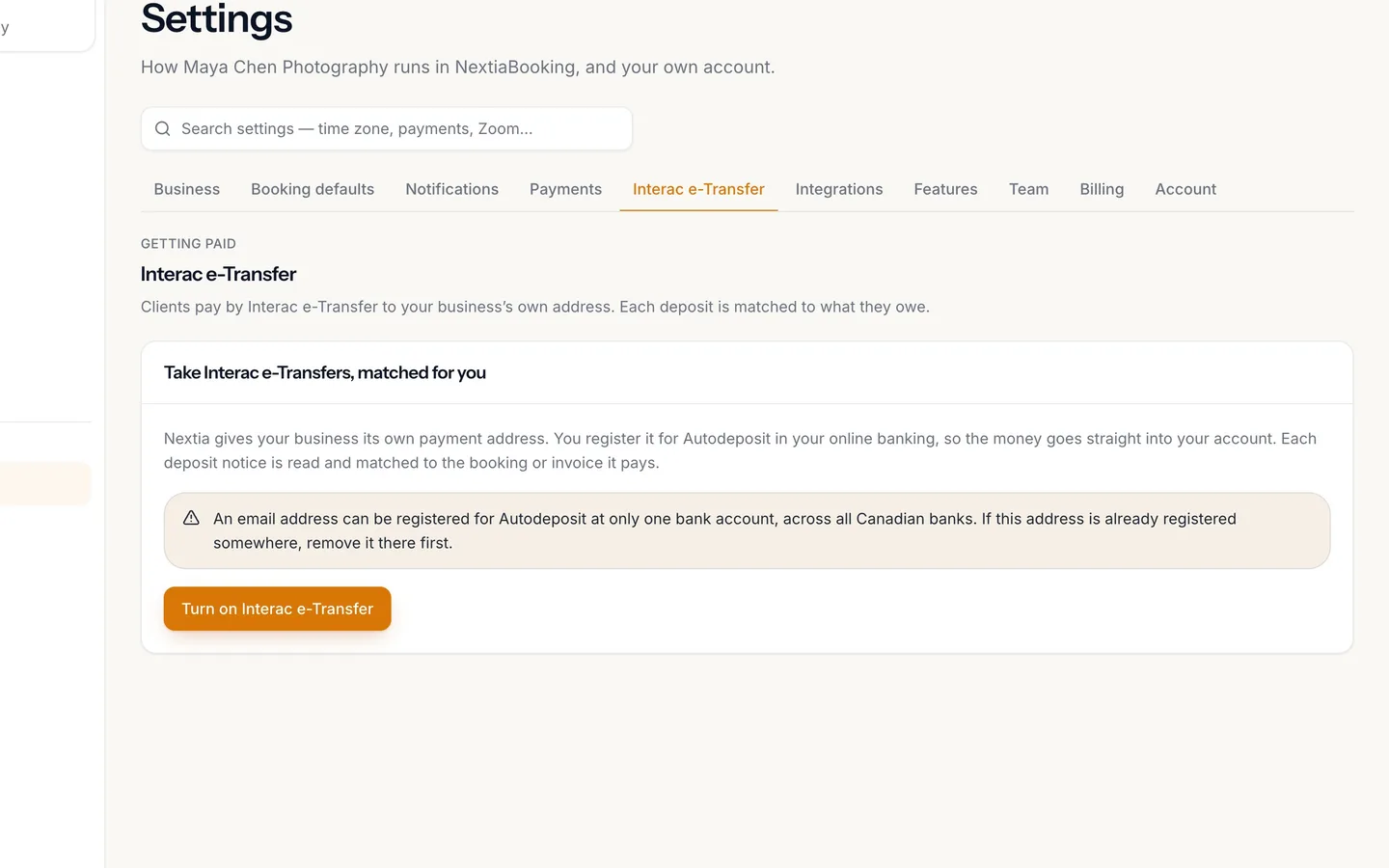
Open Settings → Interac e-Transfer.
Your business gets its own payment address.
- 2
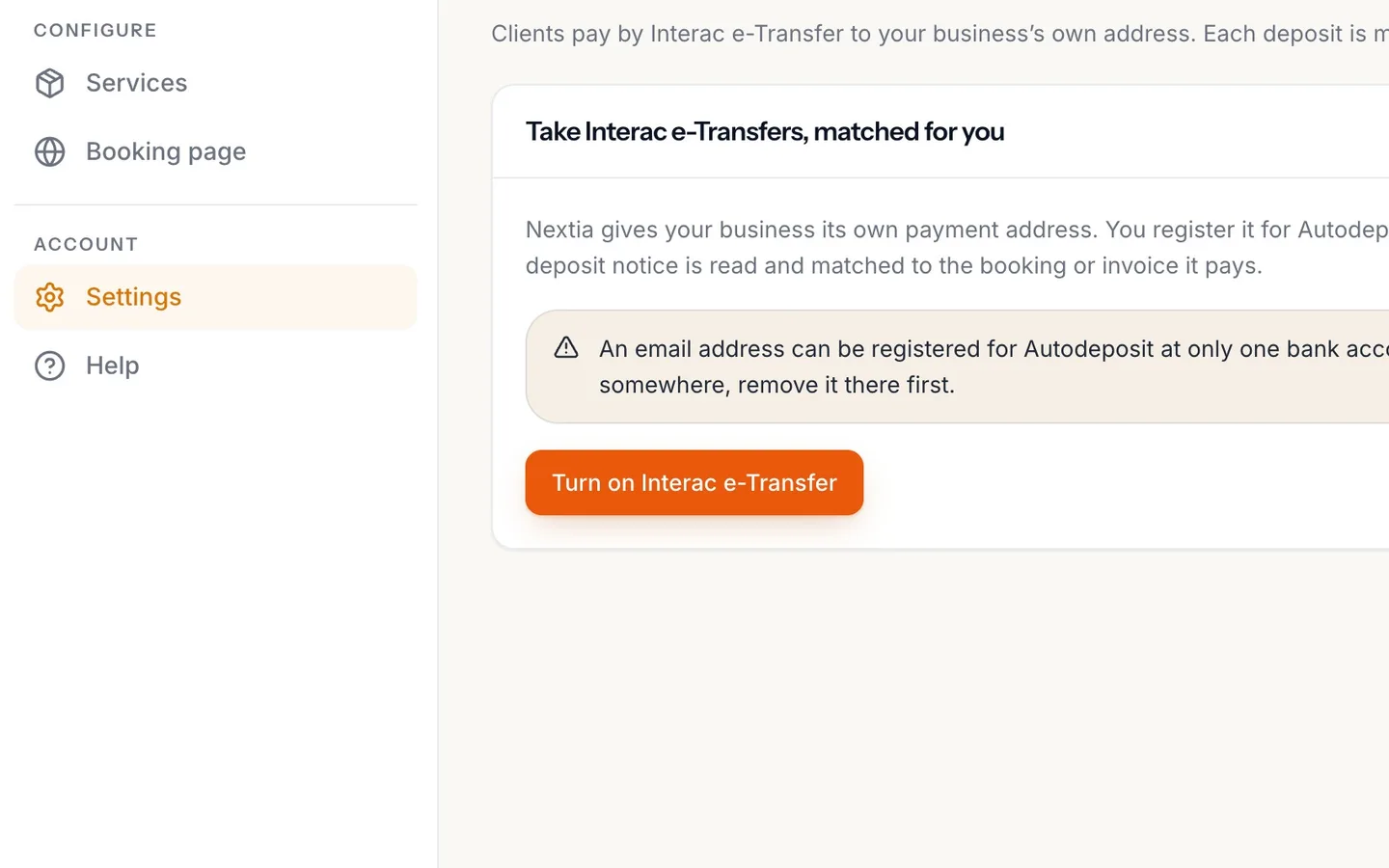
Select Turn on Interac e-Transfer.
- 3
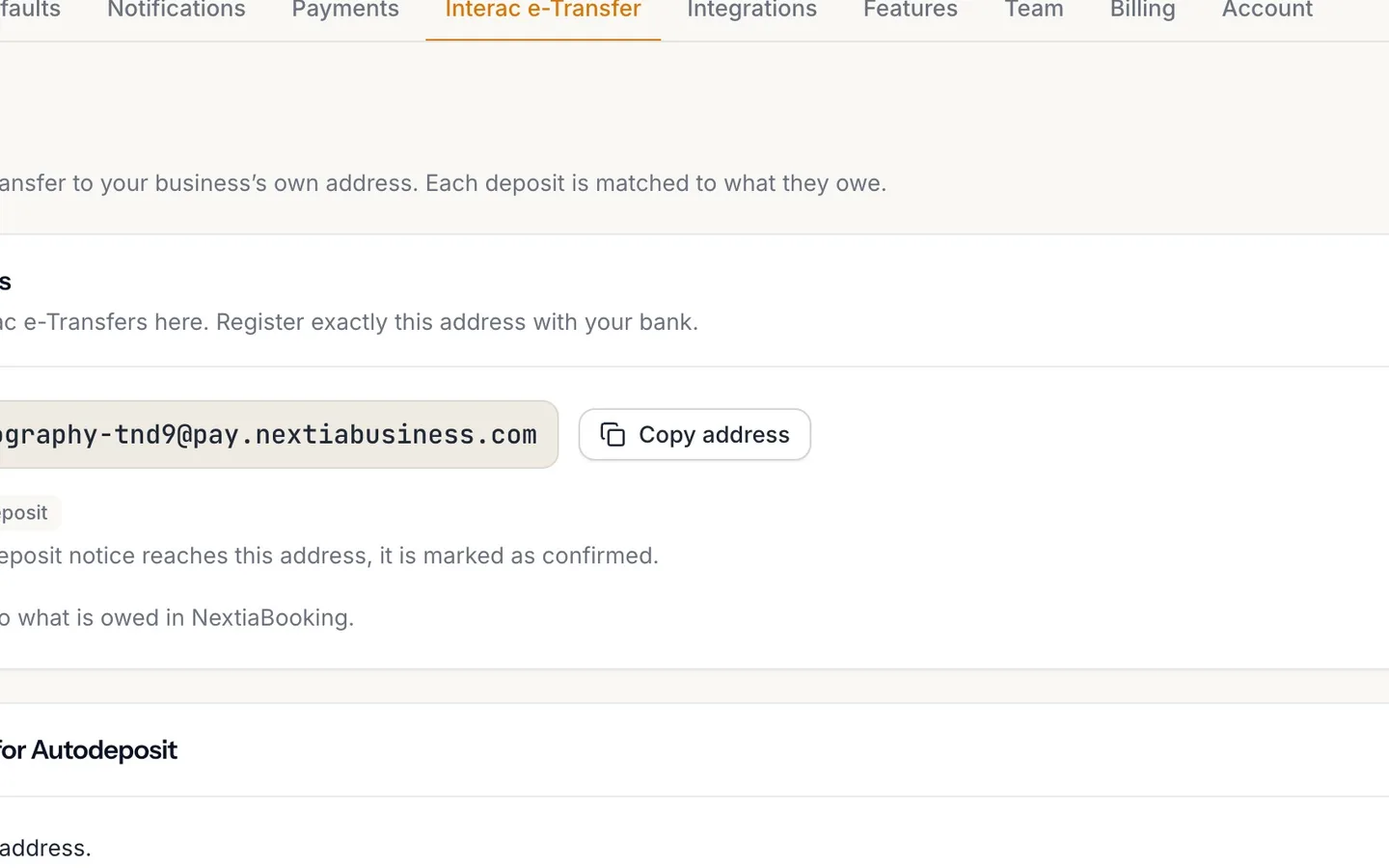
Select Copy address, and register it for Autodeposit in your online banking.
Register exactly this address.
- 4
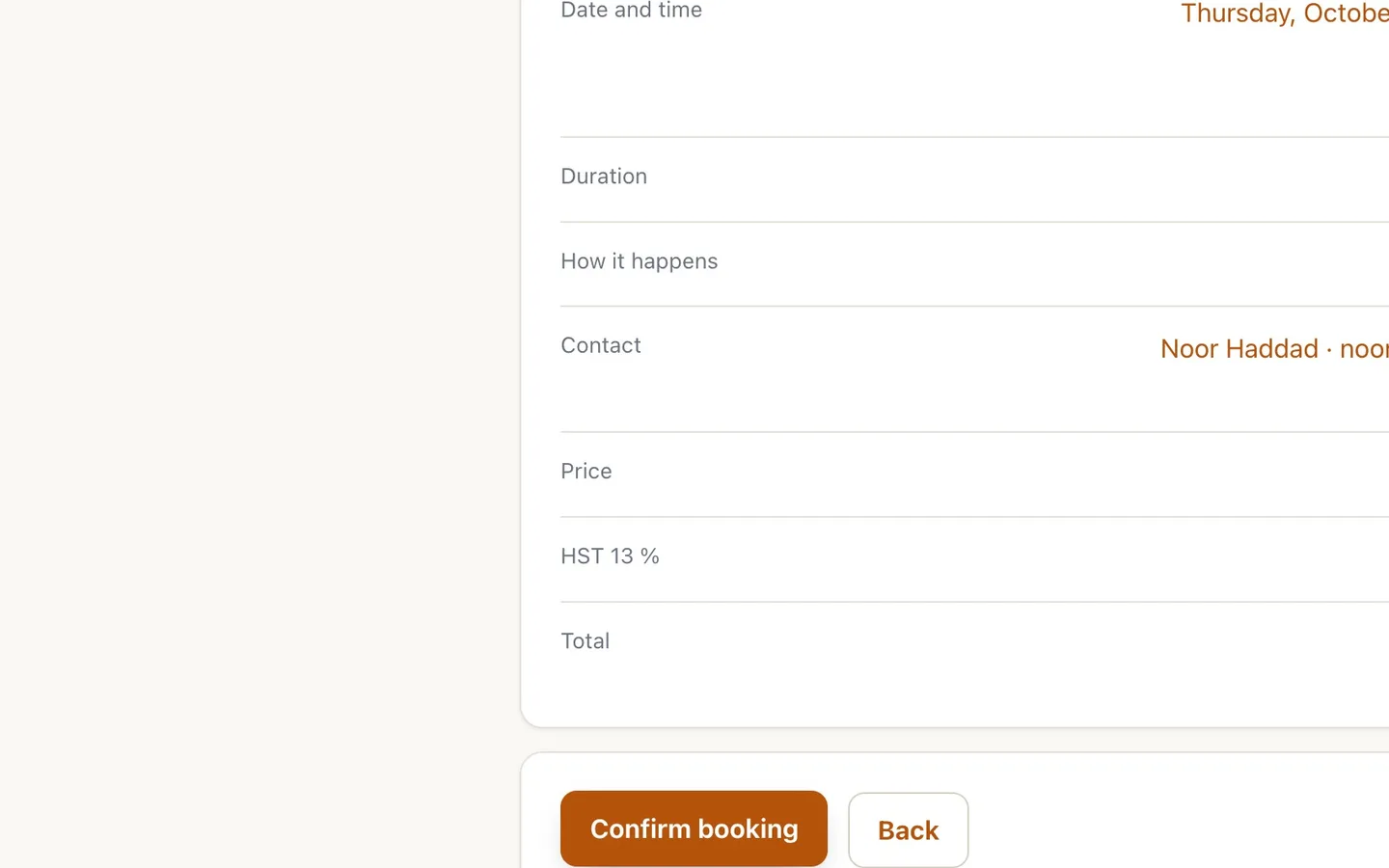
A client books a service that asks for a deposit.
- 5
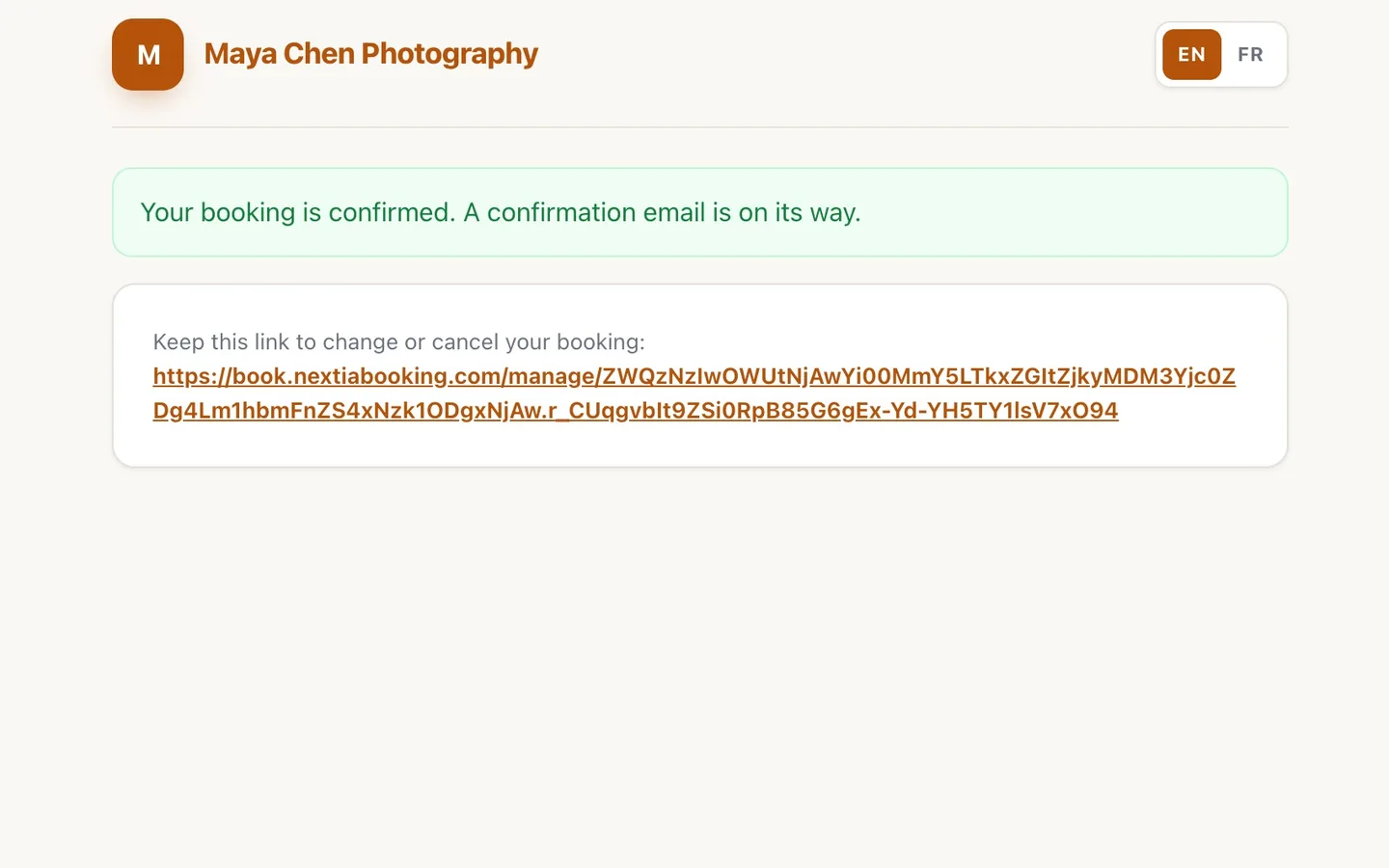
They open their booking from the link.
- 6
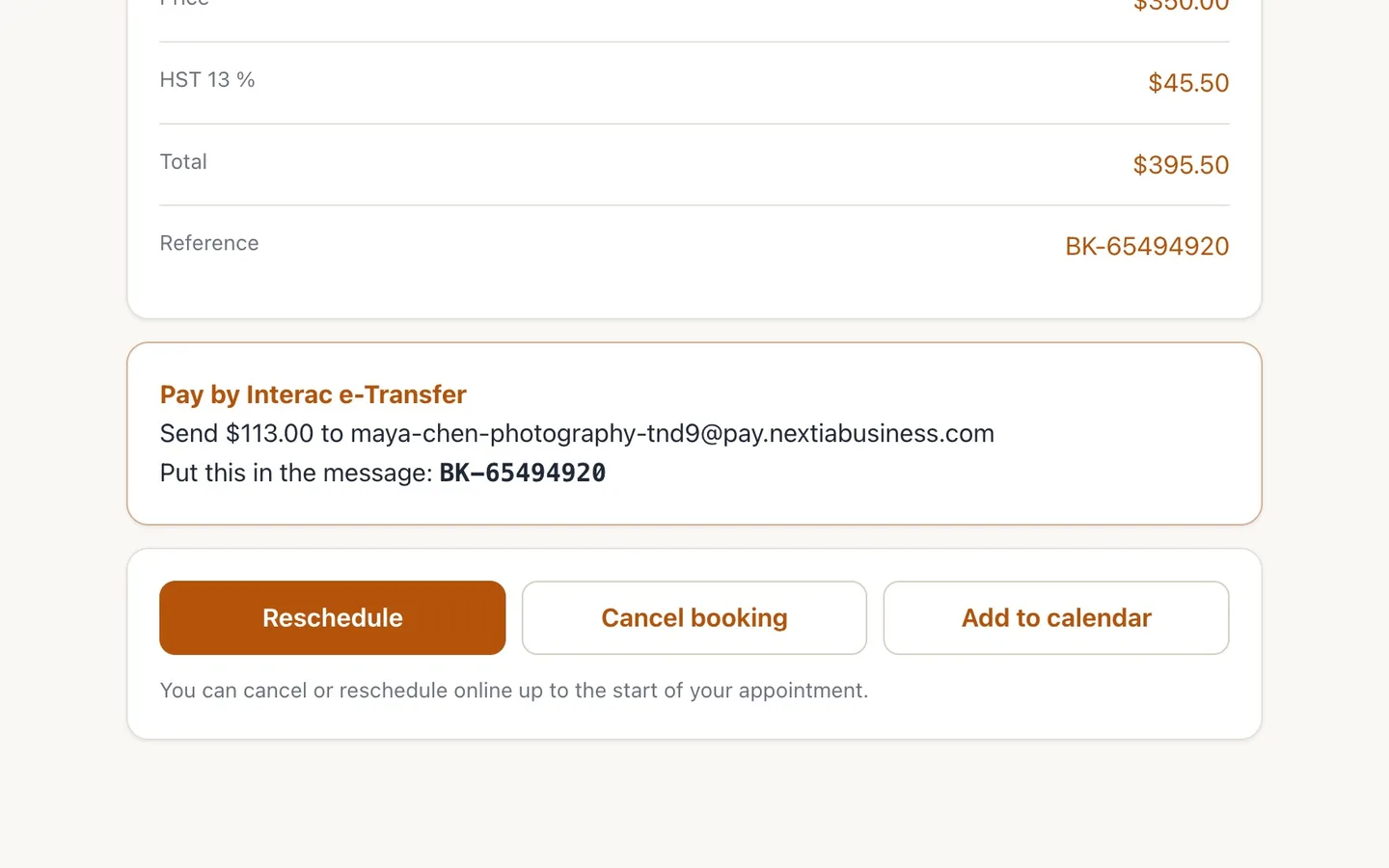
Pay by Interac e-Transfer shows the amount, the address and the reference.
The deposit includes its tax.
- 7
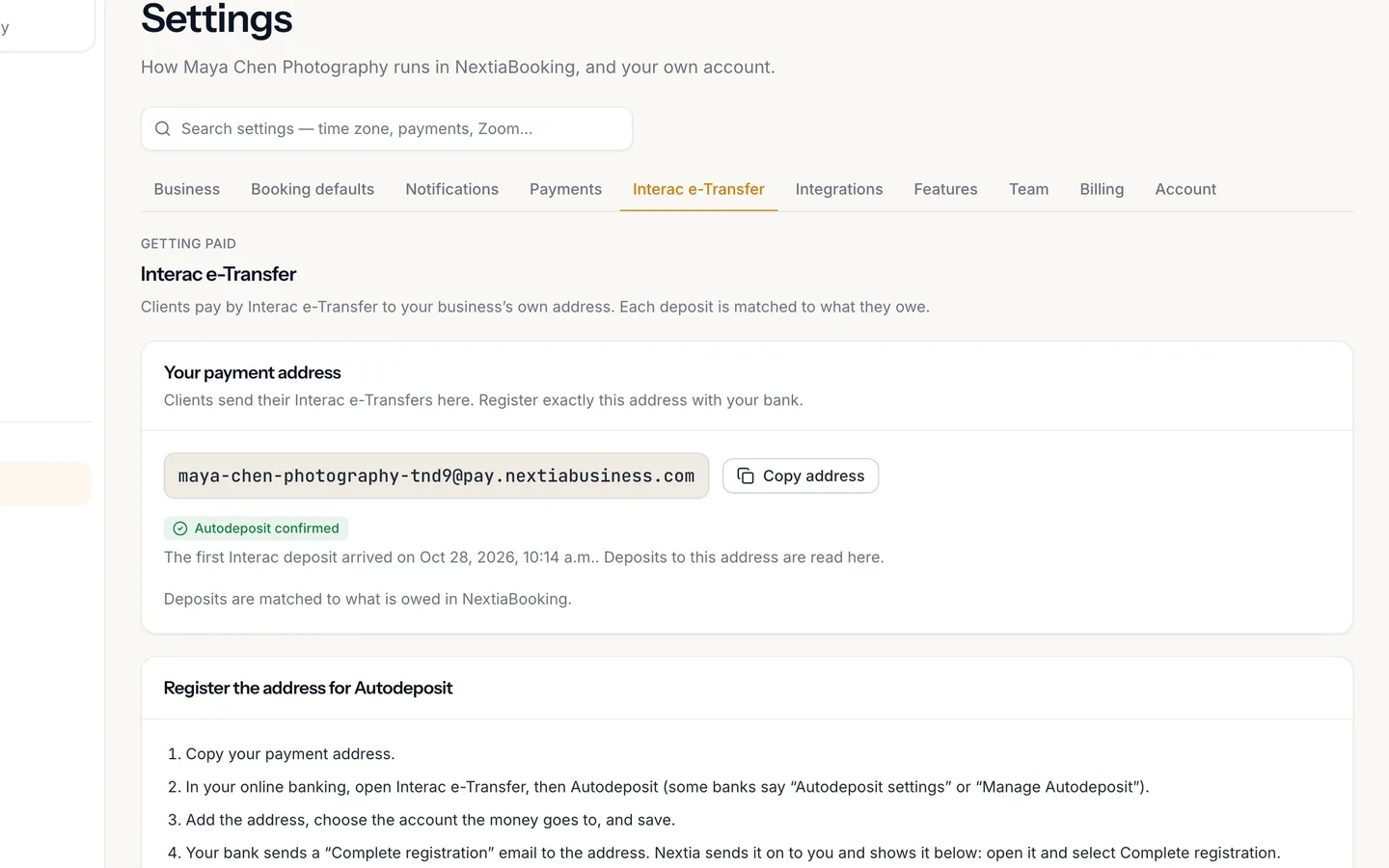
The first deposit confirms your Autodeposit.
Autodeposit confirmed.
- 8
The deposit is recorded on the booking for you.
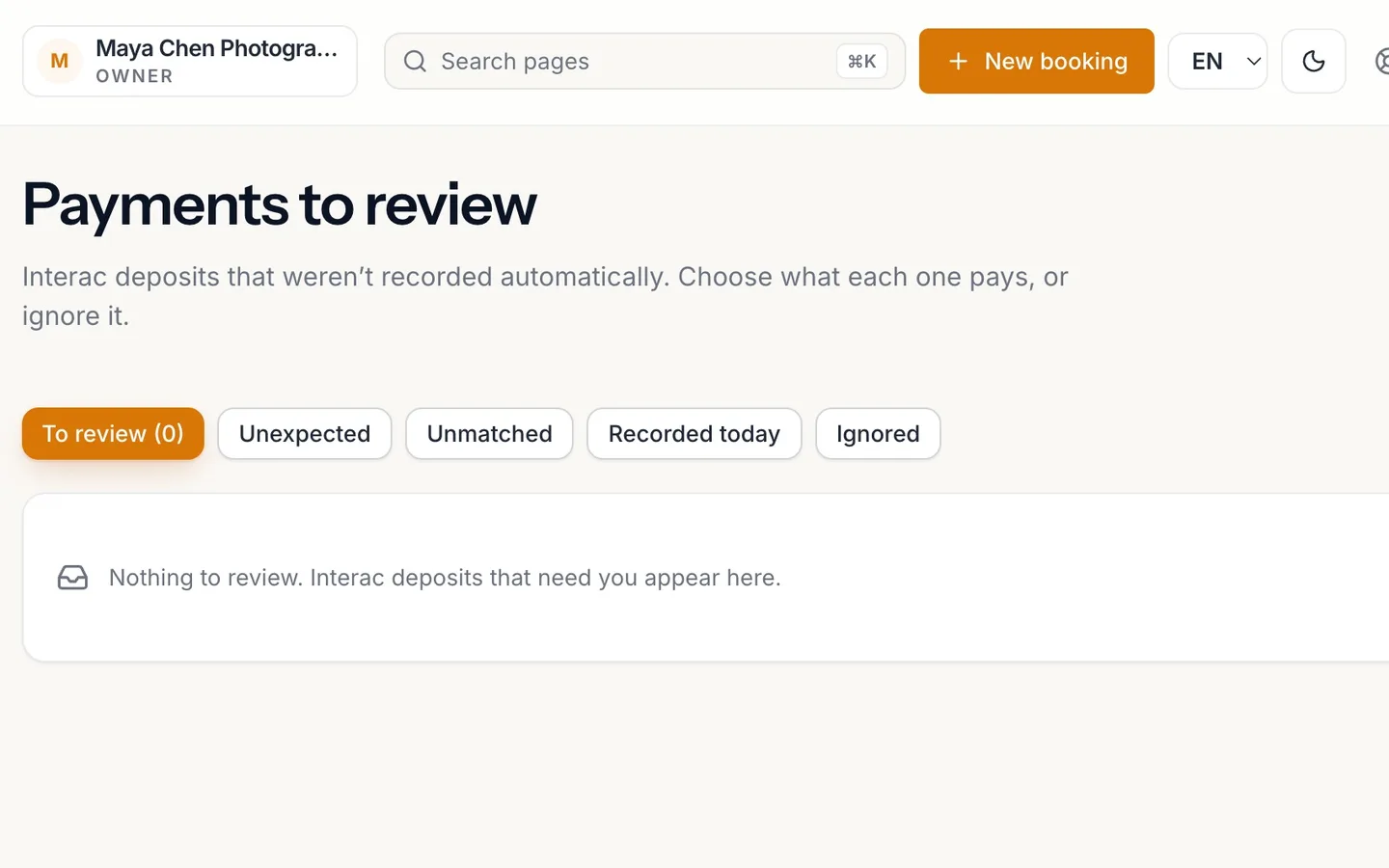
Under Payments to review → Recorded today, with Undo.
Get paid by Interac e-Transfer, recorded for you
Turn on Interac e-Transfer in NextiaBooking, register your payment address for Autodeposit, and have deposits that quote their reference recorded for you.
Before you start
This guide is for business owners whose clients would rather pay a deposit or a booking by Interac e-Transfer than by card. NextiaBooking gives your business its own payment address. You register it for Autodeposit at your bank, so the money goes straight into your account, and each deposit notice is read and matched to the booking it pays.
What you need:
- Online banking that offers Interac e-Transfer Autodeposit.
- The Owner or Admin role. Only an owner or an admin can change how the business gets paid.
- A service with a price. If you want clients to pay a deposit rather than the full price, set one on the service in Services; deposits are on the Starter, Pro and Business plans.
An email address can be registered for Autodeposit at only one bank account, across all Canadian banks. The page reminds you of this before you turn it on.
Step by step
-
Open Settings → Interac e-Transfer
Go to Settings and select the Interac e-Transfer tab. While it's off, the page explains what it does: Take Interac e-Transfers, matched for you. Nextia gives your business its own payment address; you register it for Autodeposit in your online banking; each deposit notice is read and matched to the booking or invoice it pays.
-
Select Turn on Interac e-Transfer
Select Turn on Interac e-Transfer. NextiaBooking confirms with Interac e-Transfer is on. and the page now shows Your payment address and everything that goes with it.
-
Copy your address and register it for Autodeposit
Your address is on pay.nextiabusiness.com. Select Copy address, then follow Register the address for Autodeposit, as the page lists it:
- Copy your payment address.
- In your online banking, open Interac e-Transfer, then Autodeposit (some banks say "Autodeposit settings" or "Manage Autodeposit").
- Add the address, choose the account the money goes to, and save.
- Your bank sends a "Complete registration" email to the address. Nextia sends it on to you and shows it under The registration email from Interac: open it and select Complete registration, which opens Interac's website.
Register exactly the address shown. Until the first deposit arrives, the page reads Waiting for the first deposit.
On the same page you can:
- Choose your address: replace the address name with one your clients recognise, such as your business name, 3 to 30 letters, digits, hyphens or dots, then Use this address. After a change, your old address keeps working for 90 days; register the new one at your bank before then.
- Send Interac notices to: emails from Interac that aren't deposits, such as the registration email or a cancelled transfer, go to The business's owners and up to 5 other addresses. Each other address is confirmed with a 6-digit code that works for 24 hours.
- Record clear matches automatically: on unless you turn it off. It records a payment by itself only when exactly one booking or invoice is owed this exact amount and the payer is clearly identified.
-
A client books a service that asks for a deposit
Your client books on your page as usual (see booking/client-books). Nothing changes for them on the booking steps; here, Noor books Maya's family session.
The amount to send is worked out for them. A deposit carries the service's sales tax, so a $100.00 fixed deposit on a service with HST 13 % is $113.00 to send. The service editor shows it under the deposit amount: Clients pay $113.00 with tax. A fixed deposit is never more than the service's price. If the service asks for no deposit, the client is asked for the full price with tax instead.
-
Your client sees how to pay
Your client doesn't have to hunt for it. As soon as they tap Confirm booking, the confirmation shows Pay by Interac e-Transfer. It appears again on their booking when they open Manage your booking from the email, and in the confirmation email itself.
-
Pay by Interac e-Transfer gives the amount, the address and the reference
The panel says exactly what to do: Send $113.00 to your address, and Put this in the message: the booking's reference, which looks like BK-04821377. Each booking has its own reference, and it never changes.
The reference is what lets the deposit be matched for certain, so it's worth asking clients to copy it into the e-Transfer message.
-
The first deposit confirms your Autodeposit
When your client sends the e-Transfer, the money goes straight into your bank account, with no security question. The first deposit notice to reach your address marks it Autodeposit confirmed, with the date the first Interac deposit arrived. From then on, deposits to this address are read in Nextia.
-
The deposit is recorded on the booking for you
Because the reference and the amount match what the booking owes, NextiaBooking records the payment itself: an Interac e-Transfer payment of $113.00 on the booking, and the deposit shows as paid. The client gets a receipt by email, Payment received, with the amount and the booking's reference.
You'll find it under Payments to review → Recorded today, marked Recorded automatically, with Undo in case it landed on the wrong booking.
What happens next
The booking shows the deposit as paid and what is Still owed. If your business also uses NextiaTax, the payment reaches your books there once, as a card payment would.
A deposit that can't be matched for certain is never guessed. It waits in Payments to review, and your Calendar shows 1 payment to review while one waits. That's covered in booking/payments-review.
To stop, select Turn off Interac e-Transfer at the bottom of the page. Deposit notices sent to your address are then no longer read or matched, but your bank still deposits the money. You can turn it back on at any time.
If something goes wrong
Autodeposit confirmed never appears
Check that you registered exactly the address shown, not a variation, and that you selected Complete registration in the email from your bank. The page shows that email under The registration email from Interac once it arrives, usually a few minutes after you add the address.
My bank says the address is already registered
An address can be registered for Autodeposit at only one bank account across all Canadian banks. Remove it from the other account first, then register it again.
A client paid $100 instead of $113
The deposit includes its tax. A deposit that doesn't equal what the client owes is never recorded by itself: it waits in Payments to review, under Unexpected when NextiaBooking knows the payer. Record it there as a part payment, and ask the client for the rest.
A deposit was recorded on the wrong booking
Open Payments to review → Recorded today and select Undo, then Undo payment. The payment and its receipt are taken back, what was owed is owed again, and the deposit comes back to review so you can record it on the right booking.
I can't turn Interac e-Transfer on
The page says Only an owner or an admin can change how the business gets paid. Ask the owner to turn it on, or to give you the Admin role.
Questions
How do clients pay a NextiaBooking deposit by Interac e-Transfer?
After they book, the confirmation, their booking page and their confirmation email show Pay by Interac e-Transfer: the amount with tax, your payment address and the booking's reference to put in the message. They send it from their own online banking.
Does the deposit include sales tax?
Yes. A deposit carries the service's tax, so a $100.00 deposit with HST 13 % is $113.00. The service editor shows what clients pay, for example Clients pay $113.00 with tax.
What is Interac Autodeposit and why do I need it?
Autodeposit lets e-Transfers sent to an address go straight into your bank account, with no security question. You register your Nextia payment address for it once in your online banking; the first deposit then shows Autodeposit confirmed.
Can I change my Interac payment address?
Yes, under Choose your address, with 3 to 30 letters, digits, hyphens or dots. Your old address keeps working for 90 days, so register the new one at your bank before then.
Is every e-Transfer recorded automatically?
No. Only when exactly one booking or invoice is owed that exact amount and the payer is clearly identified, which the booking's reference makes certain. Everything else waits in Payments to review, and every automatic recording can be undone.
Which plan do I need for Interac e-Transfer in NextiaBooking?
Turning on Interac e-Transfer isn't limited to a paid plan. Asking for a deposit on a service is included in the Starter, Pro and Business plans; without a deposit, clients are asked for the full price.