
Your team and their hours
Invite someone to your business, give them a profile clients can book and their weekly hours, and add time off.
- 7 steps
- About 2 min
- Checked against NextiaBooking on October 28, 2026
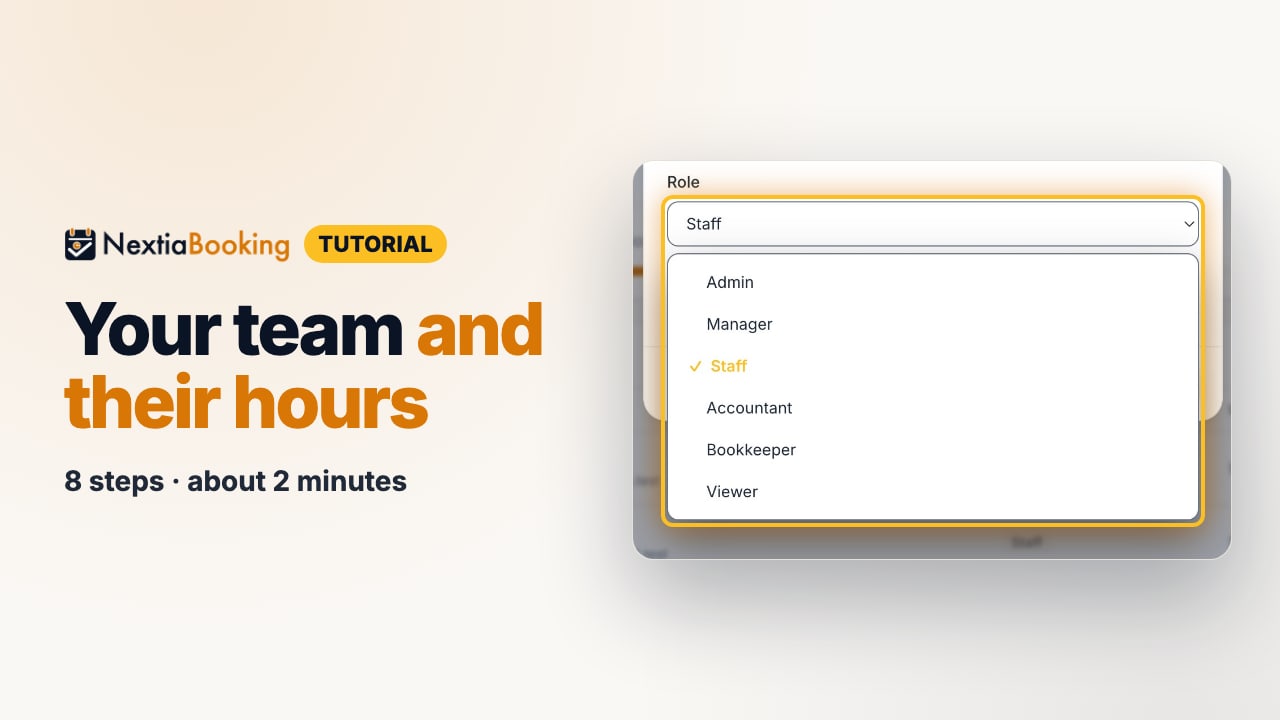
The video is on its way. The step-by-step and written versions are ready now.
- 1
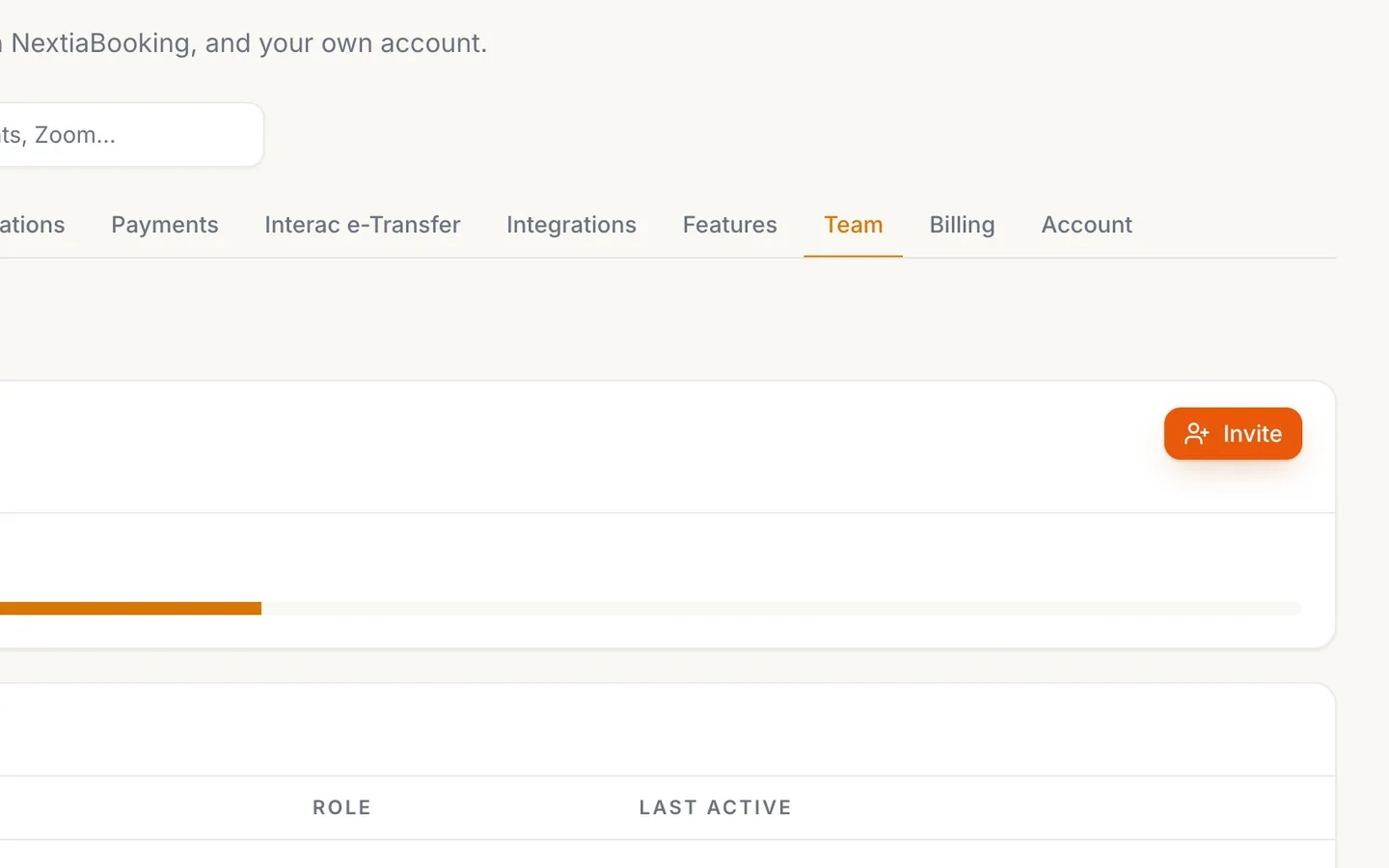
In Settings → Team, select Invite.
- 2
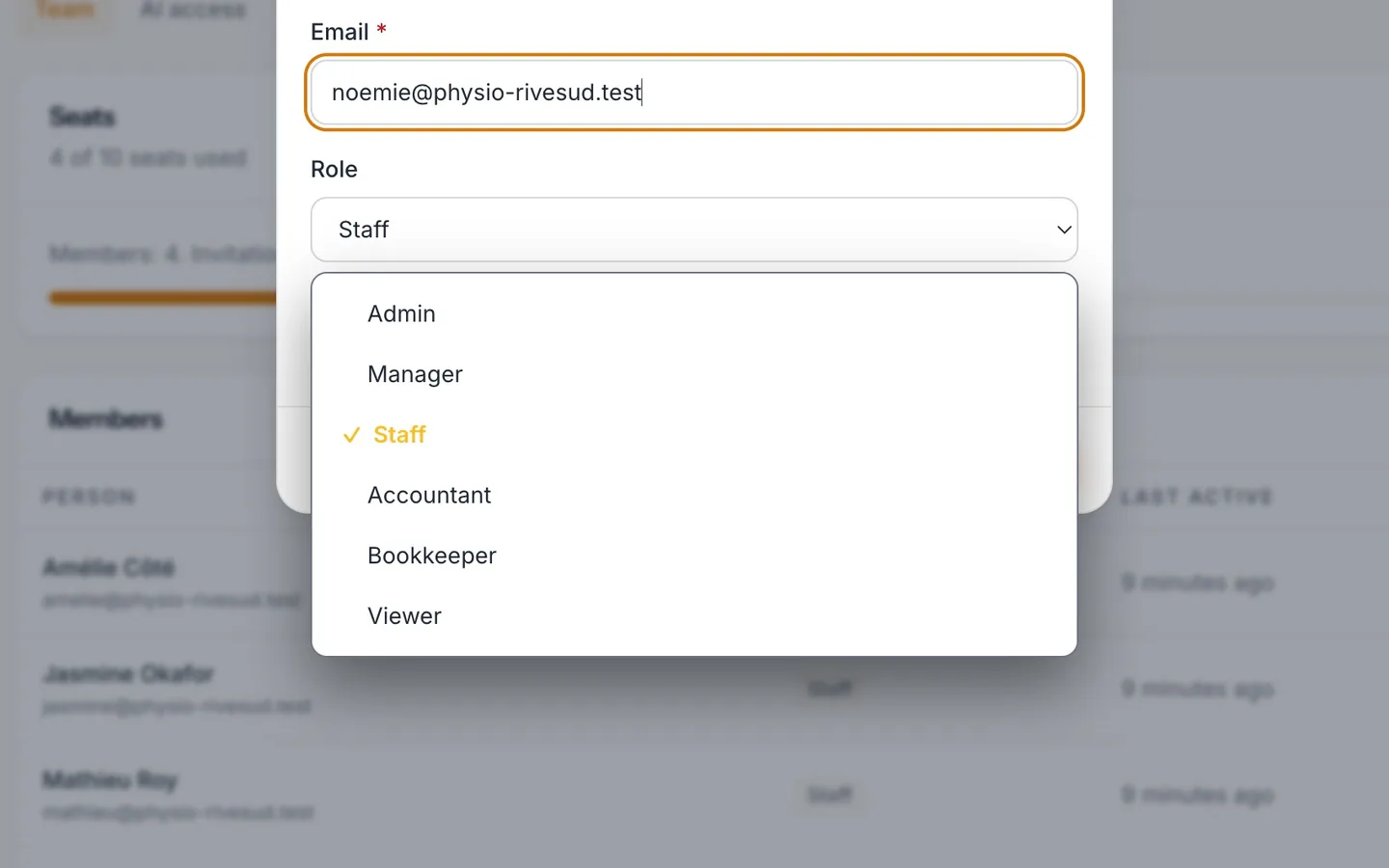
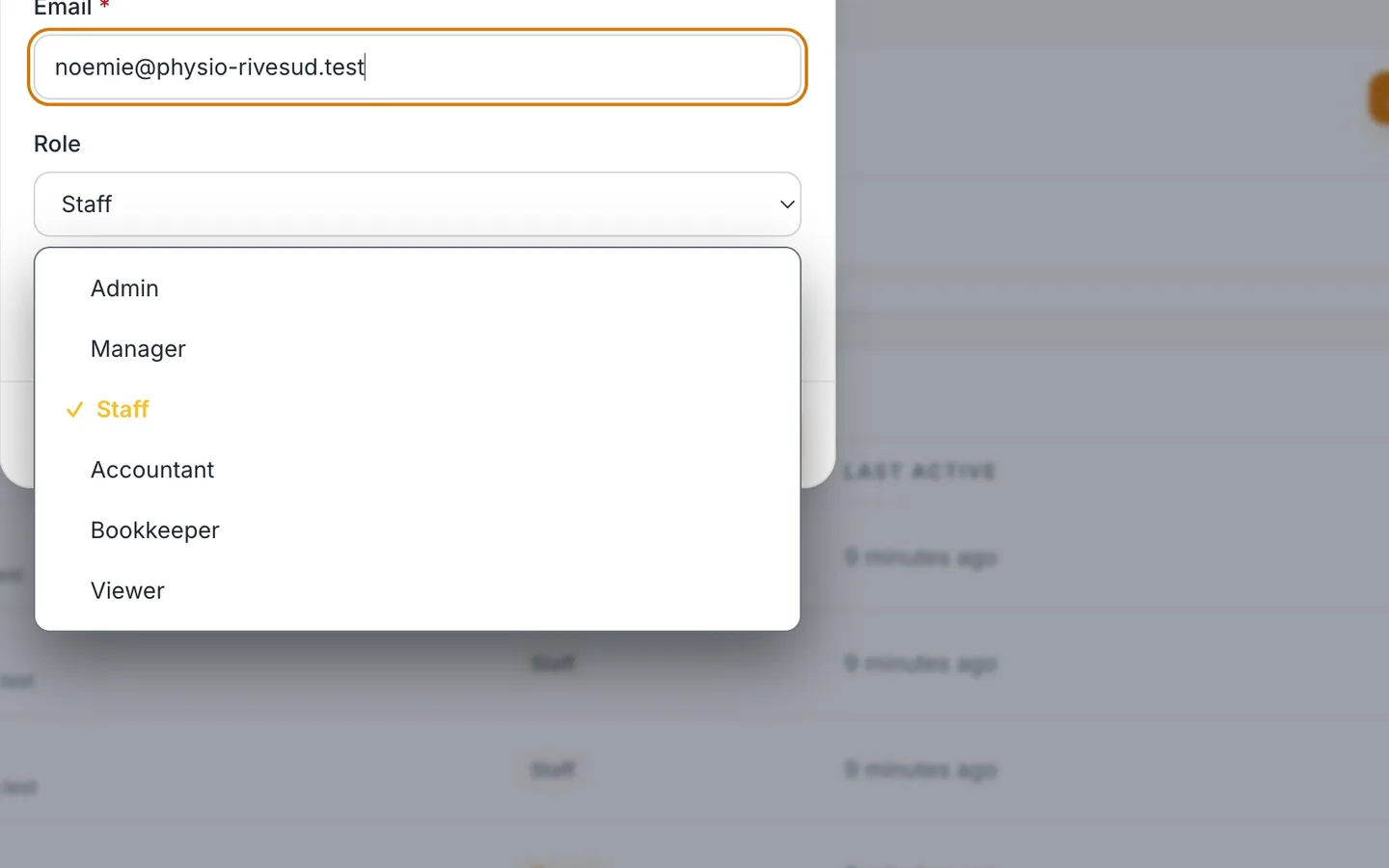
Type their email and choose a Role.
Staff see their own work: what they're assigned, and the clients they need.
- 3
Select Send invitation.
The link works for 14 days.
- 4
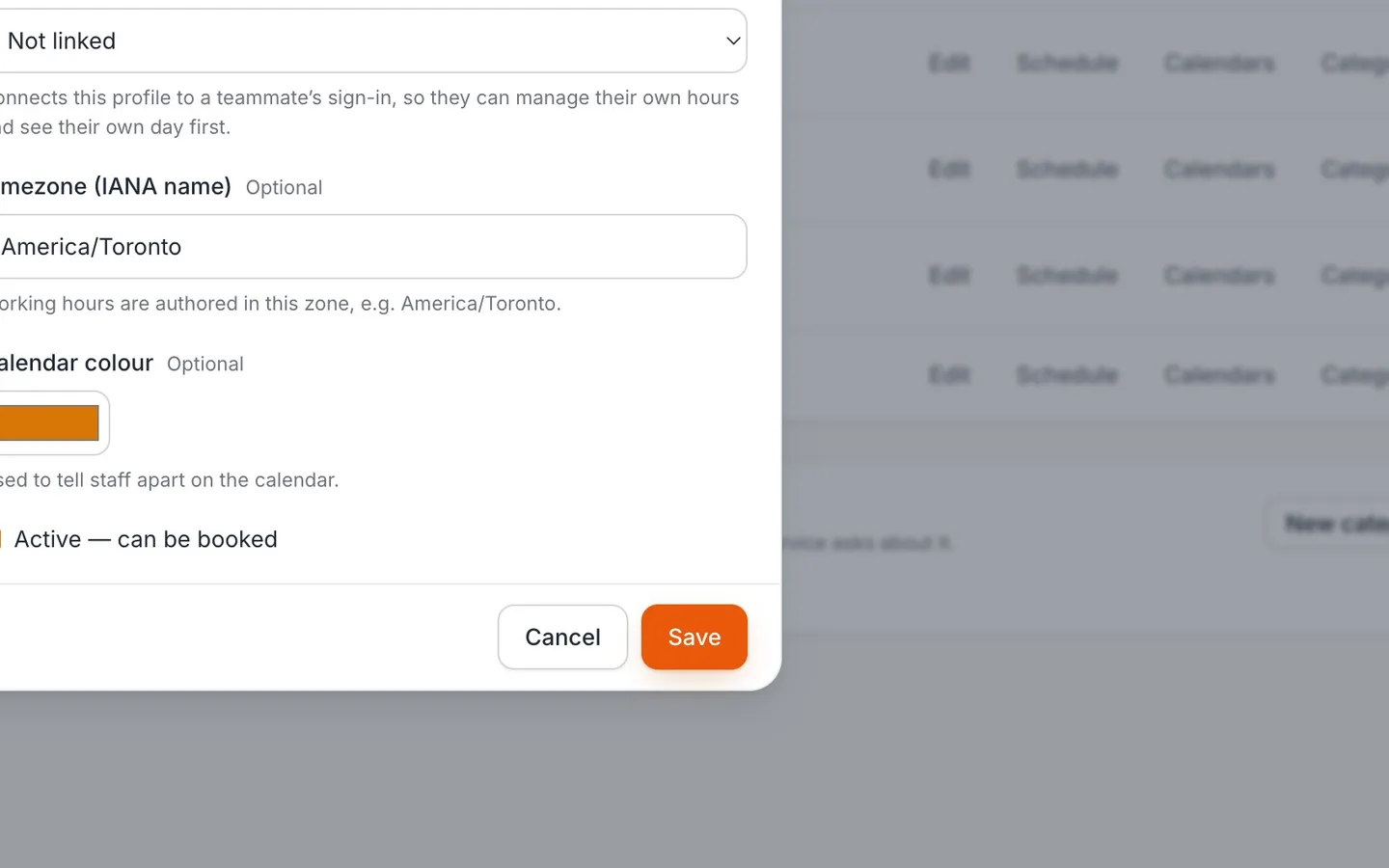
In Team & hours, select New staff member, type their name and email, and Save.
This is the profile clients book.
- 5
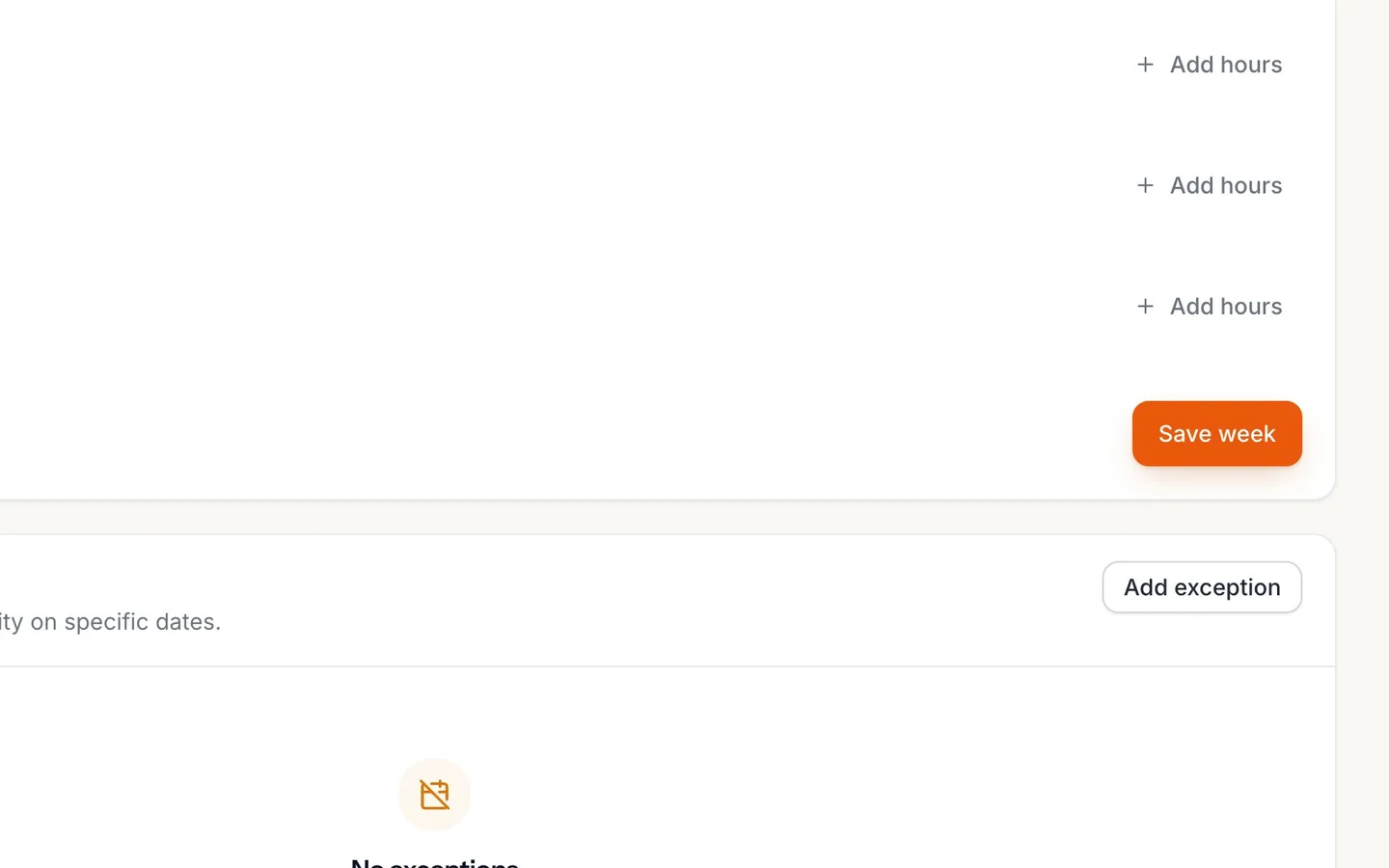
Select Schedule, add hours for each working day, and Save week.
Times are in their own time zone.
- 6
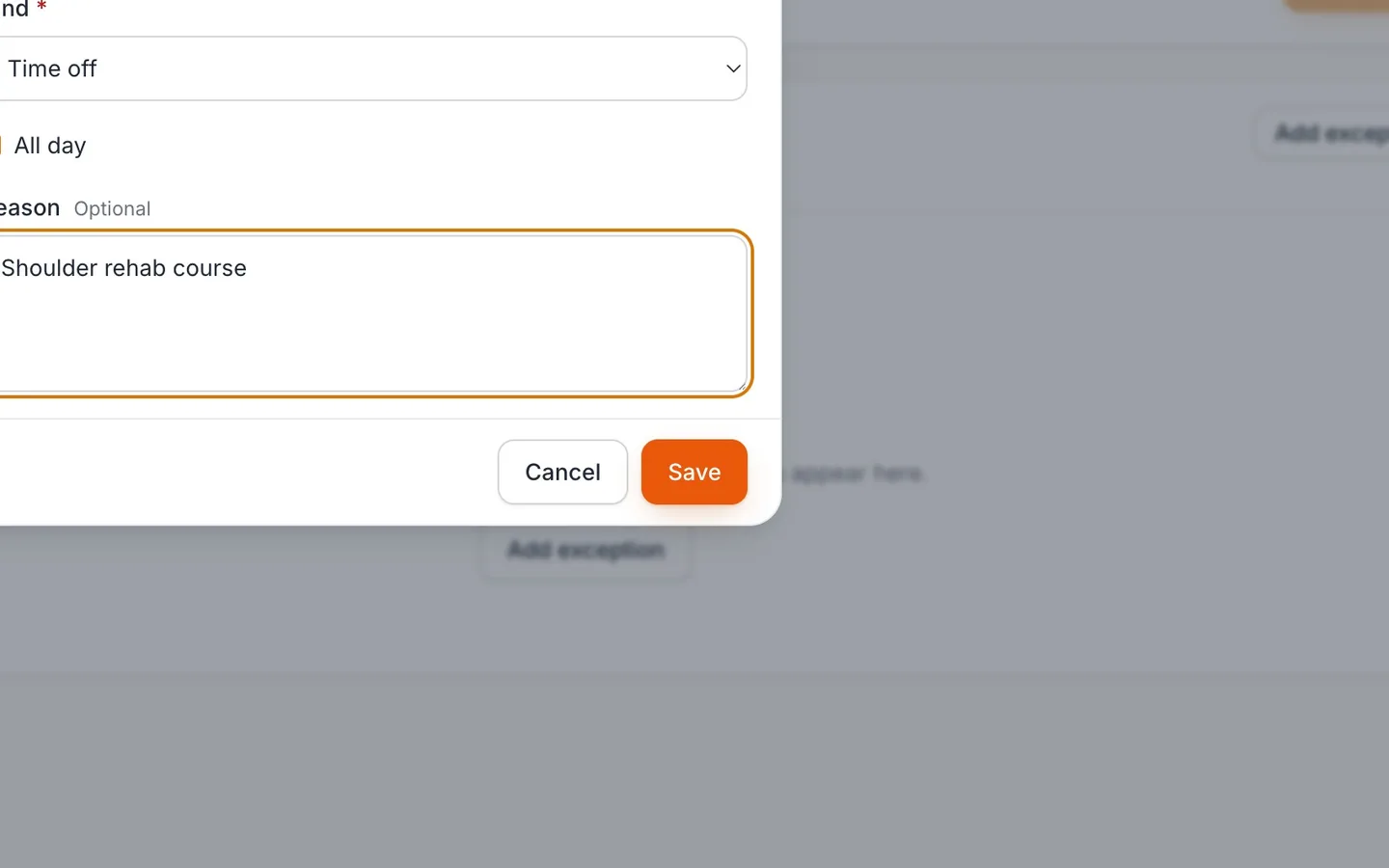
Pick the person, select Add exception, choose the date, and Save.
Time off, all day, with a reason only your team sees.
- 7
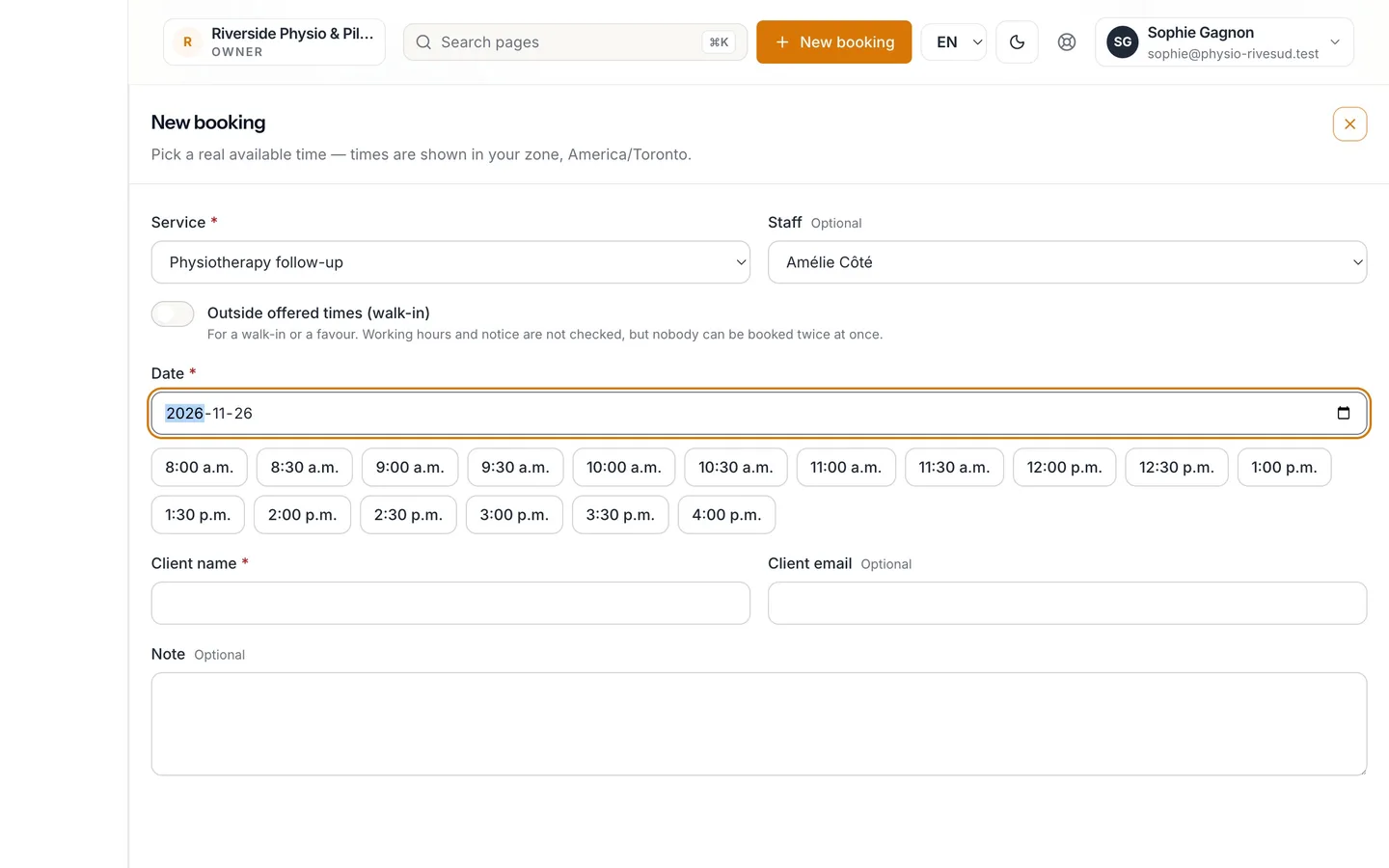
Check it in New booking.
Only times that person is free are offered.
Your team and their hours
Invite someone to your business in NextiaBooking, give them a profile clients can book with weekly hours, and add time off for a day or a range of dates.
Before you start
This guide is for the owner or an admin of a business where more than one person takes bookings. Riverside Physio & Pilates is the example: Noémie starts on Monday, and Amélie is away at a course one Friday next month. Sophie, the owner, sets both up before lunch.
There are two separate things to set up for a new person, and this guide does both:
- A seat on the team (Settings → Team): their own sign-in to your business, with a role that decides what they can see and do, in every Nextia app the business uses.
- A staff profile (Team & hours): the person clients book with, with their own weekly hours and time off.
What you need:
- Team & hours turned on in Settings → Features. It adds Team & hours to the menu.
- Room on your plan. Inviting someone uses one of your plan's seats: Free has 1 (yours), Starter 5, Pro 10 and Business 25. Staff profiles have their own limit: 1 on Free, 2 on Starter, 10 on Pro and 25 on Business.
- A role that can manage the team and the business's setup, such as owner or admin.
Step by step
-
Open Settings, then Team, and select Invite
Open Settings and the Team tab. The Seats card shows how many you're using, for example "4 of 10 seats used", counting members and invitations still waiting. Members lists everyone on the team, with their Role and when they were Last active.
Select Invite. If every seat is taken, you're told "All your seats are used. Upgrade to invite more people."
-
Type their email and choose a role
In Invite someone, type the person's Email and choose a Role. Each role says what it allows:
- Admin: everything except deleting or transferring the business.
- Manager: runs the day to day: clients, documents and bookings. No team or billing.
- Staff: their own work: what they're assigned, and the clients they need.
- Accountant: reads the books and reports. Changes nothing.
- Bookkeeper: keeps the books: records payments and expenses.
- Viewer: can look at everything, change nothing.
The role applies in every Nextia app the business uses, and you can change it later from the person's row with Change role. Noémie is Staff.
-
Select Send invitation
Select Send invitation. They get an email with a link to join this business, and Invitation sent to their address confirms it. The link works for 14 days.
Until they join, the person is listed under Invitations, with the date the link works until. From there you can Resend it (a new link goes out and the earlier one stops working) or Revoke it.
-
Add the staff profile clients book
Open Team & hours in the menu. It has two tabs: Team, the people who take bookings, and Hours, their working hours and time off.
On Team, select New staff member and fill in:
- Display name: the name clients see when they book.
- Email.
- Timezone (IANA name): their working hours are set in this zone, for example America/Toronto. It starts as America/Toronto; change it for someone who works from another zone.
- Calendar colour: used to tell staff apart on the calendar.
- Active — can be booked: on, so clients can book them.
Select Save. Staff member saved. confirms it.
For clients to book the new person, they also have to provide a service: in Services, open each service they offer and tick them under Staff who provide this service.
-
Set their weekly hours, then Save week
On the person's row, select Schedule. The Weekly hours card opens for them, and reminds you which zone the times are in.
Each day starts as Not working. Select Add hours on a day to add a span (it starts at 9:00 to 17:00), then set its Start time and End time. A day can have more than one span, for a split shift: select Add hours again for the second one, and Remove this span to take one away. To repeat a day, use Copy to…, then Copy to Monday–Friday or Copy to every day. If your business has several locations, choose Where each span is.
Noémie works Monday to Wednesday, 9:00 to 17:00. Select Save week, and Weekly hours saved. confirms it. Clients can book her only inside these hours.
-
Add time off as an exception
Now Amélie's course. In the Hours tab, choose her as the Staff member, and in Exceptions, select Add exception:
- From: the first day.
- To: optional. The last day, for time off over several days. Leave it empty for a single day.
- Kind: Time off, Blocked, or Extra availability (extra hours on a date, which needs a start and an end).
- All day: on by default. Turn it off to give a Start time and End time.
- Reason: optional; for your team.
Select Save. Exception saved. confirms it, and the exception is listed with its dates. One exception can cover up to 366 days. Deleting a range removes the whole range.
-
Check it in New booking
Open New booking, choose a service Amélie provides, and set Staff to Amélie. The day before her course, her usual times are offered. On the Friday of her course, you see "No available times on this day. Try another date." Your booking page offers clients exactly the same times.
What happens next
Once Noémie accepts the invitation, she can sign in. To give her own sign-in the staff profile clients book, open her profile with Edit and choose her under Linked team member. That connects the profile to her sign-in, so she can manage her own hours in My schedule and see her own day first.
When a team member changes their own hours or time off in My schedule, the owners and admins get an email saying what changed.
Bookings with a staff member also email that person when they're made, moved or cancelled, unless they turn those emails off for themselves.
If something goes wrong
Someone shows no times on the booking page
Check their weekly hours in Schedule, that Active — can be booked is on in their profile, and that the service lists them under Staff who provide this service. Also check for an exception on that date.
The invitation didn't arrive
Open Settings → Team → Invitations. If it reads "Email not sent: resend it" or "Link expired: resend it", select Resend. You can resend after a minute; the earlier link then stops working.
I can't add another staff member
Your plan's staff limit is reached: 1 profile on Free, 2 on Starter, 10 on Pro, 25 on Business. Upgrade the plan, or edit an existing profile instead of adding one.
The hours are off by a few hours
The profile's Timezone (IANA name) is wrong. Hours are set in each person's own zone. Change it in Edit to where they work, such as America/Vancouver, then check their week.
I can't turn Team & hours off
It stays on while you have other team members, or a profile nobody signs in as. Remove those first.
Questions
What's the difference between a team member and a staff member in NextiaBooking?
A team member has their own sign-in and a role, set in Settings → Team. A staff member is the profile clients book, with hours, set in Team & hours. Link the two in the profile's Edit so the person can manage their own hours.
How long does a NextiaBooking team invitation last?
The link works for 14 days. After that, resend it from Settings → Team → Invitations.
Can I add time off for a whole week?
Yes. Add an exception of kind Time off, All day, with From on the first day and To on the last. One exception can cover up to 366 days.
Can a staff member work two separate shifts in one day?
Yes. In their weekly hours, select Add hours a second time on that day and give each span its own start and end.
Can staff set their own hours?
Yes, once their profile is linked to their sign-in. They change their hours and time off in My schedule, and the owners and admins are emailed about the change.
Does a staff member see every client?
With the Staff role, they see their own work: what they're assigned, and the clients they need. Give a broader role, such as Manager, to someone who runs the day to day.